- 01
Open the walk report
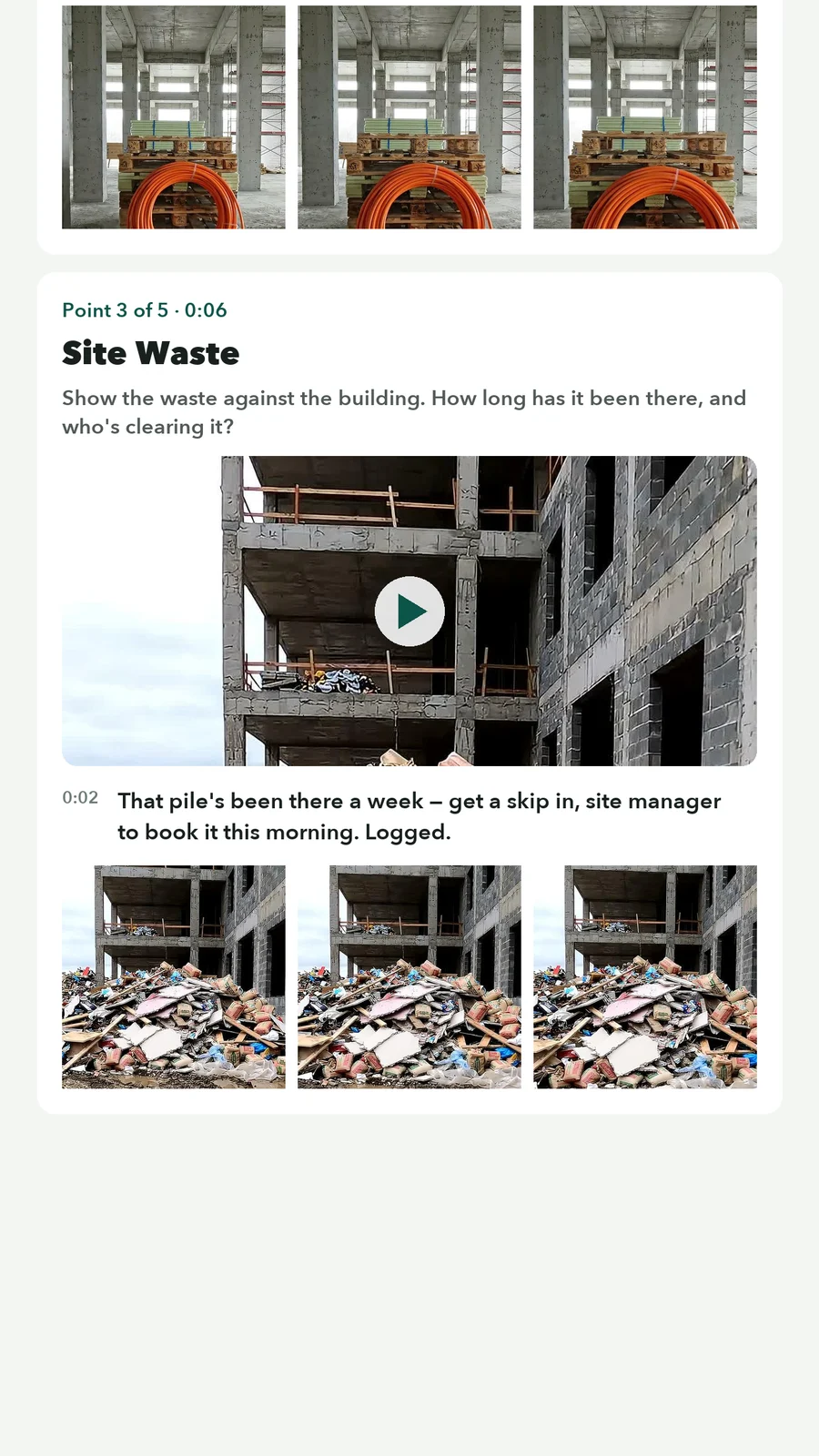
The report screen opens automatically when you save a walk. Return to it any time by tapping the walk on the project or space screen.
- 02
Play the walk back
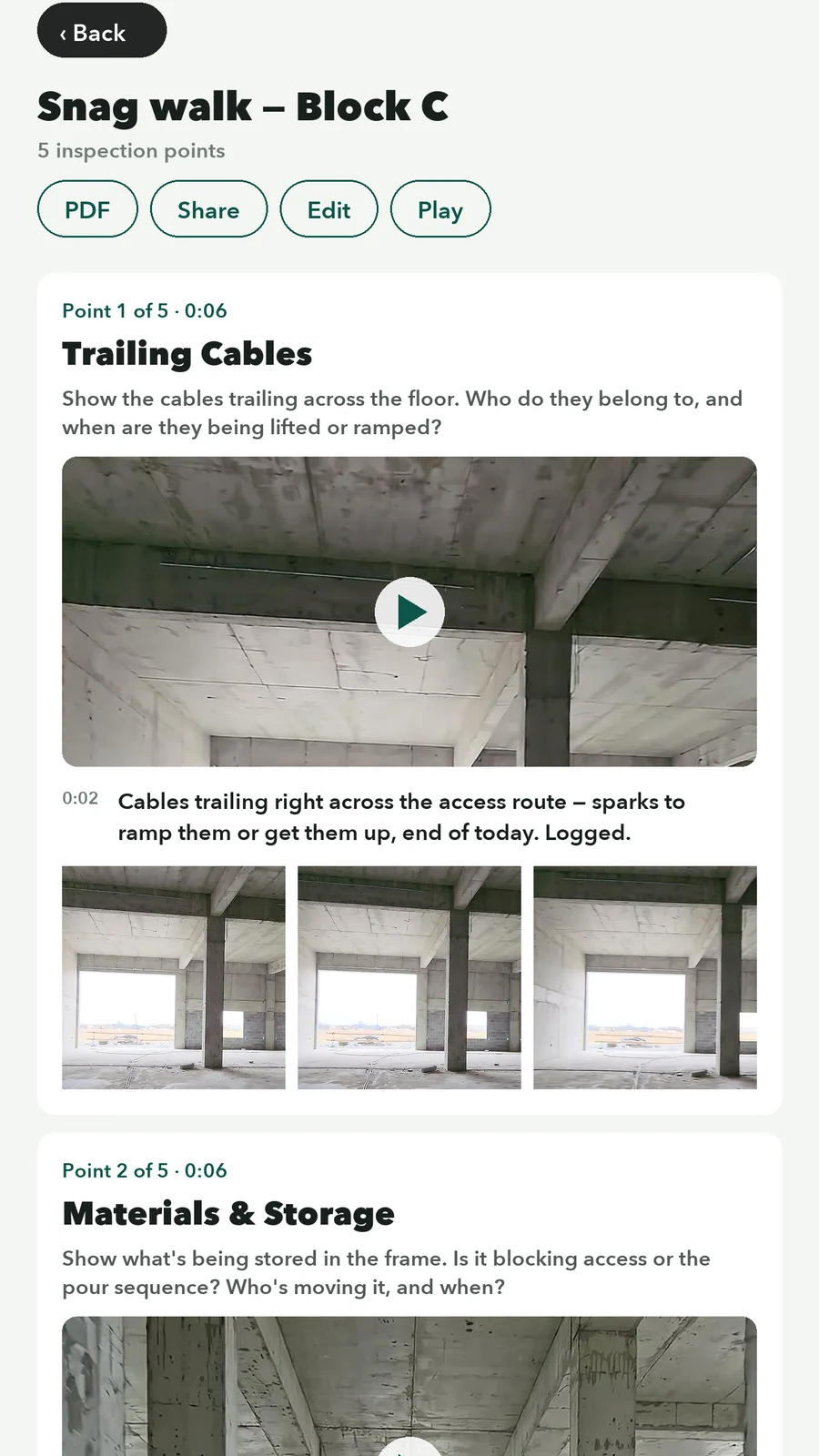
Play runs the whole walk point by point. Play clip reviews a single point, and Loop repeats a moment while you check the wording.
- 03
Edit the details
Use Edit to fix transcribed text or remove a transcript segment or frame. Retake re-records just that point—the new clip and transcript replace the old ones.
- 04
Capture still images
Add frame grabs a still while a clip plays, or Auto clip captures one automatically every 1–5 seconds. Stills appear in the PDF, the share page and project reports.
- 05
Generate the PDF
Select PDF to build the inspection report on the phone—each point with its question, transcribed answer and stills. A copy is saved to the project’s Files tab when you are online, or kept on the device until it can upload. For a fuller document, pull the same questions into the web report builder.
- 06
Share the link
Select Share to copy the walk’s link or send it by email—available once the walk has synced, so keep the app open on the project screen while it says Syncing. In the portal, the walk’s Info tab adds password protection and an intro note; the client sees a branded page with chaptered video, transcripts and stills.
- 07
Review in the web dashboard
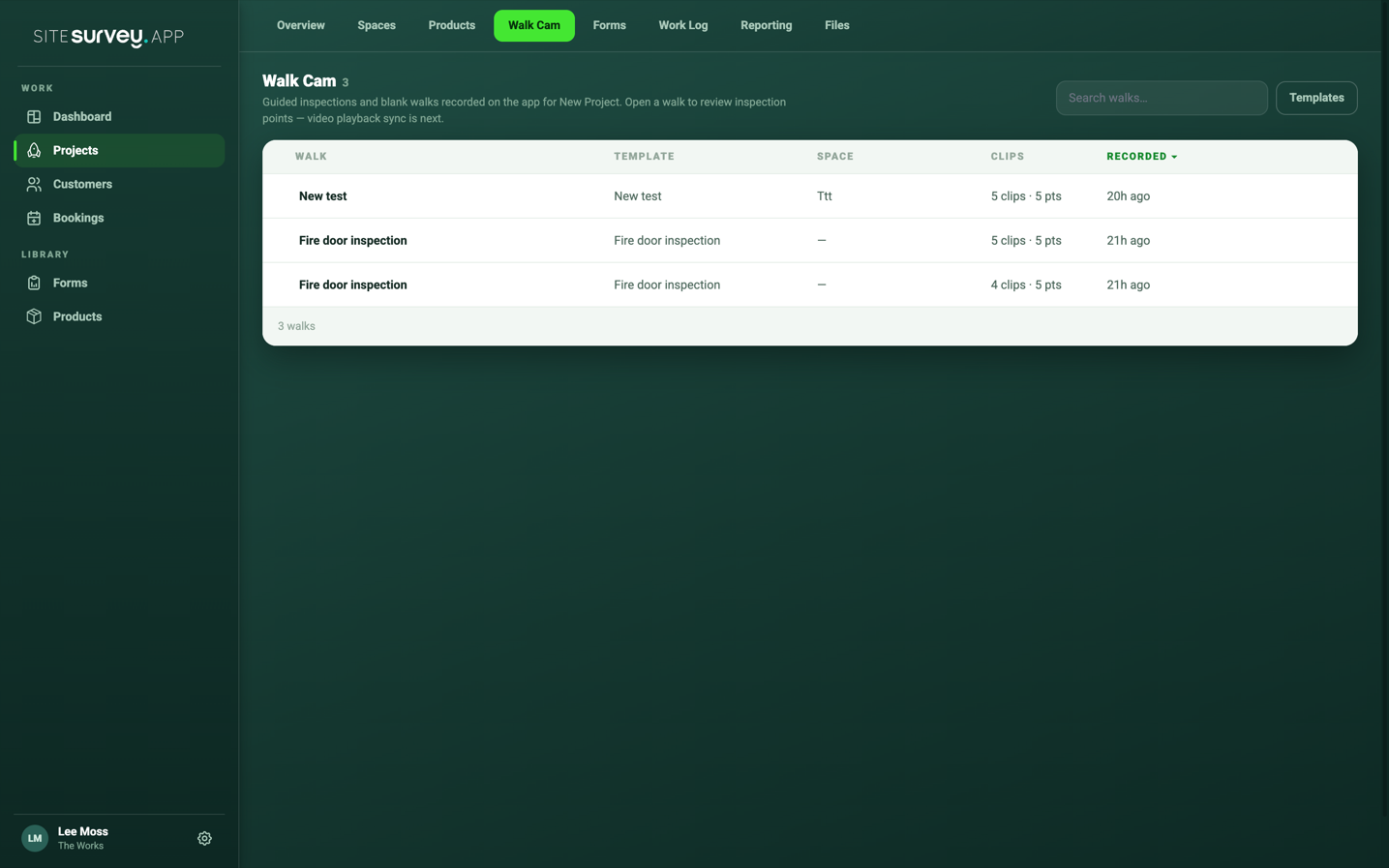
Open the project’s Walks tab to play clips, edit transcripts and capture extra stills. Each walk is labelled Walk Cam or Free Walk. When a project has both, use All, Walk Cam and Free Walk at the top to filter the list. Delete a walk from the app by long-pressing its tile.
Good to know
- ✓The PDF is built from the stills on the device, so capture your frames before exporting.
- ✓Transcript edits made on the phone are pushed to the portal on the next sync.
- ✓See a live example share page at https://admin.sitesurvey.app/w/1489c4 — this is what the client receives.
Was this guide helpful?
Your feedback helps us improve support content.