- 01
Add the form to the project
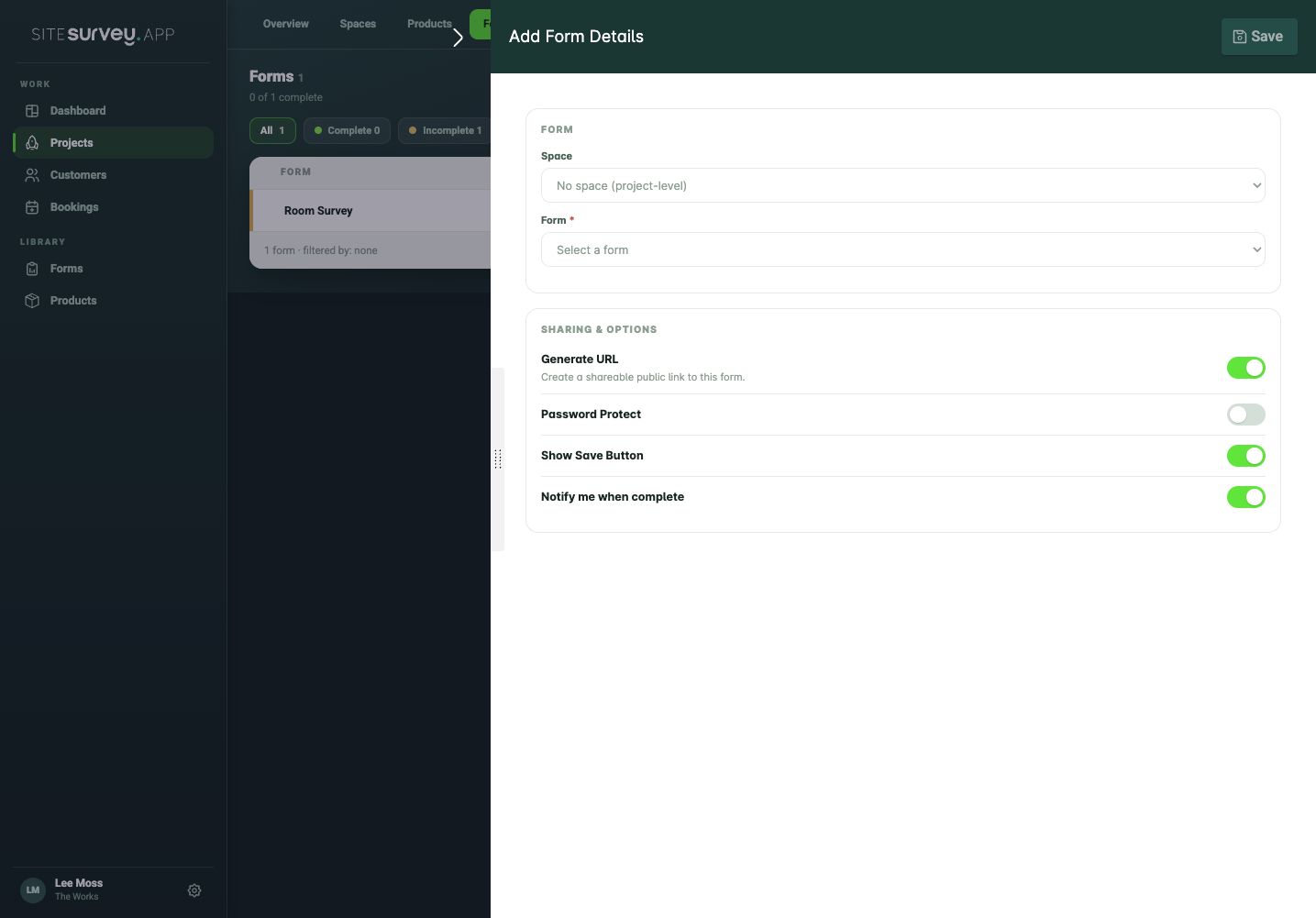
Open the project, go to the Forms tab and select + Add form. Choose the form you want to share, and the space it belongs to if it is for one room or area.
- 02
Switch on Generate URL
In the form settings, switch on Generate URL to create a public link. You can also switch on Password Protect and set a password, Show Save Button so people can save and come back, and Notify me when complete.
- 03
Open the public link
Save the form. On the Forms tab, the link icon on the form's row is now active. Select it to open the public form in a new browser tab, then copy the address from the browser.
- 04
Test the form
Open the link in a private browser window and check the questions, required fields and submission work as expected.
- 05
Share and monitor
Send the link to the people who need it. Their answers are saved to the form on the project, and its status on the Forms tab updates when it is complete.
Good to know
- ✓Do not ask for sensitive information unless the form and the way you share it are suitable for it.
- ✓To stop a link working, open the form from the Forms tab and switch Generate URL off.
- ✓Already assigned a form without a link? Open it from the Forms tab and switch on Generate URL in its form info.
Was this guide helpful?
Your feedback helps us improve support content.