- 01
Open the project's products
Open the project and go to the Products tab, or open a space and its Products tab to work on that room only.
- 02
Select Add product
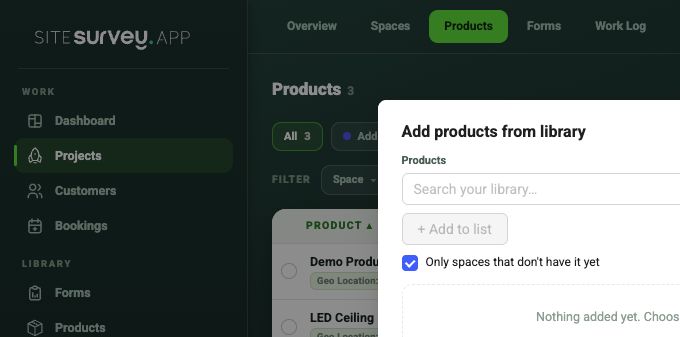
Select + Add product, choose one or more library products, tick every space that should receive them and set the quantity. If Xero or InteliOffice is connected, + Add from Xero and + Add from InteliOffice bring items in from there.
- 03
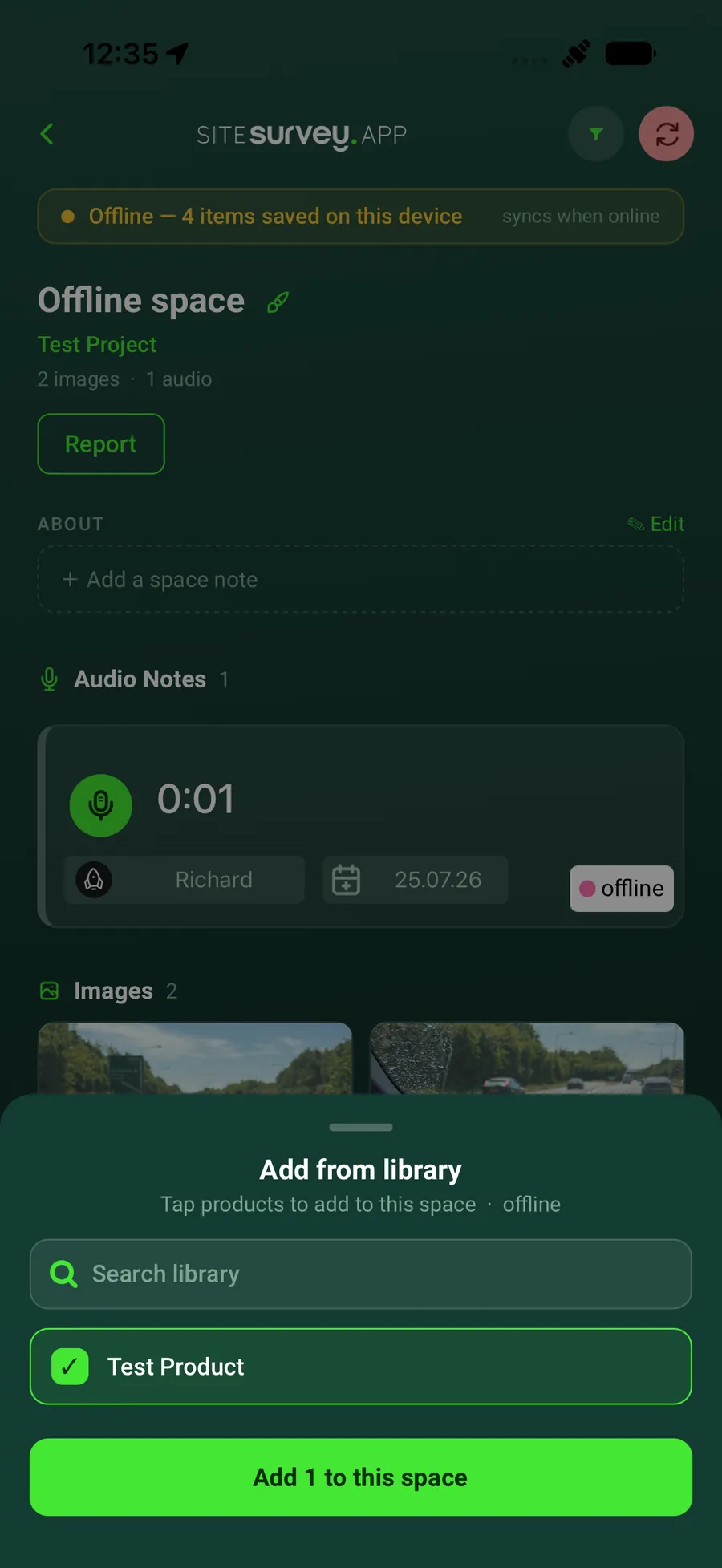
Choose from the library
Find the approved product and select it rather than creating a duplicate.
- 04
Fill in the sheet
The Products tab works like a spreadsheet: edit cells in place, fill in data points such as serial numbers, group by space or category to see price subtotals, and set each item to Completed when it is done.
- 05
Review the space
Confirm every product appears under the correct room before field work begins.
Good to know
- ✓Add products before the visit when a design or equipment schedule is available.
- ✓Where identical products each need a serial number or test result, open the product and use Expand to split the quantity into separate items.
- ✓Export CSV or Excel from the Products tab, or see every placed product across projects on the Assets tab of the Products page.
Was this guide helpful?
Your feedback helps us improve support content.