- 01
Open the Map view
In the web dashboard open the project and select Spaces. The view switcher at the top right offers List, Gallery and Map. Choose Map. Tick Default next to the switcher to make whichever view is selected open first for that project.
- 02
Upload a plan for the floor
Floor tabs appear above the plan, one for each floor the project’s spaces are on. Spaces with no floor set share a No floor plan. Select a floor and upload a PNG or JPG up to 40MB. A PDF is accepted, but pins can only be placed on image plans, so export each floor as an image where you can. Replace plan swaps the drawing and keeps the pins. Remove plan clears the floor.
- 03
Place a pin
In the list on the right, tap place (or the + badge) on a space, then click the plan where that space is. The pin lands on the clicked point, numbered to match the list and captioned with the space name. Repeat for each space on the floor.
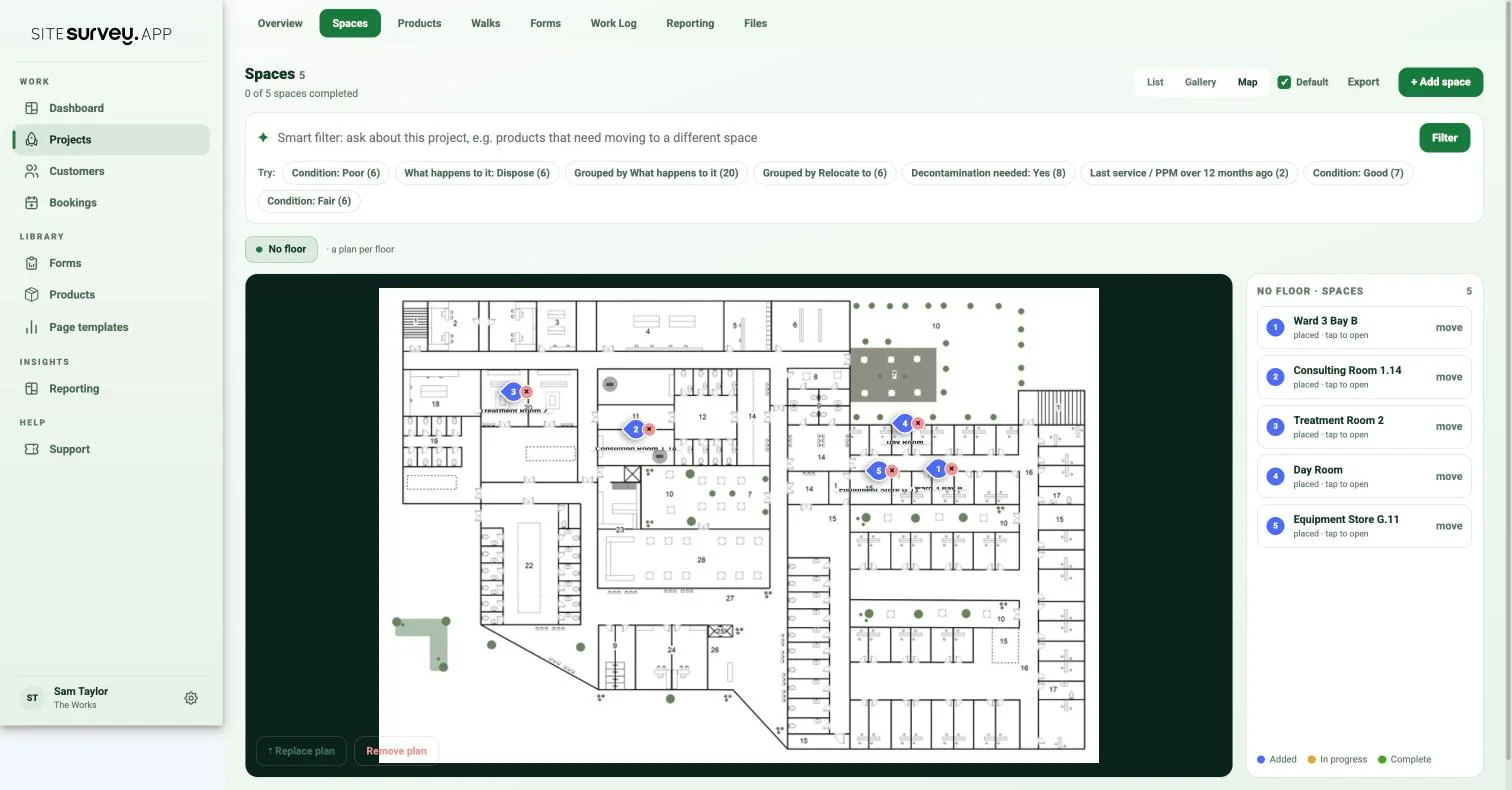
- 04
Move or remove a pin
Tap move on a placed space and a Placing banner appears over the plan. Click the new position to reposition the pin. The small x on a pin removes it, and the space returns to the unplaced state in the list.
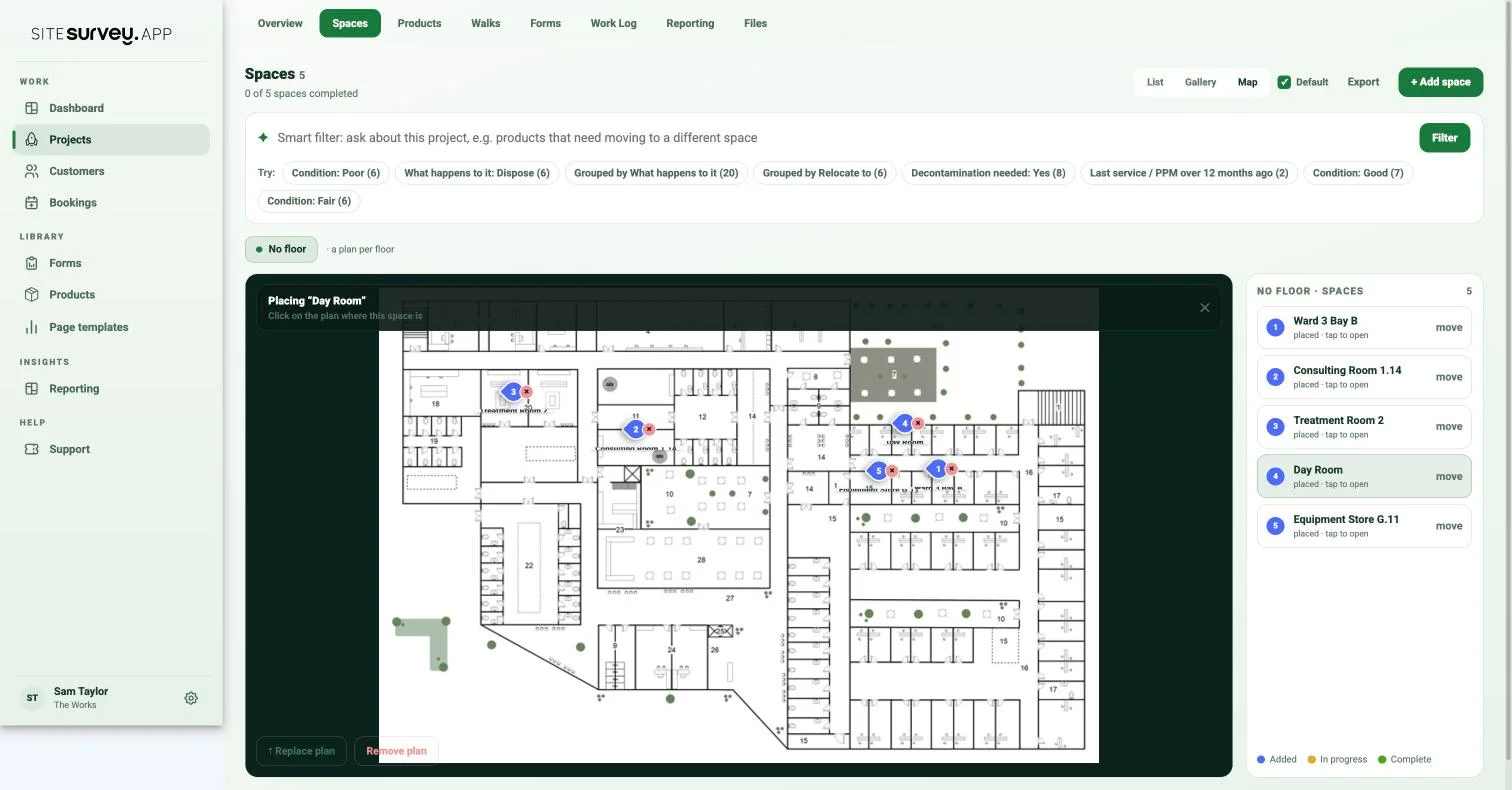
- 05
Read the pin colours
Pin colour follows the space status: blue for Added, amber for In progress and green for Complete. The key sits under the list, so a glance at the map shows which rooms are finished and which are still to survey.
- 06
Open a space from the map
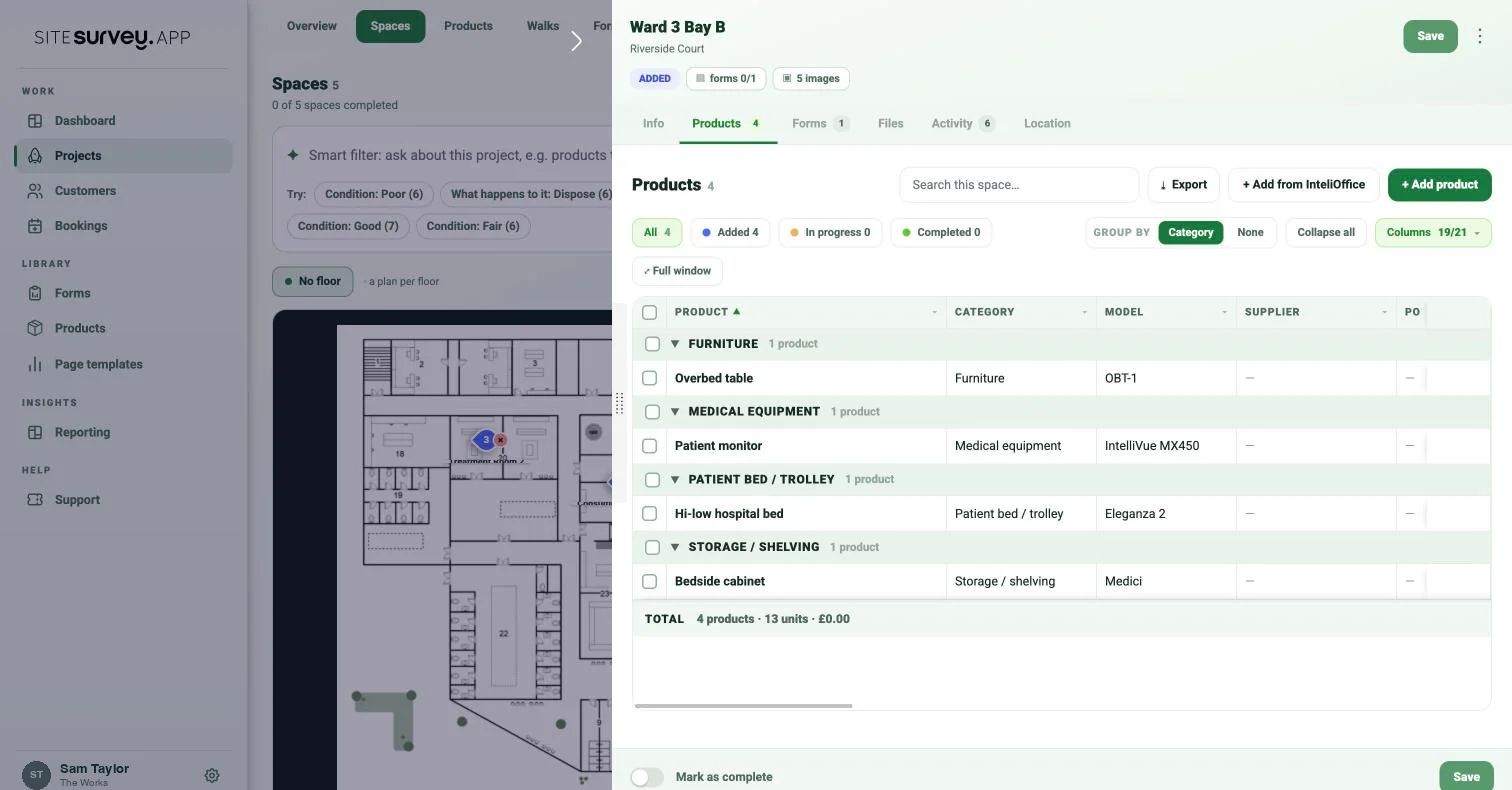
Click a pin or its caption to open the space drawer beside the plan. The drawer has Info, Products, Forms, Files, Activity and Location tabs, so everything captured in that room is one click from its position on the drawing.
- 07
Check the other views
Gallery and List show a Pinned badge on every space that has a pin, and the badge appears as soon as the pin is placed. Use it to spot spaces that still need positioning.
- 08
Compare with the app capture
If the floor was captured with the mobile app, the same floor tab offers an App capture toggle. It shows the captured plan with zoom, pan and dimensions, and you can download it as a PNG or PDF.
Good to know
- ✓Use the latest drawing revision and export each floor as its own PNG or JPG so pins can be placed.
- ✓Set a floor on each space before you upload plans, so the floor tabs match the building and the No floor tab stays empty.
- ✓See the feature overview at sitesurvey.app/features/space-map for how the map fits into a survey.
Was this guide helpful?
Your feedback helps us improve support content.