- 01
Open the notification centre
Tap the bell icon at the top of the app. A red badge on the bell shows how many unread notifications you have, and opening the list clears the badge from your home screen.
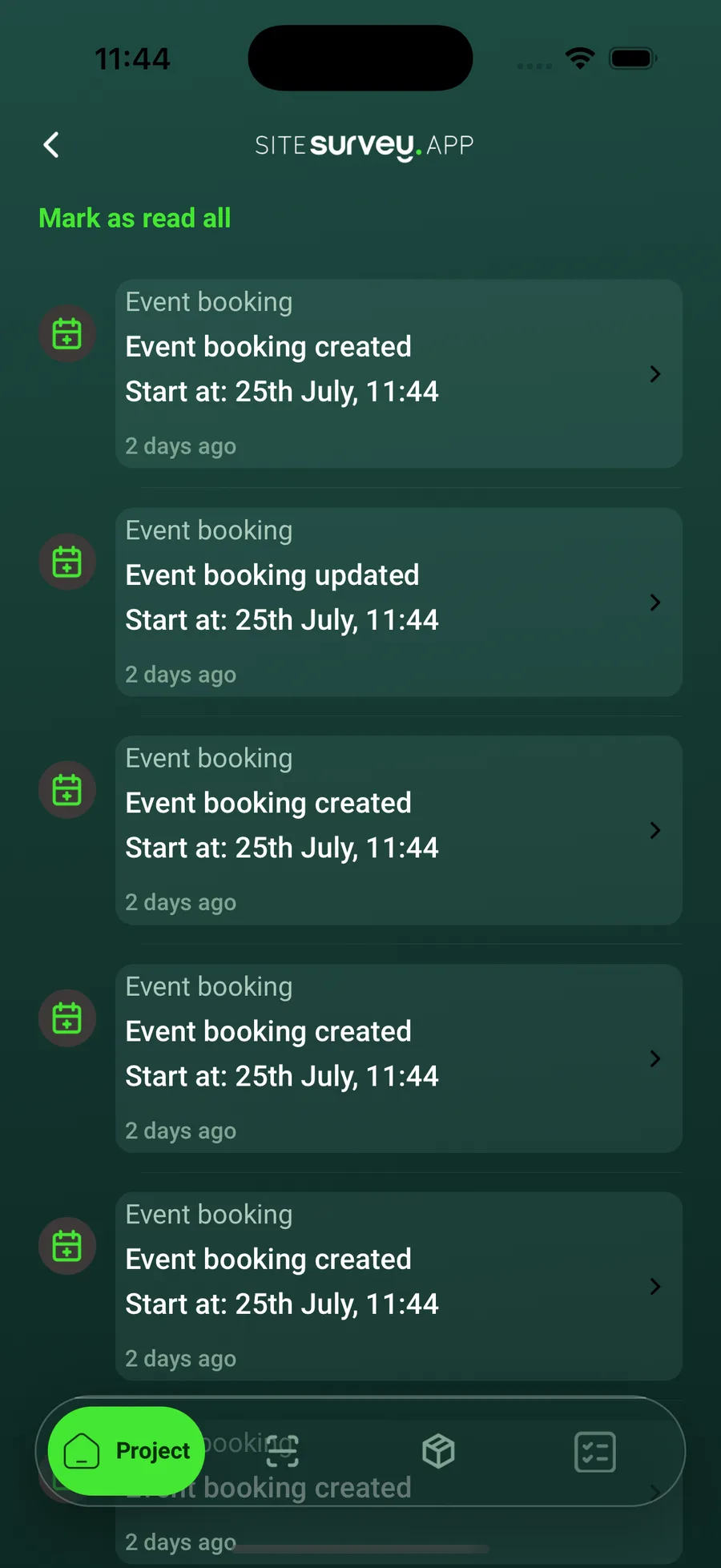
- 02
Review your notifications
Each entry shows a title, a short message and how long ago it arrived. Pull down on the list to refresh it.
- 03
Act on a notification
Tap a booking or project notification to open the related project. Sync notifications let you upload offline work directly from the list.
- 04
Clear what you have read
Tap Mark as read all at the top of the list when you are caught up, so only genuinely new activity is highlighted.
- 05
Choose which events notify you
In the app's Setting screen, choose Notifications to set your preferences. You can switch alerts on or off for being added to a new calendar booking, new support messages, one-day and one-hour reminders of a project start, and a project being signed off, then tap Save.
- 06
Manage booking alerts
Choose Calendars in the Setting screen. Under Calendar sync you can connect your own Google or Outlook calendar so bookings appear there automatically. Under Notifications, the Notify me about new bookings switch saves as soon as you change it.
Good to know
- ✓On the Notifications screen, changes only take effect once you tap Save. The Calendars switch saves straight away.
- ✓Keep New support message switched on so you know as soon as the support team replies.
- ✓If alerts stop arriving, check that SiteSurvey is still allowed to send notifications in your phone's system settings.
Was this guide helpful?
Your feedback helps us improve support content.