- 01
Open the project
From the Project tab, open the project your question relates to so the conversation is linked to the right job.
- 02
Start the conversation
Tap the add (+) button on the project screen and choose Support to open your conversation with the SiteSurvey team.
- 03
Send your first message
Type your question and send it. You can attach up to four photos at a time, take a new photo, or record a video or audio message to show exactly what you are seeing.
- 04
Describe the problem clearly
Include your phone model, the project name, what you were trying to do and roughly when the problem happened. Long-press any message later to reply to it, or to edit and delete your own messages.
- 05
Watch for the reply
Replies arrive as push notifications when New support message is enabled in your notification settings. Tap the notification to jump straight back into the conversation.
Good to know
- ✓Messages composed offline show a clock icon and send automatically once the device reconnects.
- ✓A photo of an error message usually saves a round of questions.
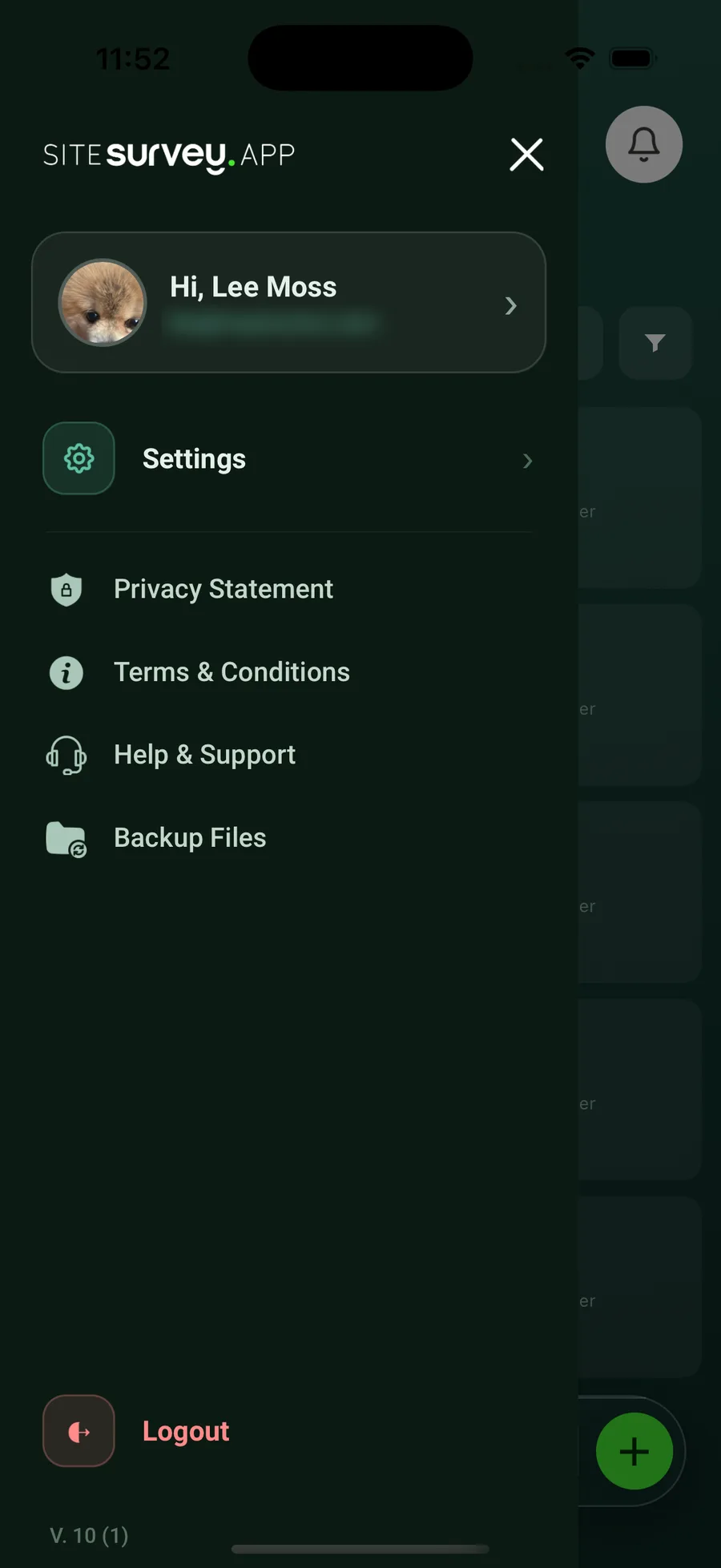
- ✓If you cannot see the Support option, open the app menu and choose Help & Support to email [email protected], or read the guides at sitesurvey.app/support.
Was this guide helpful?
Your feedback helps us improve support content.