- 01
Summarise a single form
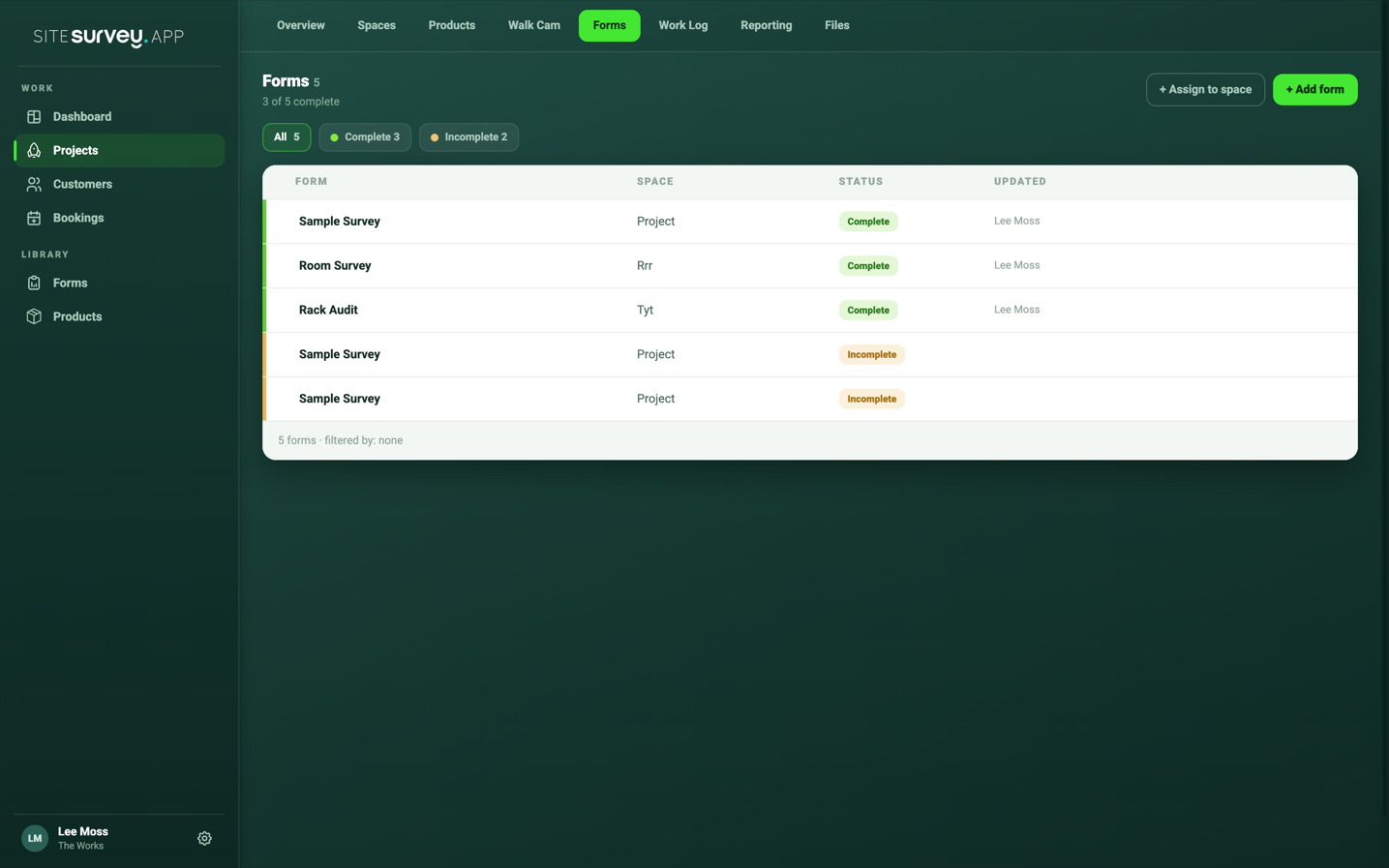
Open the project Forms tab and select the sparkles icon on the form's row. The icon is highlighted when a summary has already been saved for that form.
- 02
Check the prompt
The Prompt tab contains the instruction the AI follows. The default turns the form into clear instructions for an installer, but you can rewrite it to focus on whatever you need.
- 03
Choose an AI provider
Use the provider dropdown in the dialog title to pick between the AI providers enabled for your workspace, such as Gemini, OpenAI or Anthropic. Your choice is remembered for next time.
- 04
Generate and review
Select Generate and the summary appears on the Results tab. Blank fields in the form are ignored, so the summary only covers information actually captured.
- 05
Save or export the summary
Select Save to store the summary against the form, Copy to paste it elsewhere, or Save as Word / Save as PDF. Exports download to your computer and a copy is added to the project Files tab.
Good to know
- ✓A specific prompt produces a more useful summary—name the rooms, equipment or decisions you care about.
- ✓Generating again replaces the text on the Results tab, so save or copy anything you want to keep first.
- ✓To pull several forms into one document, add them to a project report instead. See Share and generate a project report.
Was this guide helpful?
Your feedback helps us improve support content.