- 01
See where you are
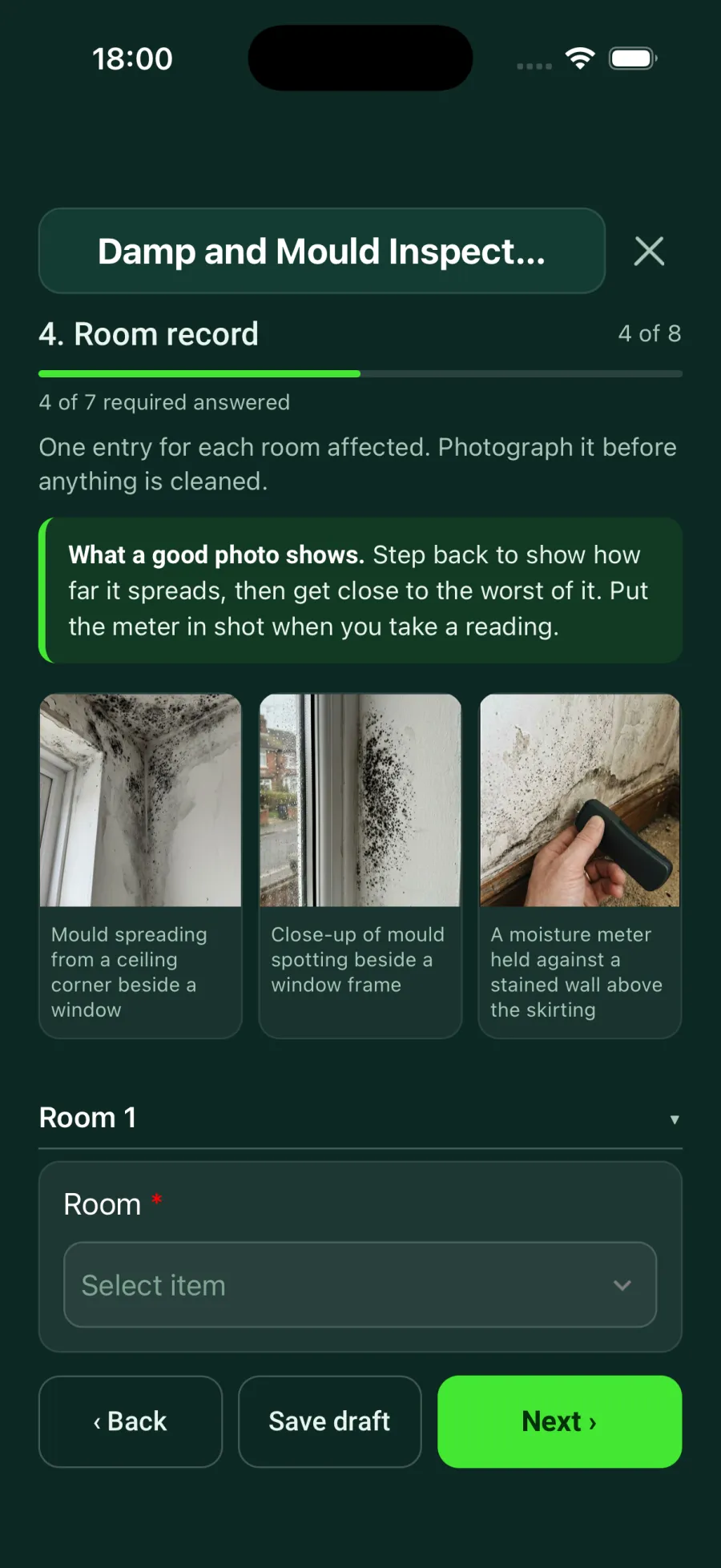
The top of each page shows its title, the page number, a progress bar and how many required questions are answered. Notes from the form author appear as coloured boxes, and example photos sit side by side so you know what a good picture looks like.
- 02
Move on with Next

Tap Next when a page is done. If a required question is still blank, the app scrolls straight to it and highlights it in red. The message clears as soon as you answer it.
- 03
Repeat a section for each room
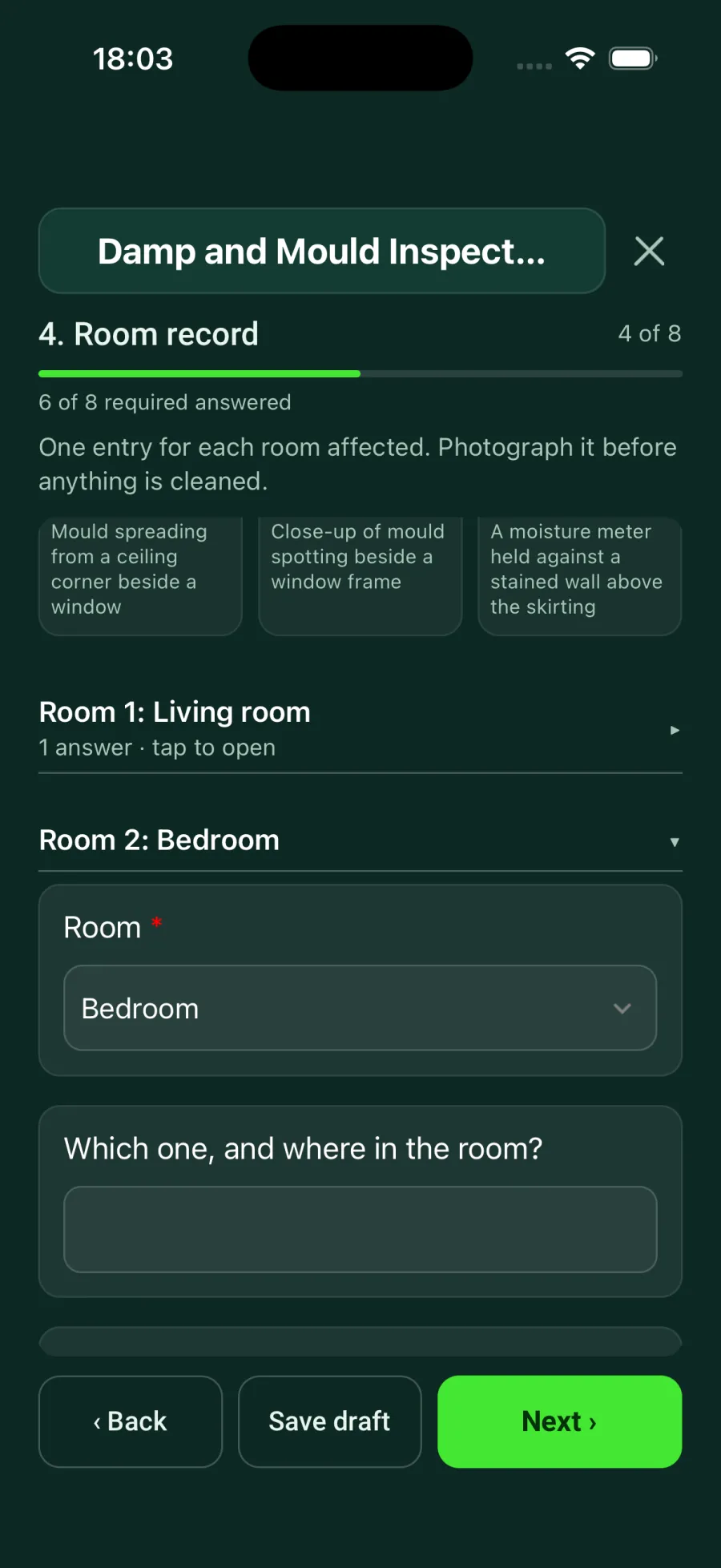
Where a form asks for one entry per room or area, use Add another to start a blank entry or Copy previous to start from the last one. Photos and Walk Cam clips are not copied. Finished entries fold down to a one-line summary with the room name; tap one to open it again.
- 04
Save a draft at any time
Tap Save draft to keep your answers and come back later, online or offline. Answers are also kept on the phone as you type, so if the app closes unexpectedly they are offered back the next time you open the form.
- 05
Complete the form
On the last page, Next becomes Complete. The form is marked done on the project and uploads straight away, or as soon as the phone is back online.
Good to know
- ✓Dates show as day, month and year, for example 14/09/2026.
- ✓Closing a form without changing anything does not overwrite answers someone else has saved from the web.
Was this guide helpful?
Your feedback helps us improve support content.