- 01
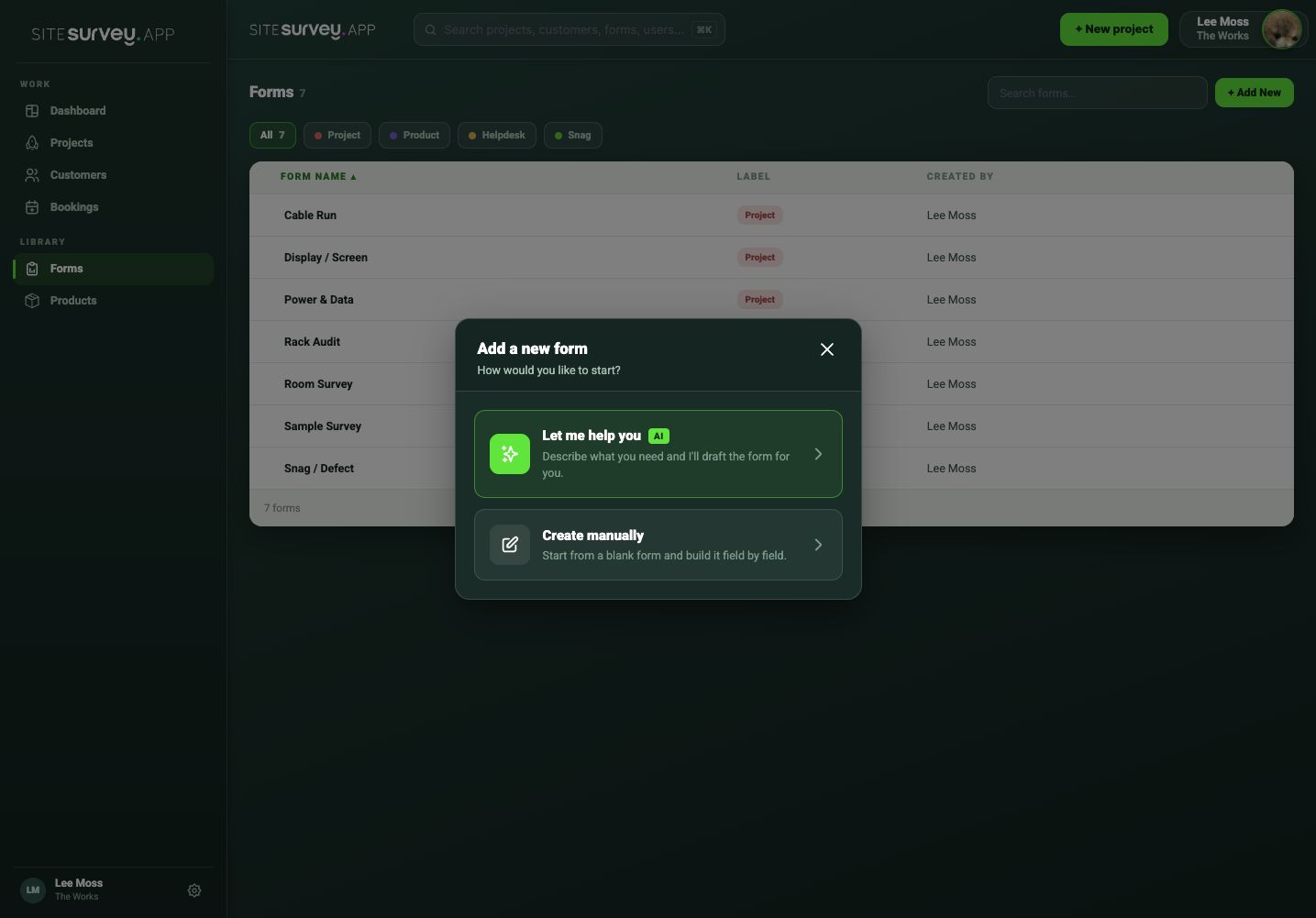
Open Add New on the Forms page
Go to Forms and select Add New. Choose Browse form library to start from a ready-made form, or Start from scratch to build your own.
- 02
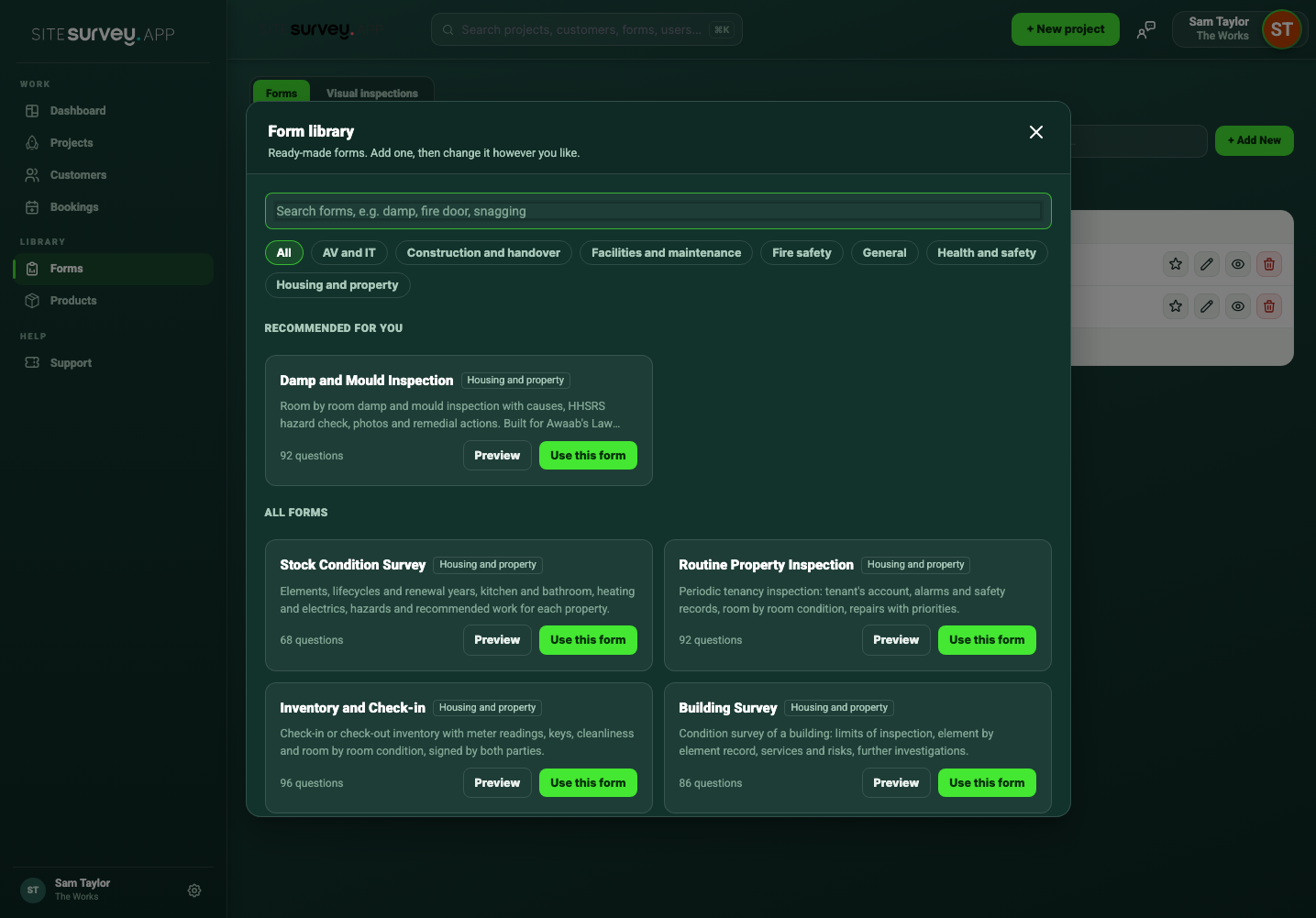
Browse the library
Forms that match the work you chose when you signed up appear first under Recommended for you. Every card shows the form's category, a short description and how many questions it has.
- 03
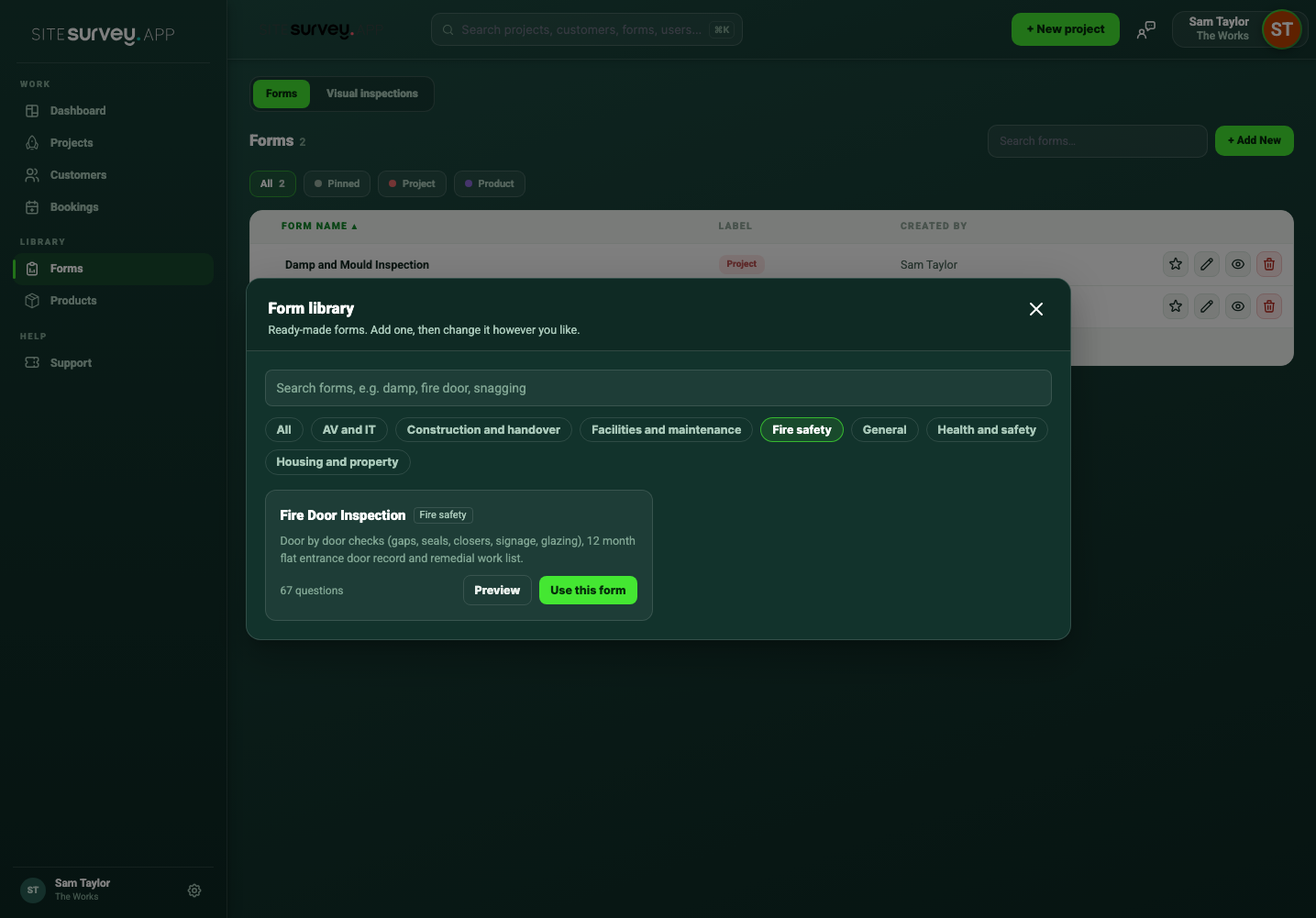
Filter by category or search
Select a category such as Fire safety or Housing and property, or type what you are looking for. Search checks names, descriptions and common terms, so words like HHSRS, FD30 or snagging find the right form.
- 04
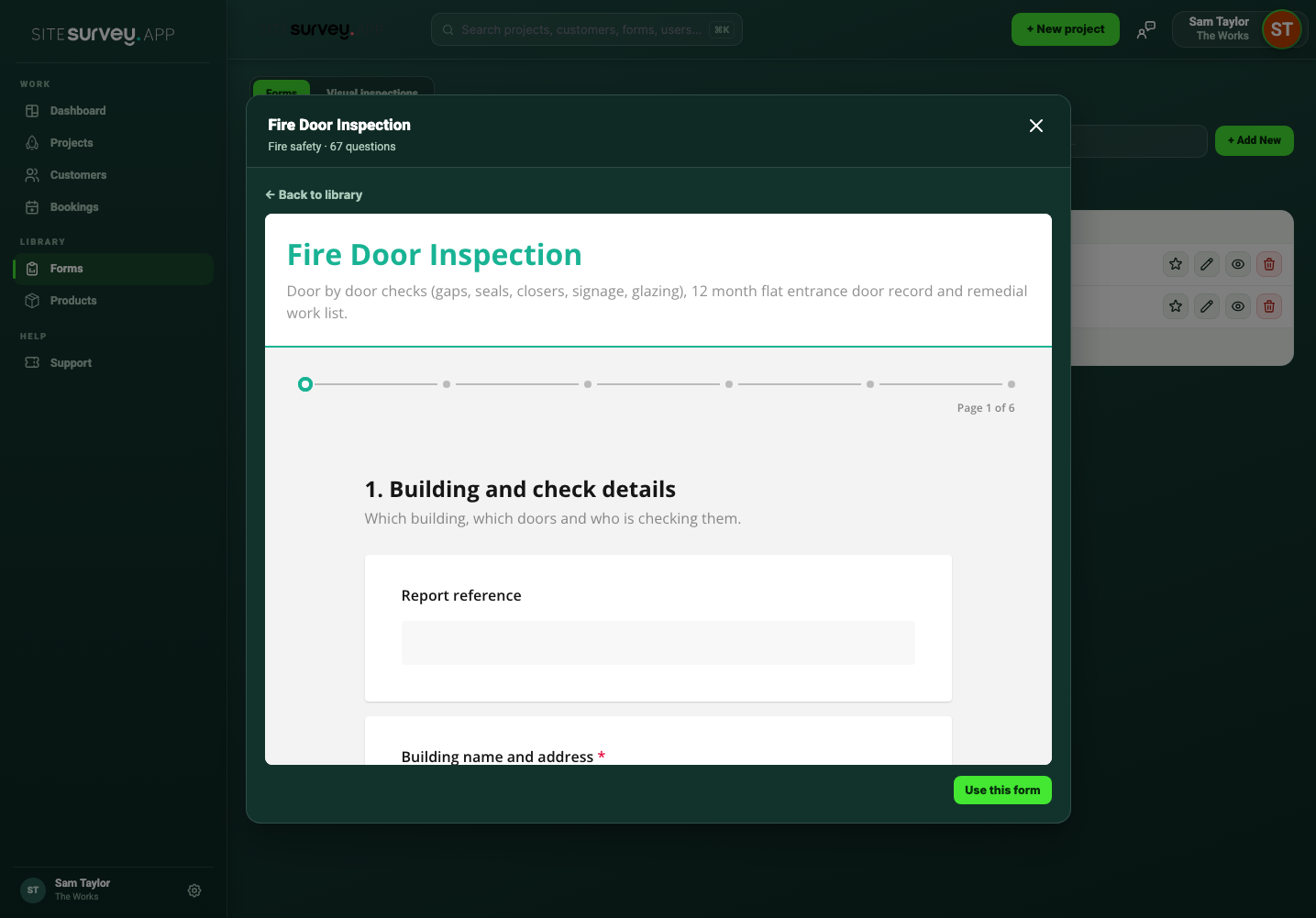
Preview the form
Select Preview to page through the form exactly as it is written, without adding it. Walk Cam steps are shown as a note because they run in the mobile app.
- 05
Add it to your account
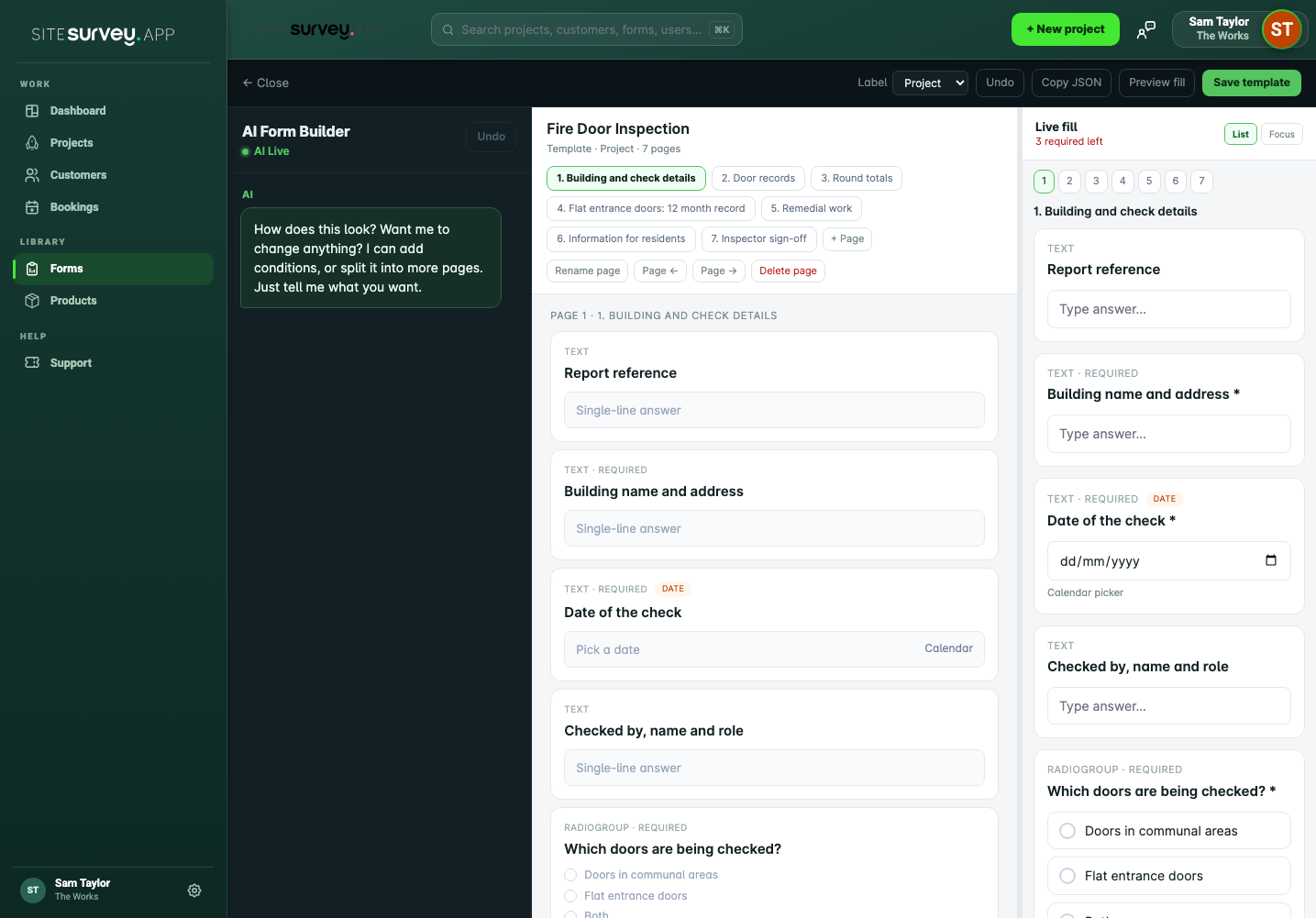
Select Use this form. A copy is added to your forms and opens in the form builder, ready to assign to projects, spaces and products.
- 06
Make it yours
Rename it, add or remove questions, change the wording or ask the AI assistant to adjust it. Your copy belongs to your account, so changes never affect the library or anyone else.
Good to know
- ✓New accounts start with the forms that match the options chosen at sign-up, plus a Sign Off form for project handover.
- ✓When the library version of a form is improved, forms you have already added stay as they are. Add it again to get the new version.
- ✓Adding the same form twice creates a second copy with (2) after its name, which is handy for making a variation.
Was this guide helpful?
Your feedback helps us improve support content.