Templates are the script behind a guided Walk Cam inspection—an ordered list of questions the app reads to the technician on site. Create them once in the web portal and the whole team can use them in the app.
- 01
Open Visual inspections
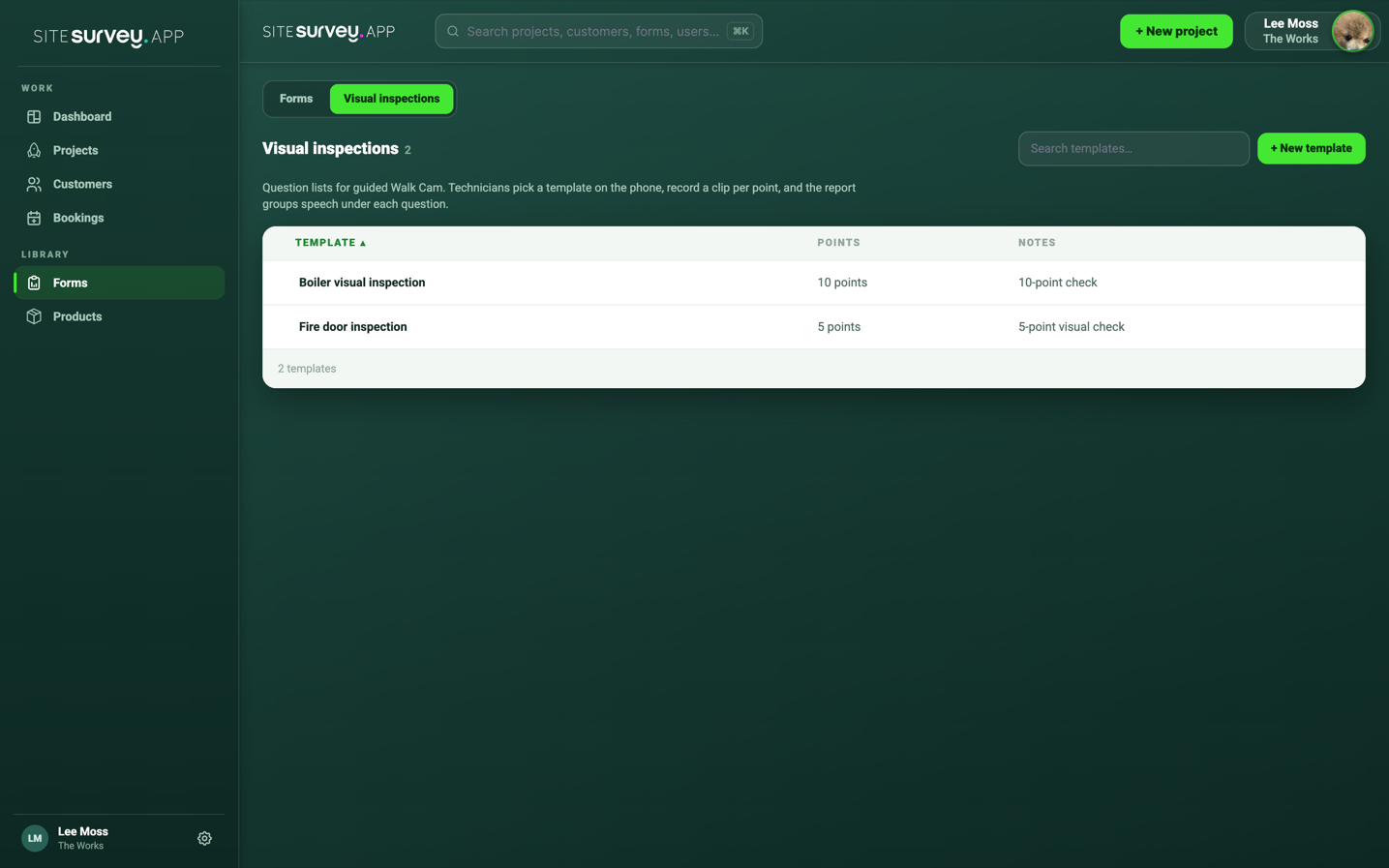
In the web dashboard, go to Forms, then Visual inspections, and select New template. You can also jump here from the Templates button on a project’s Walks tab.
- 02
Name the template
Use a name the field team will recognise, such as the asset type or inspection standard it covers.
- 03
Add the questions
Create each point in the order it should be answered on site, with an optional description to guide the technician.
- 04
Use it in the app
The template appears in the Walk Cam picker on the mobile app. Pull down to refresh the list if it was created recently.
Good to know
- ✓New templates download when the app is online—create them before the team leaves for site.
- ✓Keep questions short and spoken-answer friendly; each recording answers exactly one question.
Was this guide helpful?
Your feedback helps us improve support content.