- 01
Add one while you create a product
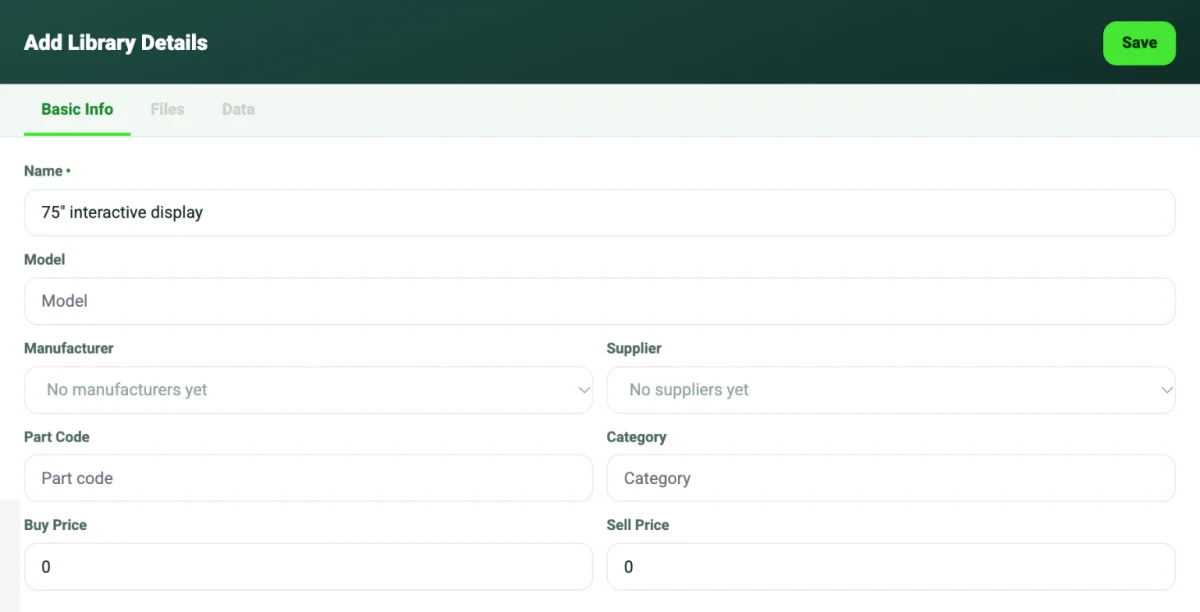
In Products, choose + Add New (or open an existing product). Open the Manufacturer or Supplier dropdown and choose + Add new manufacturer or + Add new supplier at the bottom of the list. If you haven't added any yet, the dropdown says No manufacturers yet or No suppliers yet.
- 02
Type the name and add it
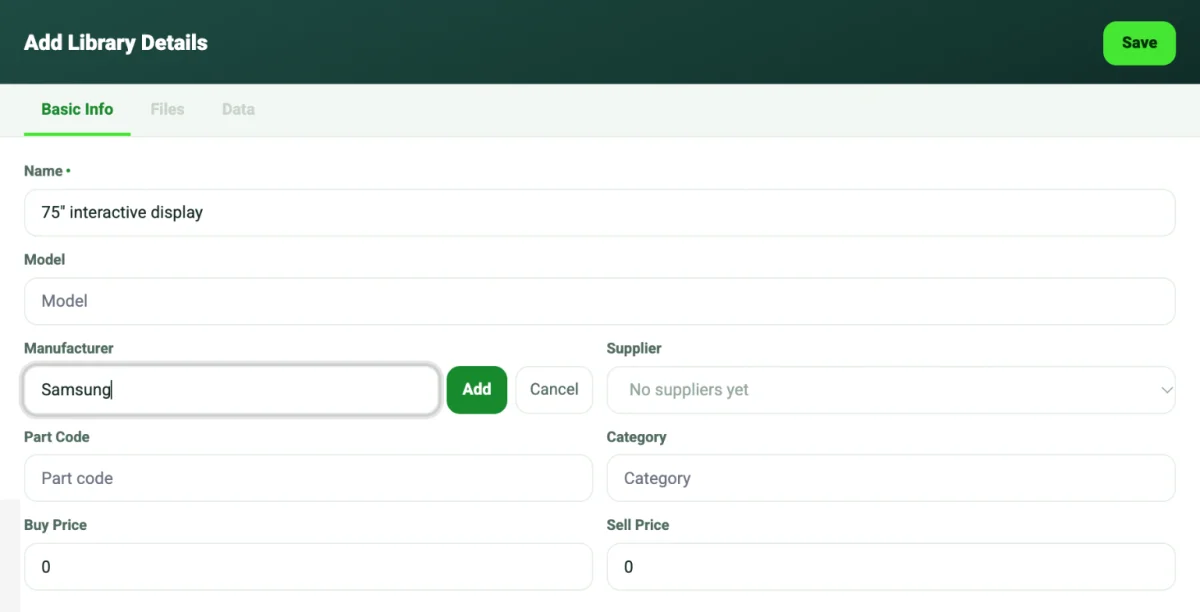
Type the name and choose Add, or press Enter. It's saved to your workspace list and selected on the product straight away. Choose Cancel, or press Escape, to go back to the dropdown. If the name is already on the list, SiteSurvey selects the existing entry instead of adding a duplicate.
- 03
Open Manage lists to review the lists
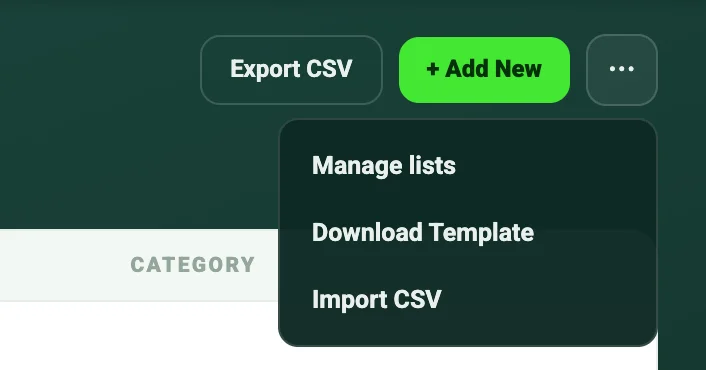
To see, rename or remove entries, open Products in the main navigation, choose the more-actions button (three dots) next to + Add New, then choose Manage lists.
- 04
Pick the list
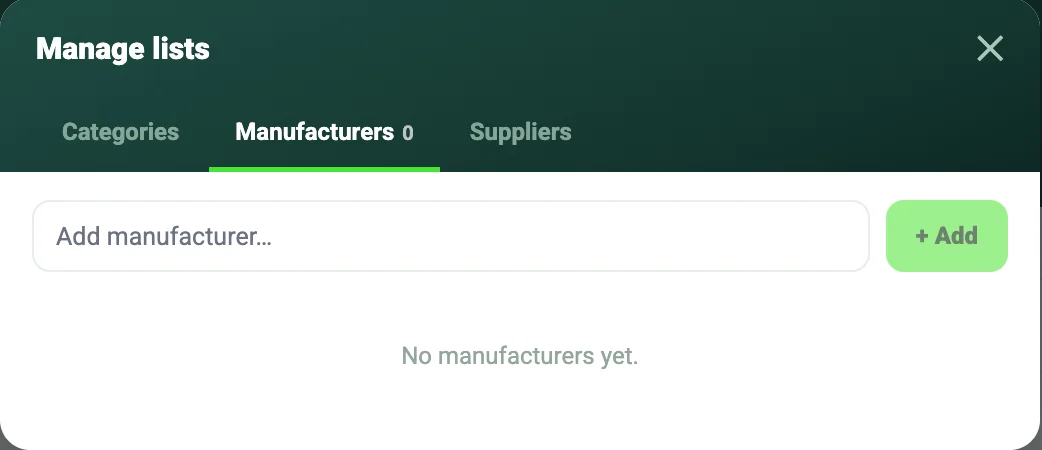
The panel has tabs for Categories, Manufacturers and Suppliers. Each tab shows the current entries and the count, and you can add new entries here too.
- 05
Rename or remove entries
Edit an entry to rename it, or delete one you no longer need. Check the list for near duplicates before you add something new.
- 06
Use the lists on products
When you add a product to the library, the Manufacturer, Supplier and Category fields offer the entries you have created. Categories also appear as filter chips across the top of the library.
Good to know
- ✓Agree one naming convention (for example, the manufacturer's own brand spelling) so the lists stay free of duplicates.
- ✓Tidy the lists before a bulk CSV import so imported products match your existing entries.
Was this guide helpful?
Your feedback helps us improve support content.