- 01
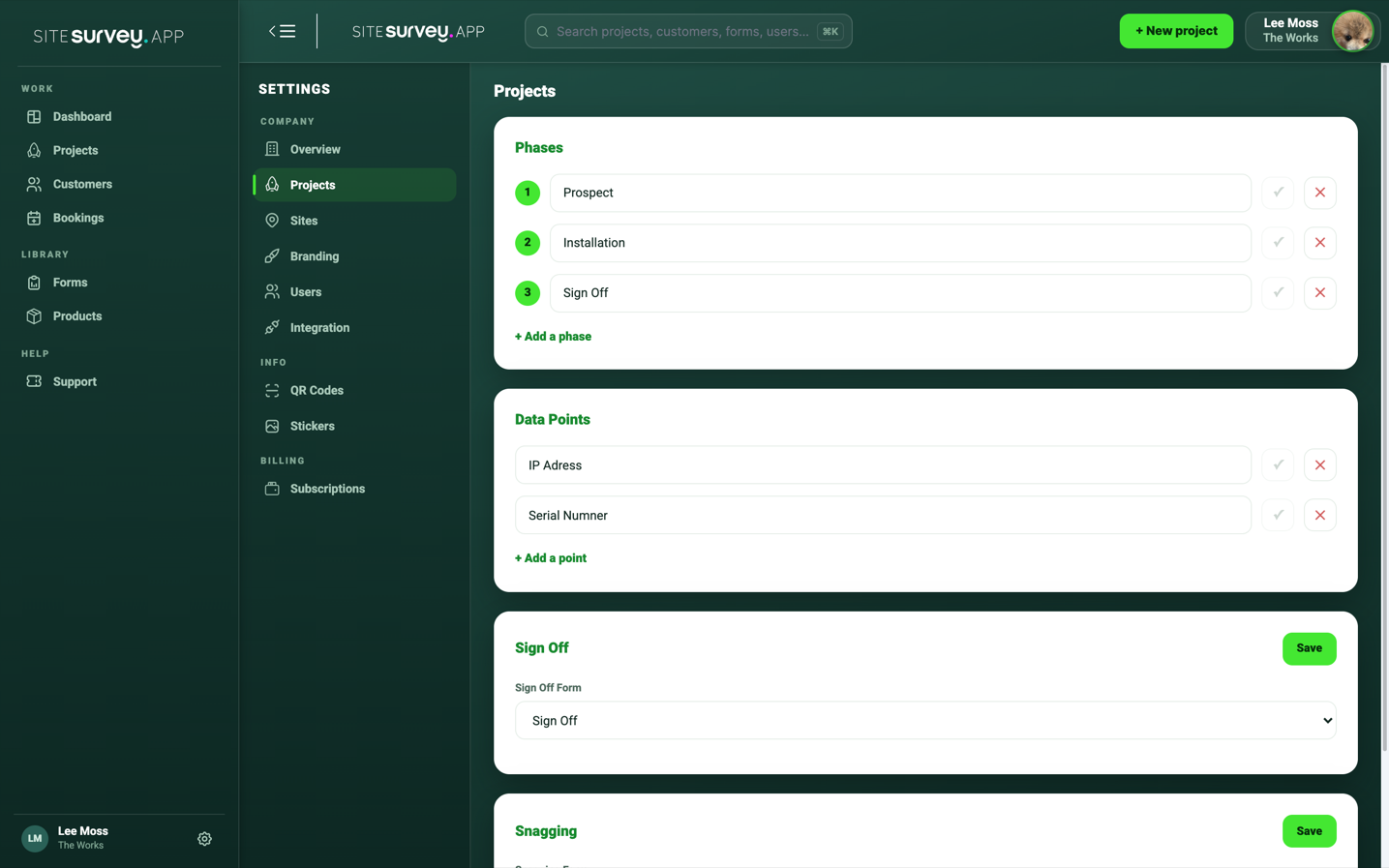
Check the sign-off form is set
Sign-off uses the form chosen in the web portal under Settings, then Projects, in the Sign Off card. New workspaces come with a default Sign Off form already selected, so this is usually set for you.
- 02
Open the project
In the mobile app, open the project you are finishing. Under the project name, the stage line shows the current stage and progress, such as Stage 2 of 3.
- 03
Choose the final stage
Tap the stage line to open the stage list, then select the final stage. You can pick any stage from the list, so check you are choosing the sign-off stage.
- 04
Confirm the sign-off
The app asks “Are you sure you want to…?” with the name of the final stage. Confirm to open the sign-off form assigned to the project, or Cancel to leave the stage unchanged.
- 05
Complete the form and capture the signature
Answer the sign-off questions as you would any other form. For the signature question, tap the expand icon to open the full-screen pad, ask the customer to sign with their finger, then choose Save — use the clear button if they need to sign again.
- 06
Submit and check the confirmation
Choose Complete Form to finish. The project moves to its final stage, and a confirmation explains that a PDF and CSV will be generated and emailed to you shortly. The signed record is stored against the project.
Good to know
- ✓The project needs a sign-off form assigned before the final stage can open it — if the form does not open, check the Sign Off card under Settings → Projects.
- ✓Complete the sign-off with a connection, or sync soon afterwards, so the signed record and generated documents are not left waiting on the device.
- ✓If the signature is marked with an asterisk it is required, so capture it before choosing Complete Form.
Was this guide helpful?
Your feedback helps us improve support content.