Timesheet entries connect time spent to the work being delivered. Record them promptly so project and team records remain accurate.
- 01
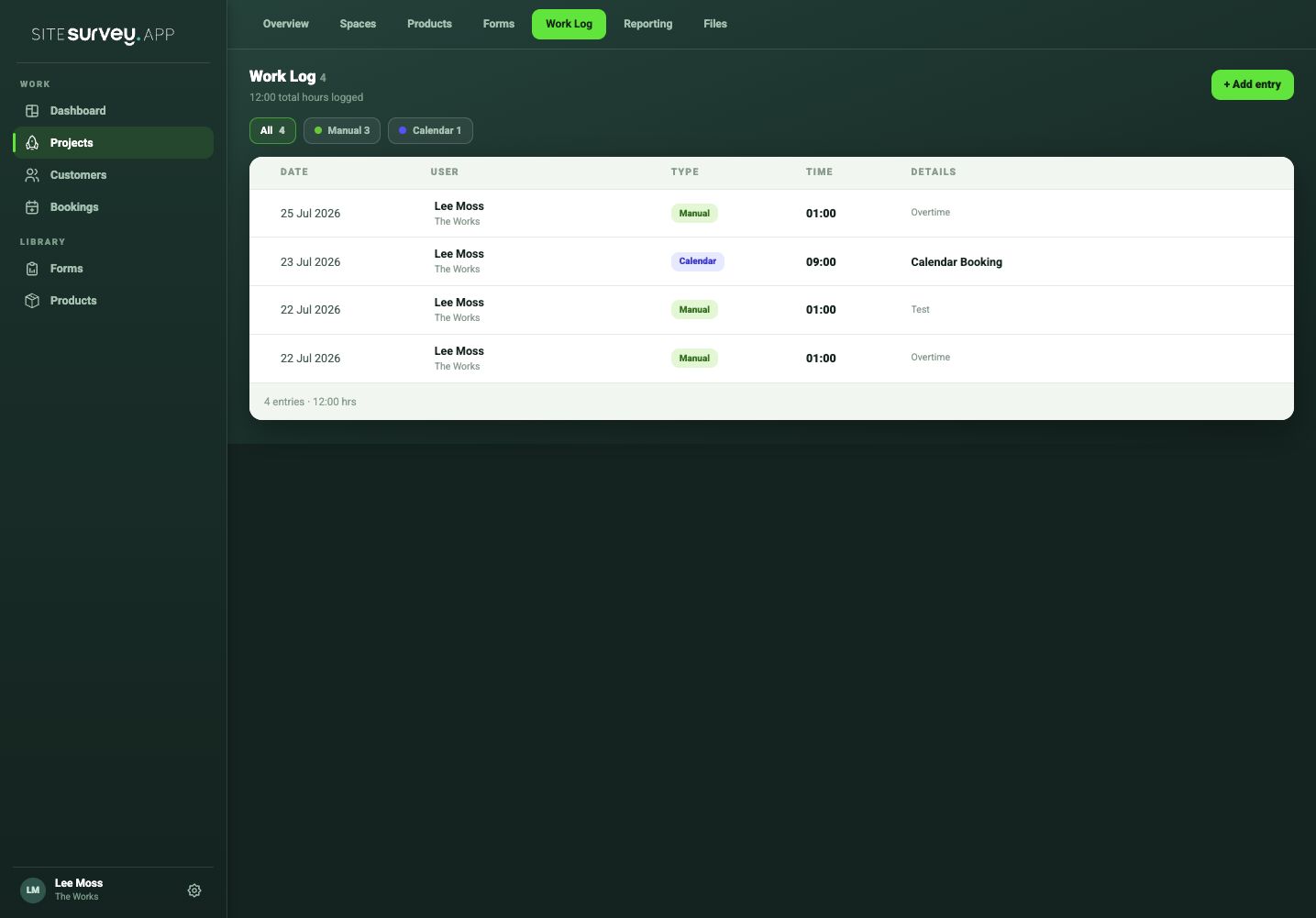
Open the project work log
From the project, open Work Log to review recorded time from manual entries and calendar bookings.
- 02
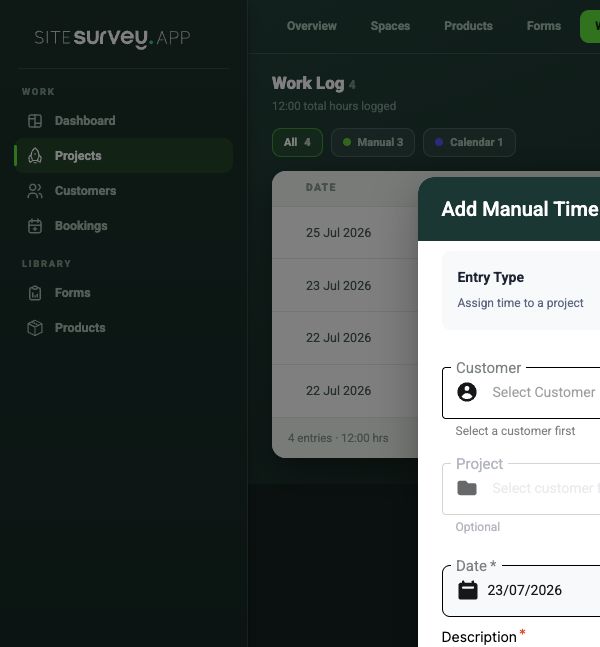
Add an entry
Select Add entry, choose whether the time belongs to a project, and select the customer and project it relates to.
- 03
Enter the time
Pick the date and enter the time worked as hours and minutes. Entries record a duration, not start and finish times.
- 04
Add useful context
Give the entry a title and describe the work, so a manager can see what the time covered.
- 05
Save and check the total
Save the entry and check the Work Log total, or the day and week totals in your Timesheet, show what you meant to record.
Good to know
- ✓You can also log time from Timesheet in your user menu: it opens a week view with day and week totals and an Add hours button.
- ✓Confirmed bookings already count as time in the Work Log, so do not log the same visit again by hand.
- ✓Administrators can choose which user an entry belongs to when adding time for a team member.
Was this guide helpful?
Your feedback helps us improve support content.