- 01
Open the dashboard
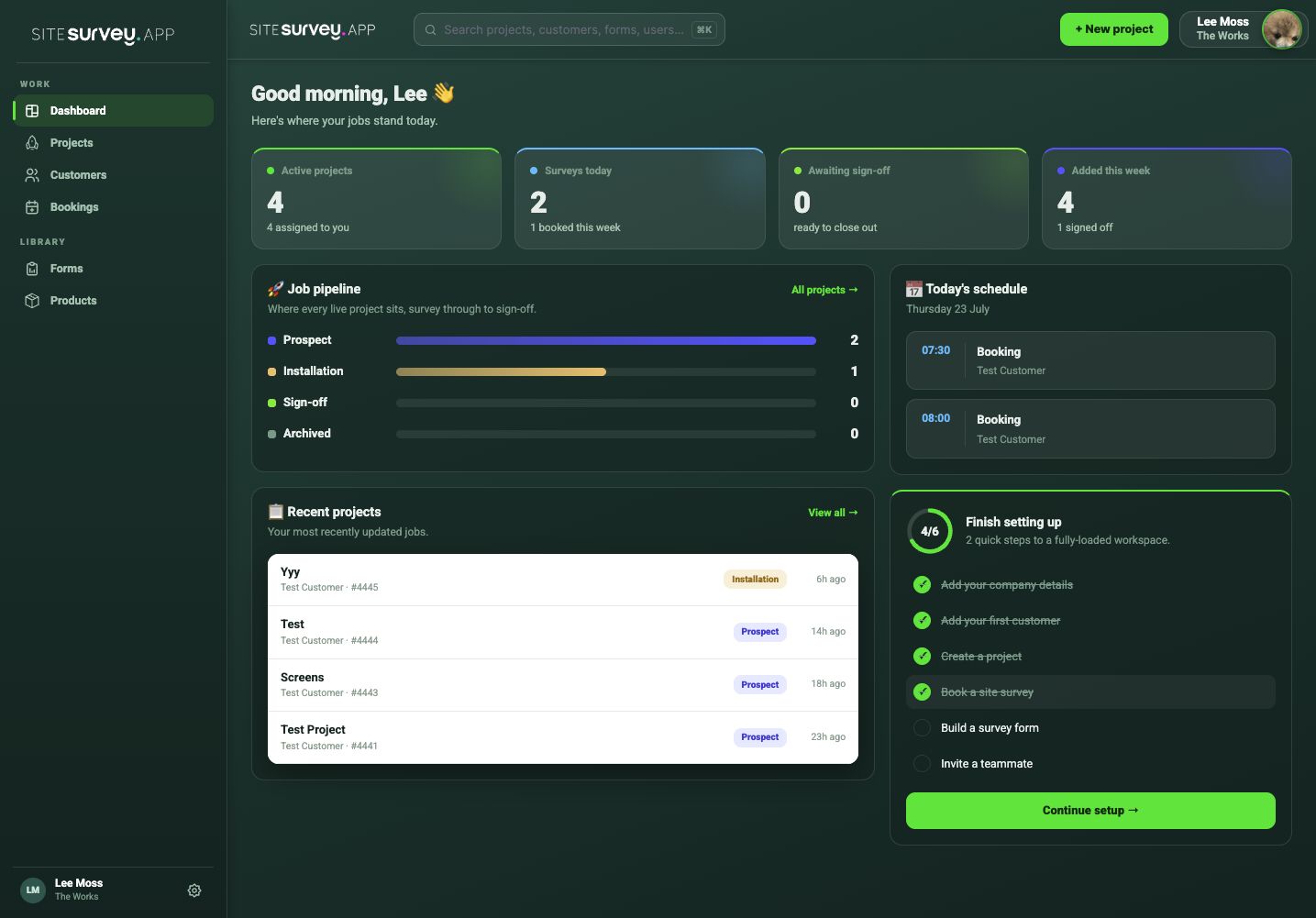
Sign in at admin.sitesurvey.app. The dashboard opens with a summary of active projects, surveys scheduled today, work awaiting sign-off and projects recently added.
- 02
Review the project totals
Use the four summary cards to understand current workload at a glance. They show active projects, surveys happening today, work awaiting sign-off and projects added during the week.
- 03
Check the job pipeline
The pipeline shows how many projects sit in each stage: Prospect, Installation, Sign-off and Archived. Select a stage to open the matching projects, or All projects to see the complete list.
- 04
Continue recent work
Recent projects shows the jobs updated most recently, their customer, project reference, current stage and when the latest change was made.
- 05
Review today’s schedule
The schedule panel lists today’s bookings and customers. Use Bookings in the main navigation when you need the full calendar or team availability view.
- 06
Use the main navigation
Under Work, open Projects, Customers and Bookings. Under Library, Forms, Products and Page templates are shared across every project. Under Help, Support has the guides and your support tickets. The gear at the bottom opens Settings.
Good to know
- ✓Use the global search to find projects, customers, forms and users without leaving the dashboard.
- ✓Keep projects in the right stage so the dashboard and pipeline remain useful to the whole team.
- ✓A red number next to Support means the support team has replied to one of your tickets.
Was this guide helpful?
Your feedback helps us improve support content.