Invite each person with their own work email, then have them install SiteSurvey and sign in with the invited account.
- 01
Invite the user
Open your workspace user settings, enter the team member’s work email and send the invitation.
- 02
Ask them to accept the invitation
The user should open the invitation email and complete their account setup using the same email address.
- 03
Install SiteSurvey
Download SiteSurvey from the Apple App Store or Google Play on the phone or tablet that will be used in the field.
- 04
Sign in and allow the first sync
Sign in while connected to the internet so assigned projects, forms and reference information can download to the device.
- 05
Confirm access
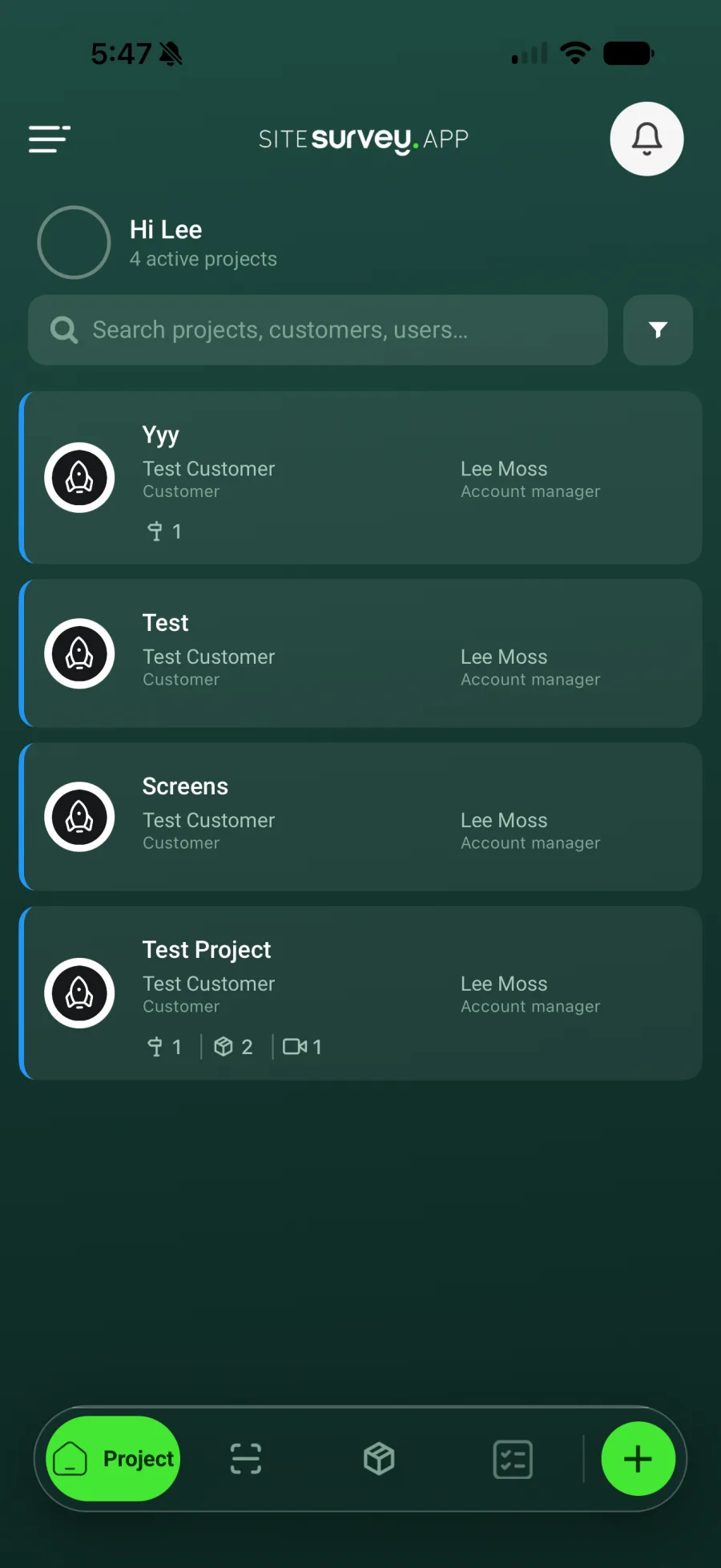
Open the project list and check that the user can see the work assigned to them before travelling to site.
Good to know
- ✓Complete the first sign-in before entering a low-signal area.
- ✓Use individual accounts rather than sharing credentials so activity remains attributable.
Was this guide helpful?
Your feedback helps us improve support content.