- 01
Confirm your policy and permissions
Explain how location information is used and ensure the employee has granted the required permission on their mobile device.
- 02
Set company working hours
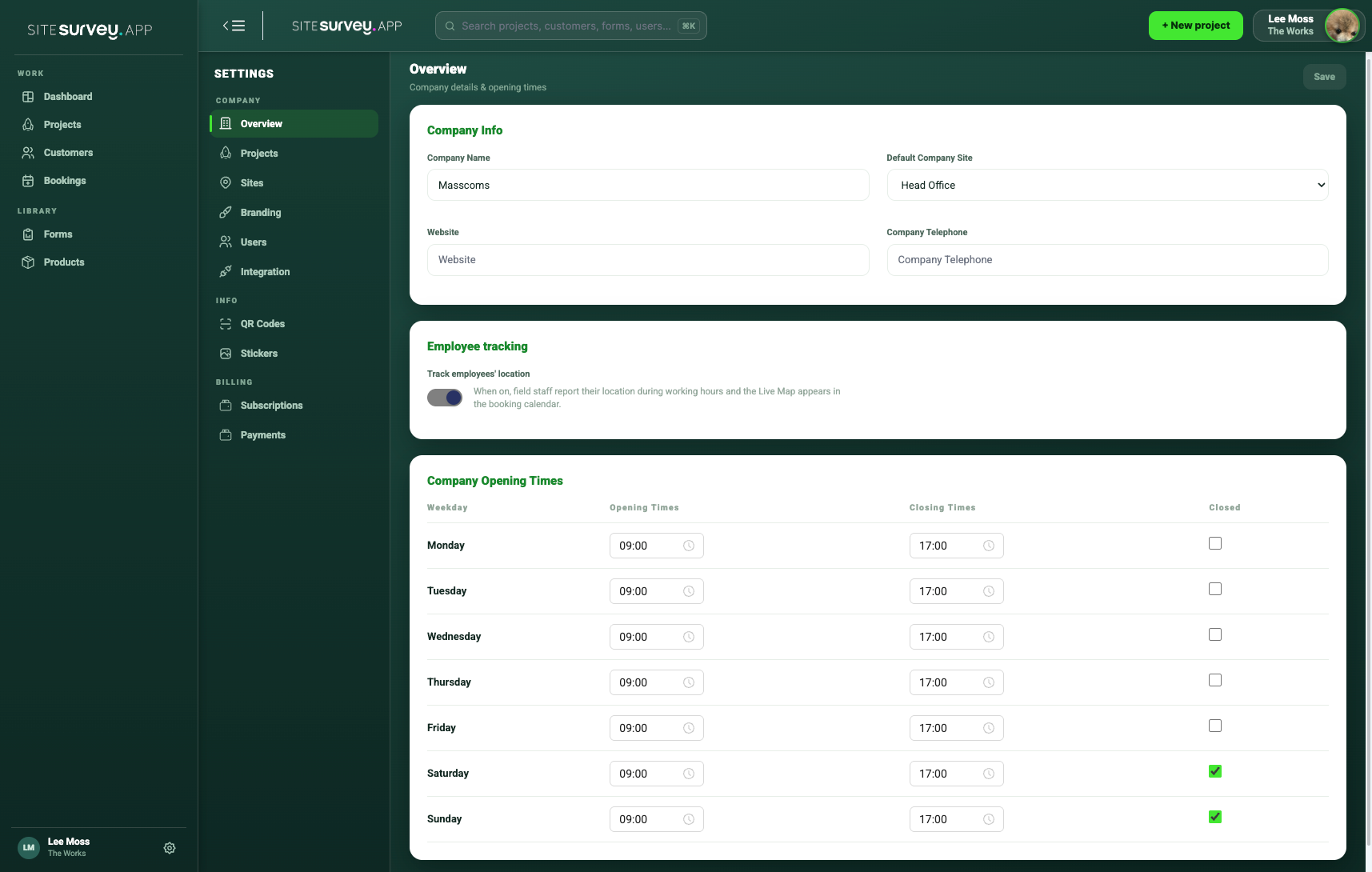
Open Settings, choose Company Overview and enter the opening and closing time for every working day. Mark non-working days as Closed. Location tracking is limited to these configured working hours.
- 03
Enable employee tracking
In Company Overview, turn on Track employees’ location. It is off by default. The setting explains that field staff report their location during working hours.
- 04
Choose who is tracked
Open Settings, then Users, and select a person. Track this person’s location controls whether they appear on the map and whether the app collects their GPS for tracking. Each person also has a location setting in the app, which turns on arrival notifications on their own phone.
- 05
Open the map and team controls
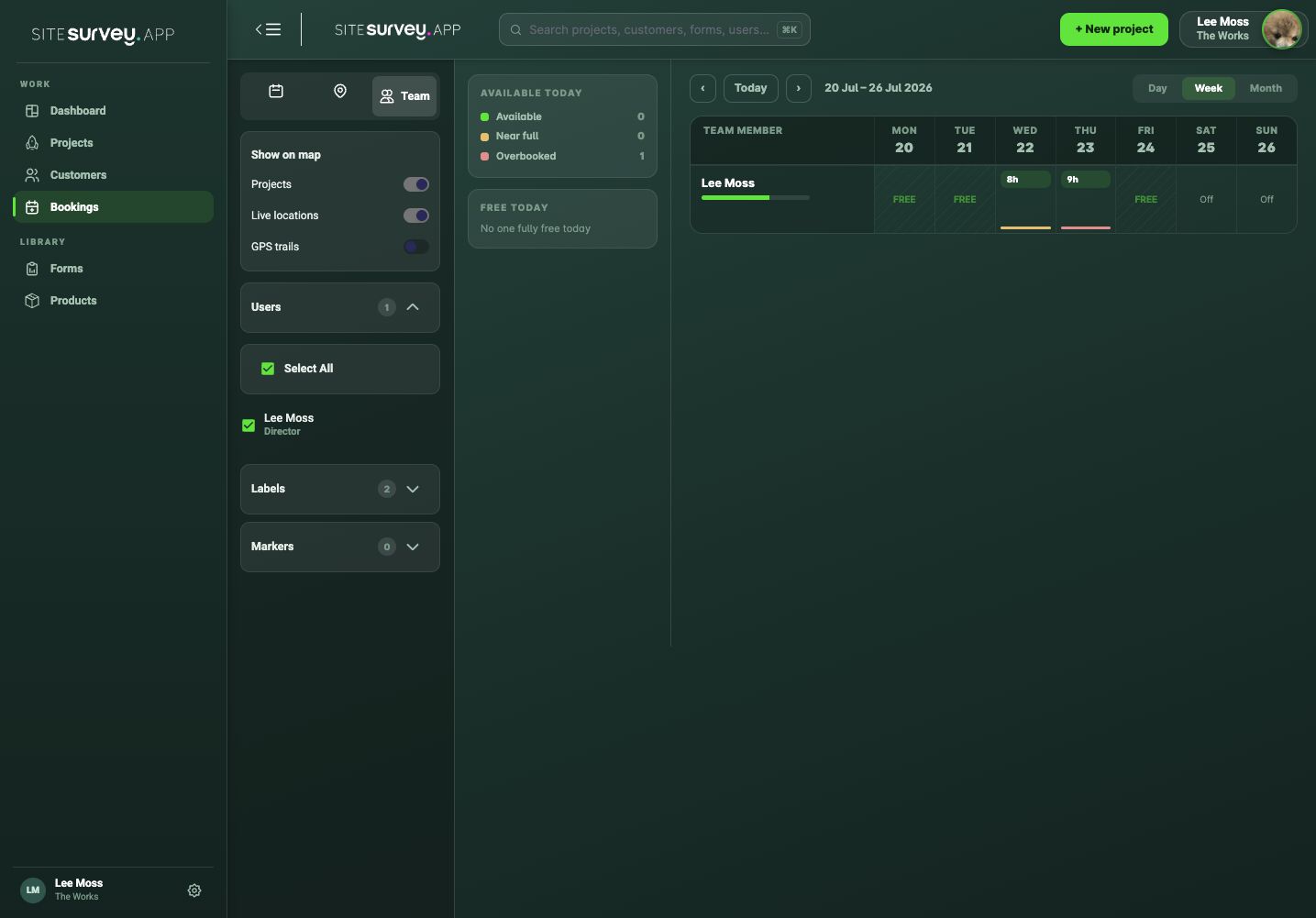
From Bookings, choose Team to access the project, live-location and GPS-trail controls alongside staff availability.
- 06
Enable live locations
Turn on Live locations and select the users you need to view.
- 07
Review the current position
Use the latest visible location alongside bookings and project markers to understand field activity.
- 08
Use GPS trails when required
Turn on GPS trails to see each selected person’s route as a dotted path for the date selected in the calendar. Live locations always show today. Use trails only when the journey context is useful, then turn them off.
Good to know
- ✓Tracking does not operate outside the configured company opening hours.
- ✓Location visibility depends on device settings, signal and the app’s permission state.
- ✓Tell employees how tracking is used and follow your organisation’s privacy and employment policies.
Was this guide helpful?
Your feedback helps us improve support content.