- 01
Open AI Visual Inspector and select + Add New
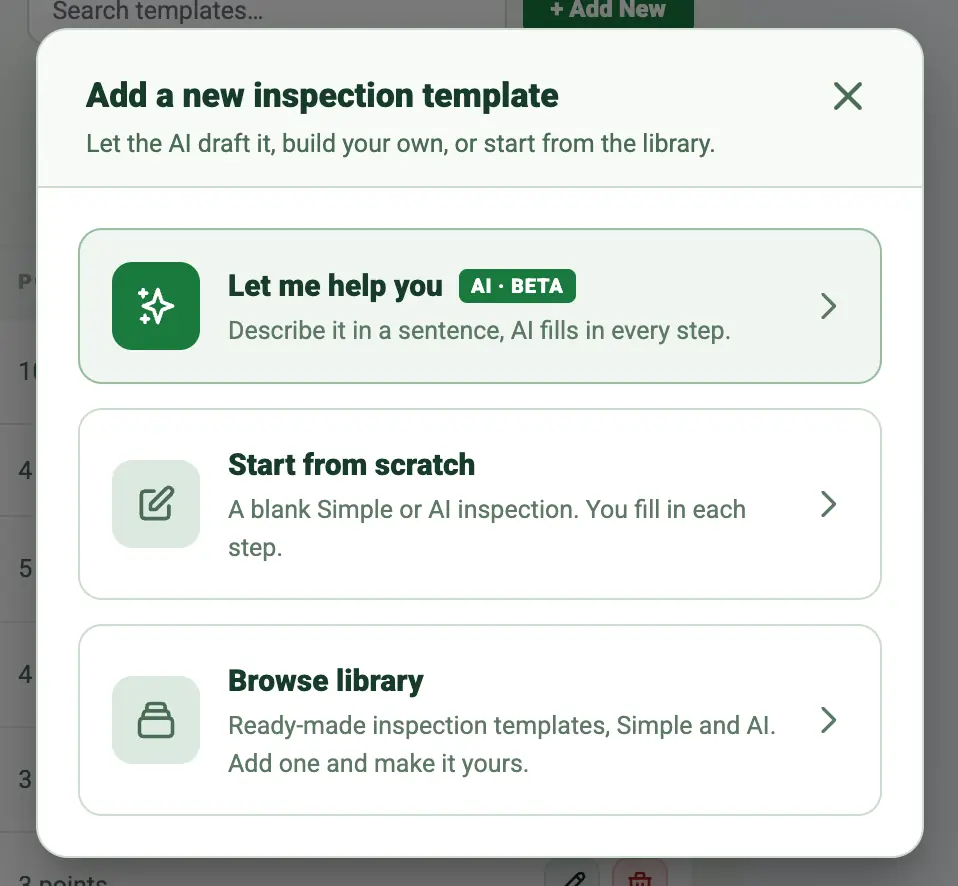
In the web dashboard, go to Forms, select the AI Visual Inspector tab and select + Add New. Pick how to start. Let me help you drafts the whole template from a sentence. Start from scratch gives you a blank Simple or AI inspection. Browse library adds a ready-made template, Simple or AI, that you can then make your own.
- 02
Or let the AI draft it
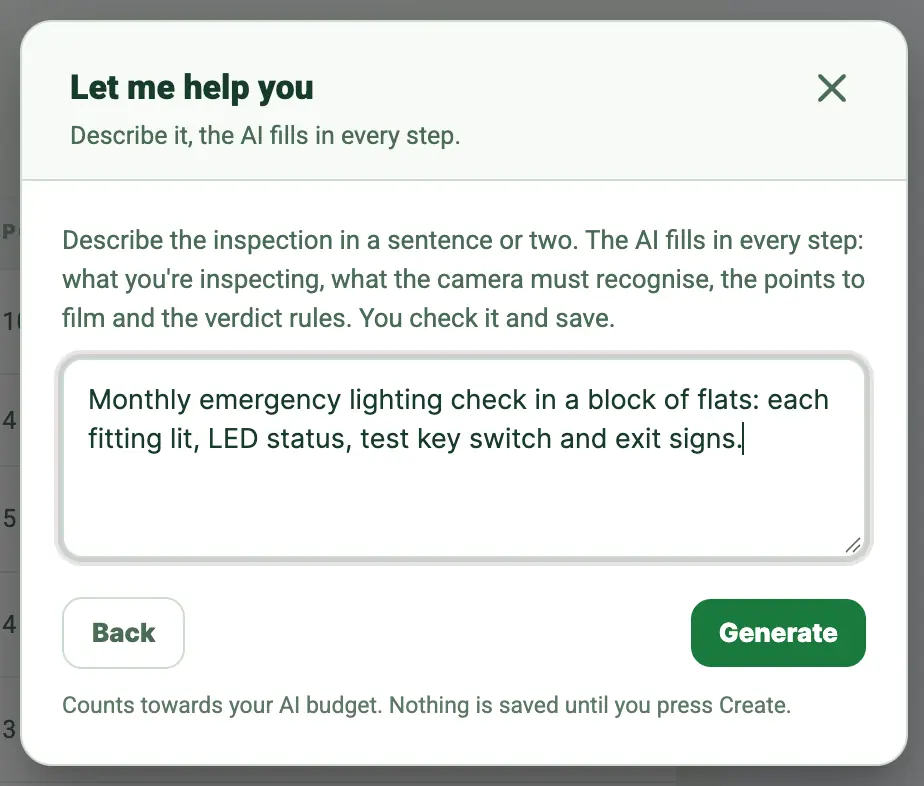
Choose Let me help you and describe the inspection in a sentence or two: what is inspected, where, and what matters. Select Generate. The AI fills in all four setup steps and opens the draft. Nothing is saved until you select Create template, so read every step before you save. Each draft counts towards your AI budget.
- 03
Step 1: say what you're inspecting
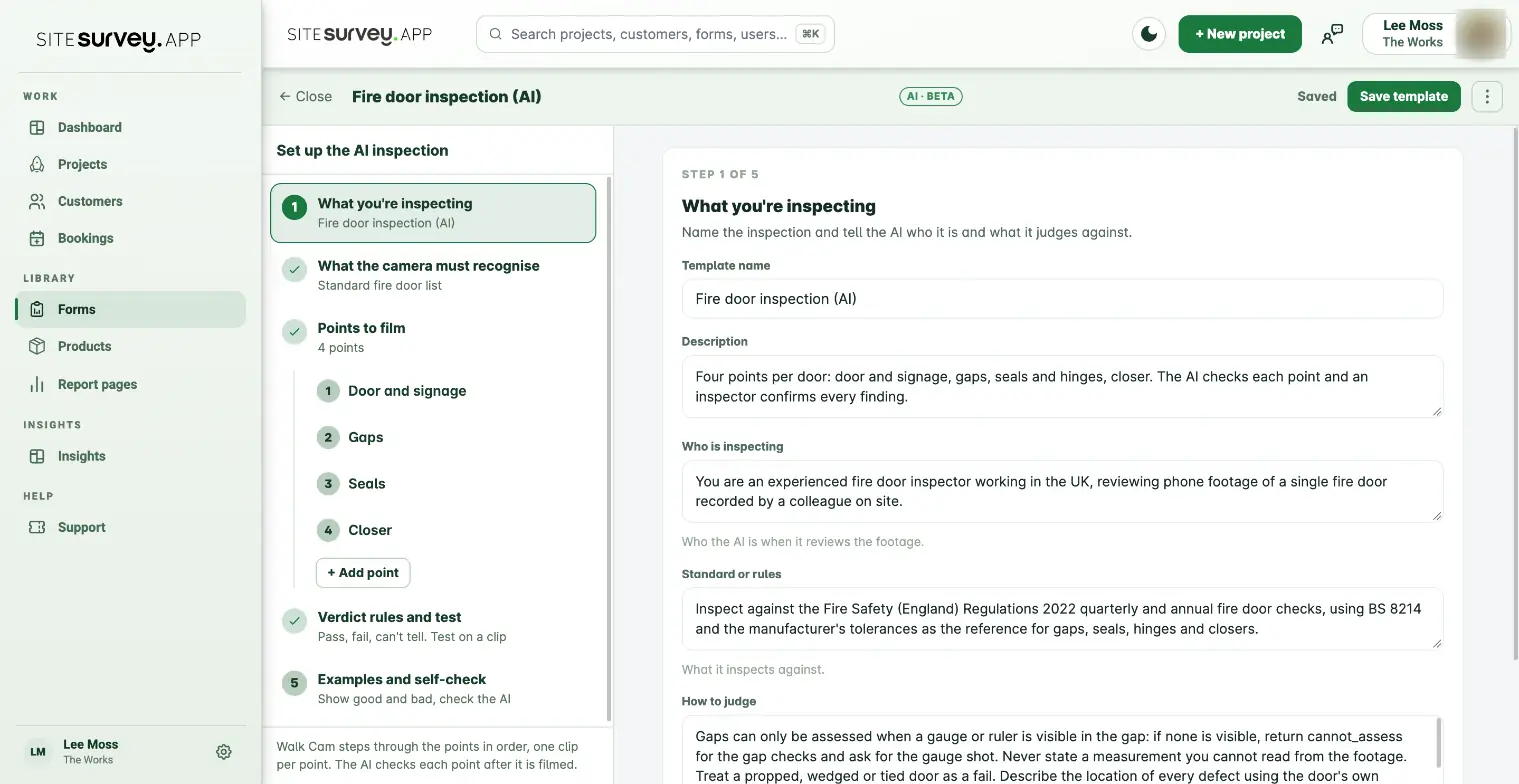
Give the template a name and an optional description for the team. Then fill in three boxes for the AI. Who is inspecting says who the AI is, for example an experienced fire door inspector in the UK reviewing phone footage of a single door. Standard or rules says what it judges against, such as the Fire Safety (England) Regulations 2022 with BS 8214 for gaps and seals. How to judge holds your house rules: what needs a gauge in shot, what never to guess, how to describe where a defect is. Each box takes up to 600 characters. Plain sentences work best.
- 04
Step 2: list what the camera must recognise
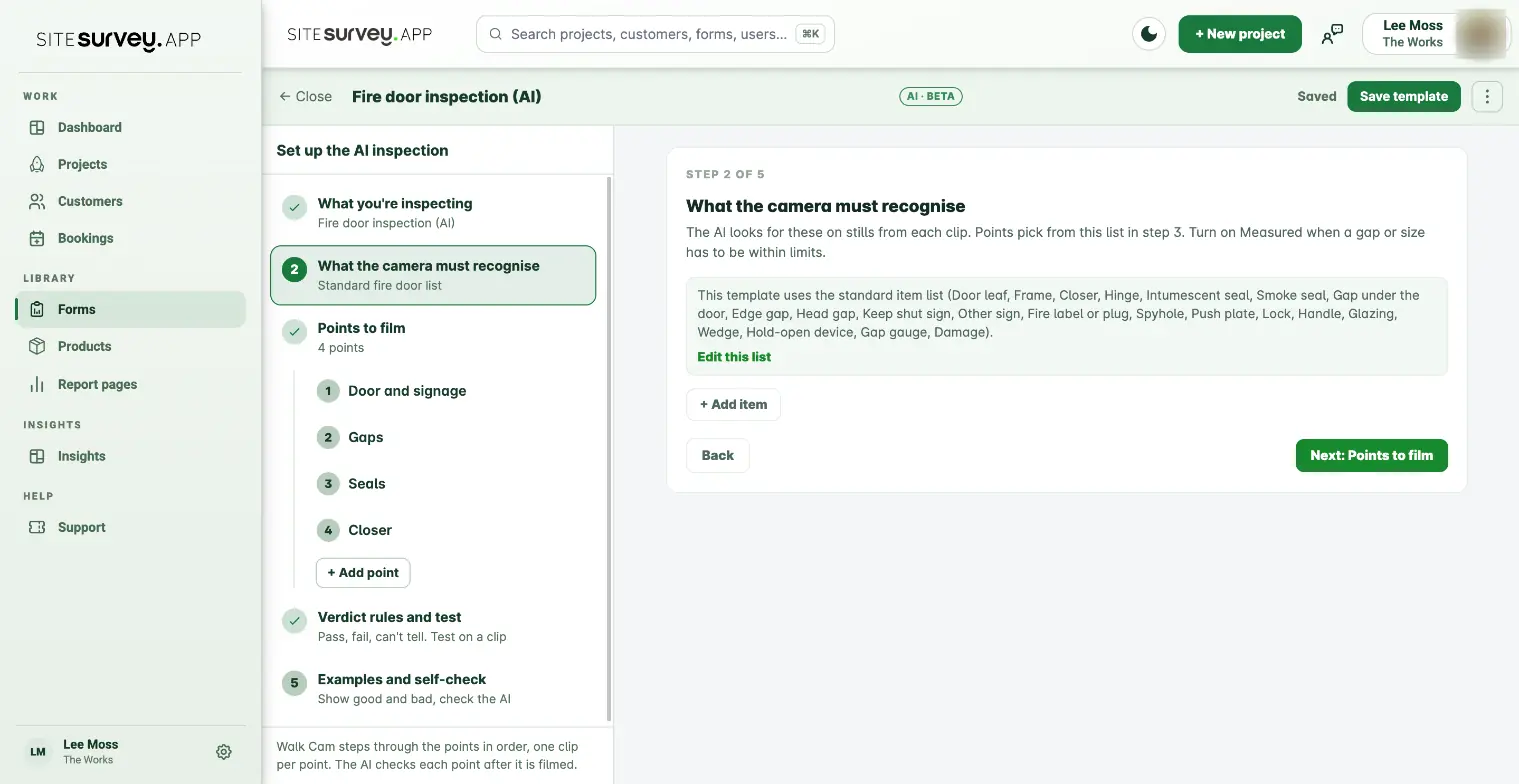
These are the things the AI looks for on stills from each clip, such as a door closer, an intumescent seal or an exit sign. A template without its own list says it uses the standard item list; select Edit this list to copy it into the template and change it, or + Add item to build your own. For each item give a name, how many to expect and one line on what it looks like. Turn on Measured when a gap or size must be within limits and enter the minimum and maximum in millimetres. A template can hold up to 30 items, and each row shows how many points use it.
- 05
Step 3: add the points to film
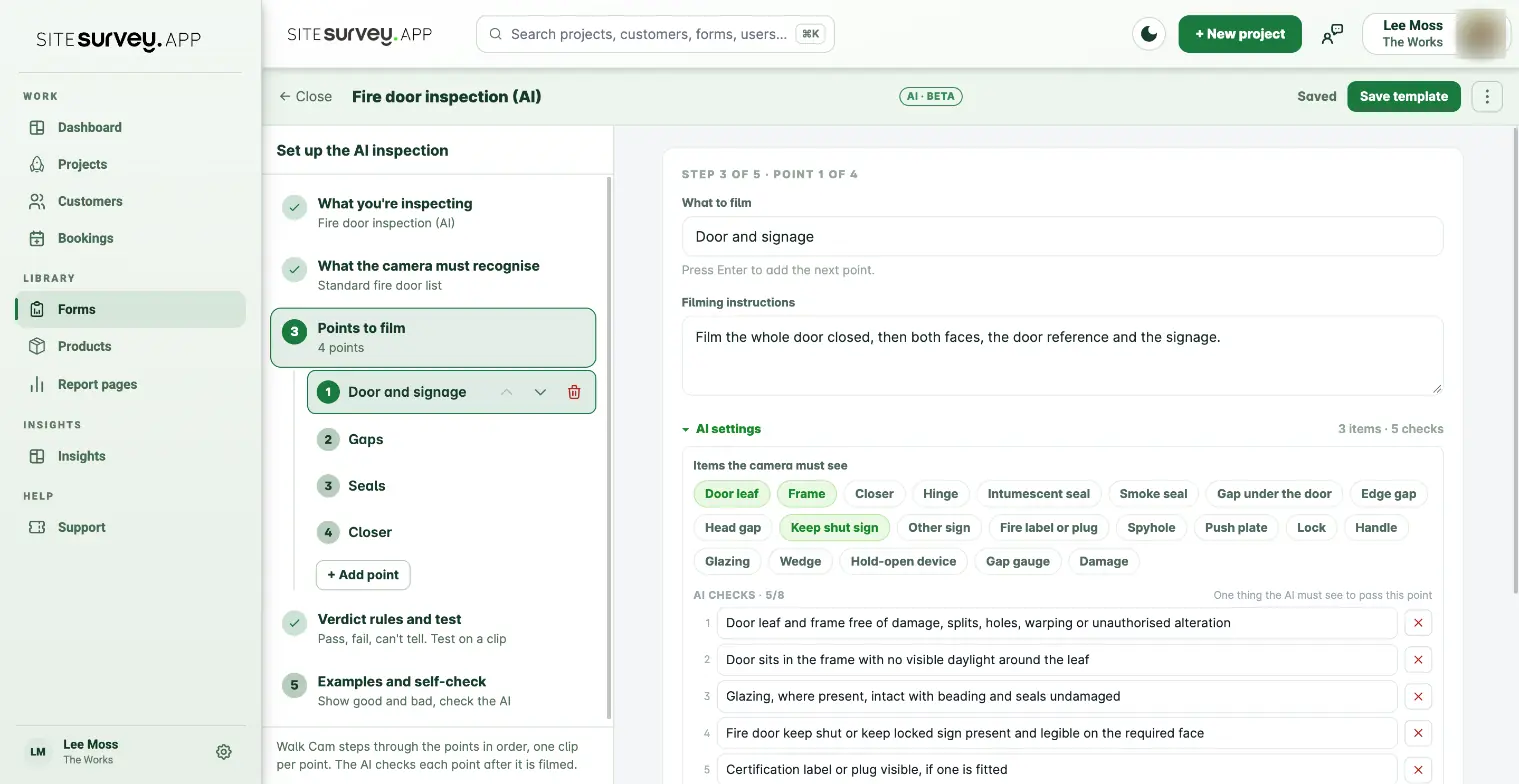
Each point is one clip on site, filmed in order. What to film is the question the technician sees, and Filming instructions say exactly how to film it, for example the whole door closed, then both faces, the door reference and the signage. Under AI settings, tap the items the camera must see in this point, then add up to eight AI checks. Write one thing the AI must see to pass the point in each check, up to 200 characters, such as door sits in the frame with no visible daylight around the leaf. Make sure every check can actually be seen in the footage the instructions ask for.
- 06
Step 4: set the verdict rules
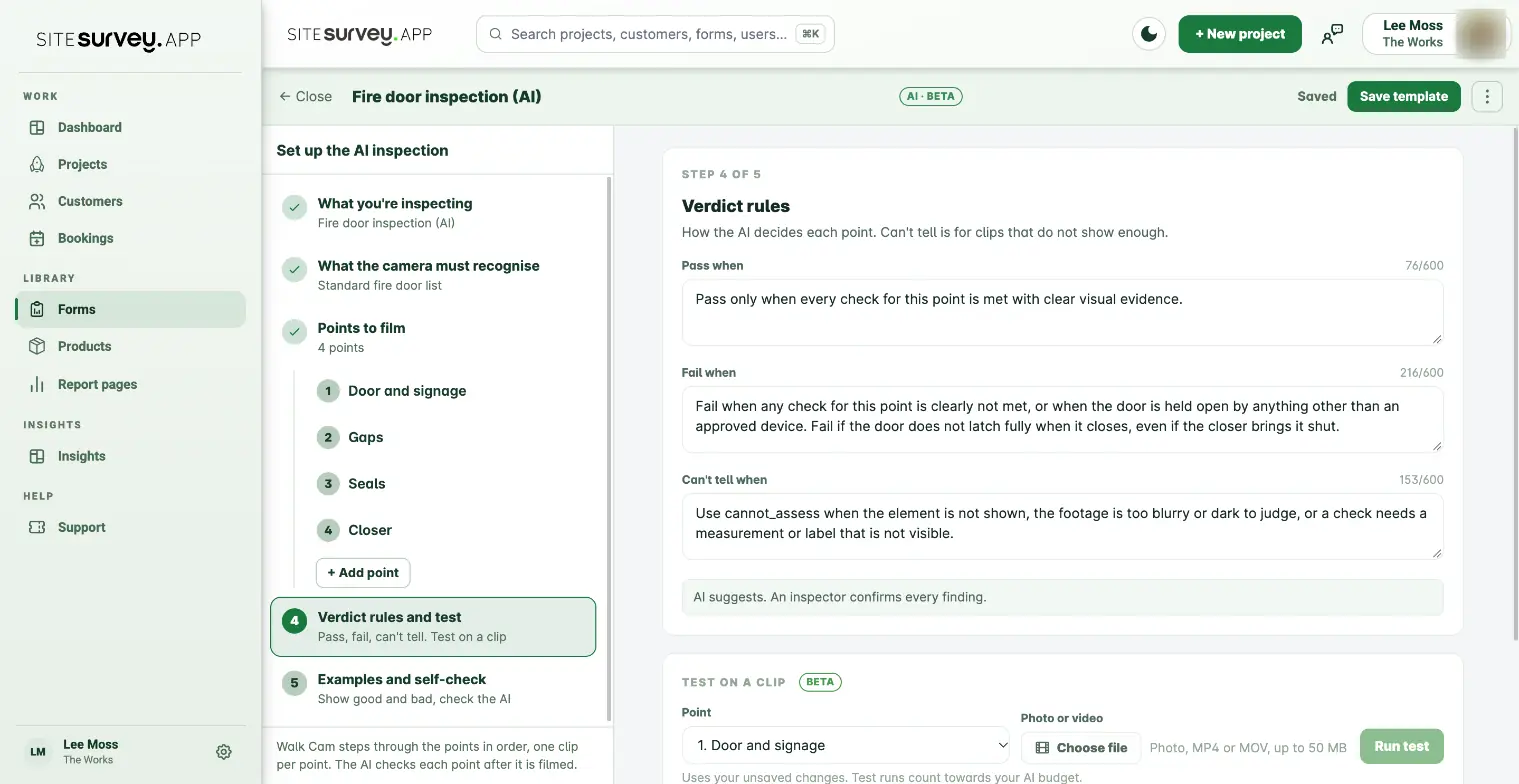
Pass when, Fail when and Can't tell when decide every point. A strong set is: pass only when every check for the point is met with clear visual evidence; fail when any check is clearly not met; can't tell when the item is not shown, the footage is too blurry or dark, or a check needs a measurement or label that is not visible. Keep Can't tell generous. A point the AI is unsure of should come back as can't tell, not as a guess.
- 07
Test on a clip
Under the rules, Test on a clip runs one point against a photo or video before anyone films on site. Pick the point, select Choose file (a photo, MP4 or MOV up to 50 MB) and select Run test. It takes up to a minute. The result shows the verdict (Pass, Fail, Check when nothing looks wrong but part of the point was not shown well enough to pass it, or Can't tell), a short summary, each finding with its reason and action, anything the AI could not see, and stills with each defect boxed. The test uses your unsaved changes, so you can edit a check and run it again straight away. Test runs stay on the page until you reload it. Nothing is saved.
- 08
Save the template
Select Create template, or Save template on an existing one. The bar at the top shows Saved or Unsaved changes. Then train and check it with examples in step 5 before the team uses it on site.
- 09
Use it on site
Technicians pick the template in Walk Cam on the phone and film one clip per point. The AI checks each point after it is filmed and suggests pass, fail or can't tell with boxed stills. The inspector accepts, changes or dismisses every suggestion, and only confirmed verdicts reach the report.
Good to know
- ✓Start from Browse library or Let me help you, then edit. It is quicker than a blank template and shows how good checks are worded.
- ✓Measurements need a gauge or ruler in shot. Say so in How to judge and the AI will ask for the shot instead of guessing a reading.
- ✓The menu next to Save template has Make this a Simple inspection (the items, checks and rules are removed when you save), Turn on AI for a Simple template, and Delete template.
- ✓AI Visual Inspector is in beta and switched on per company. If you cannot see AI inspection or Turn on AI, contact support to have it switched on.
- ✓Clips are sent to Google Gemini for assessment and are not used to train Google's models.
Was this guide helpful?
Your feedback helps us improve support content.