Capability 01
Scores and ratings
Multiply likelihood by severity for each hazard and turn the score into High, Medium or Low. Change either answer and the score and rating change with it.
Calculated fields
SiteSurvey forms work out risk scores, totals, counts and days between dates from the answers as they are filled in. Change an answer and the figure changes with it, in the browser and in the mobile app, even with no signal.
Trial from £1 · full access · cancel any time
Mobile app · works offline
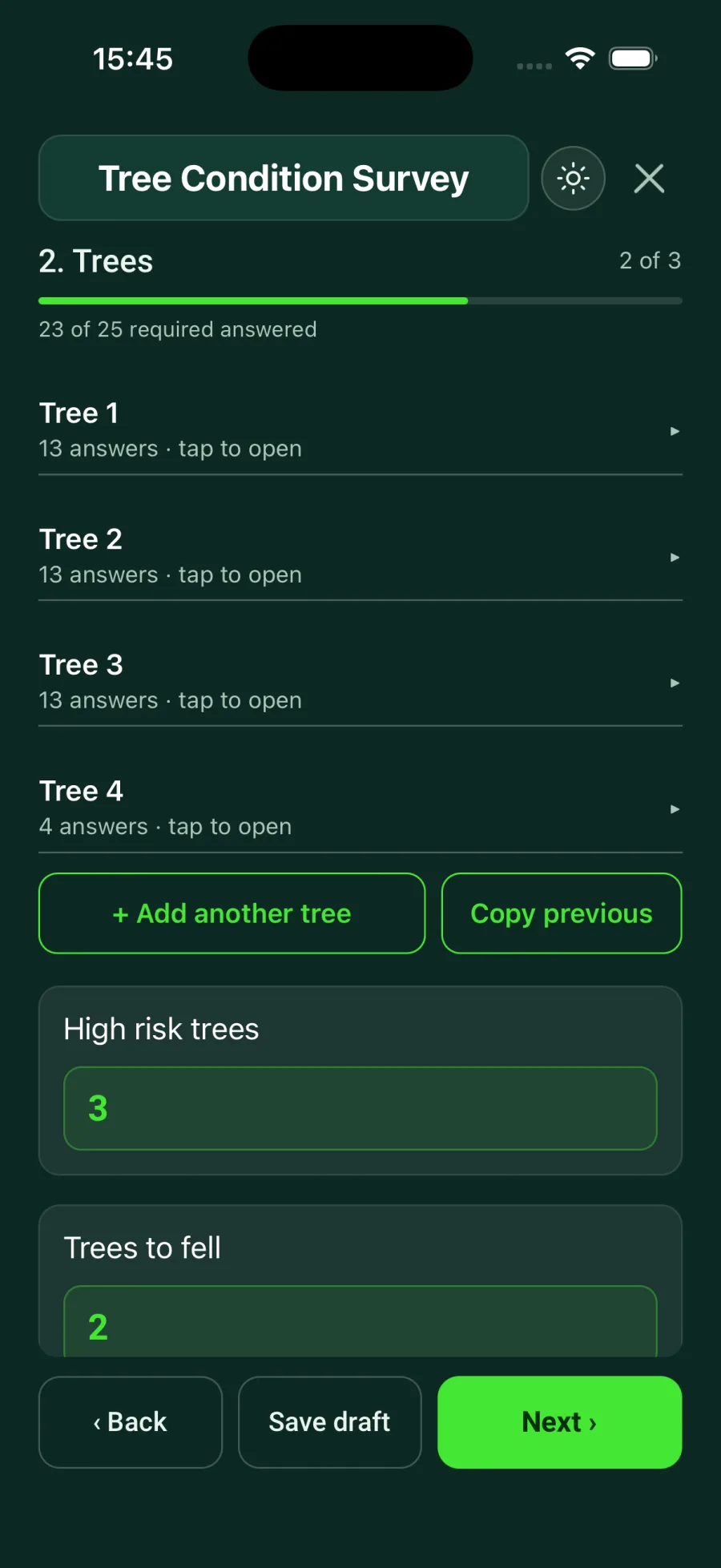
A calculated field fills itself in from other answers on the form. It can multiply likelihood by severity for a risk score, count the rows that match a rule, such as trees rated High, add up a value across every row, or work out the days between two dates. The value updates as soon as an answer changes, on the web and in the mobile app, including offline, and it prints in the report. Add one in the form builder, ask the AI form builder, or start from a library form that already has them.
Last updated 20 October 2026.
No calculator, no spreadsheet
Most forms end in a number someone has to work out: a risk score, a pass rate, how many trees need felling, how long since the last service. Done by hand on site, those figures get skipped or come out wrong. Calculated fields do the sums from the answers already given, so the number is there, correct and consistent, for every surveyor on every job.
Capability 01
Multiply likelihood by severity for each hazard and turn the score into High, Medium or Low. Change either answer and the score and rating change with it.
Capability 02
Count the trees rated High, add up the weight of every piece of equipment, or pick the highest score across all hazards. Add a row and the total keeps up.
Capability 03
Work out the days since the last service, the calendar days since a landlord became aware of a hazard, or an asset's age from the year it was installed.
Capability 04
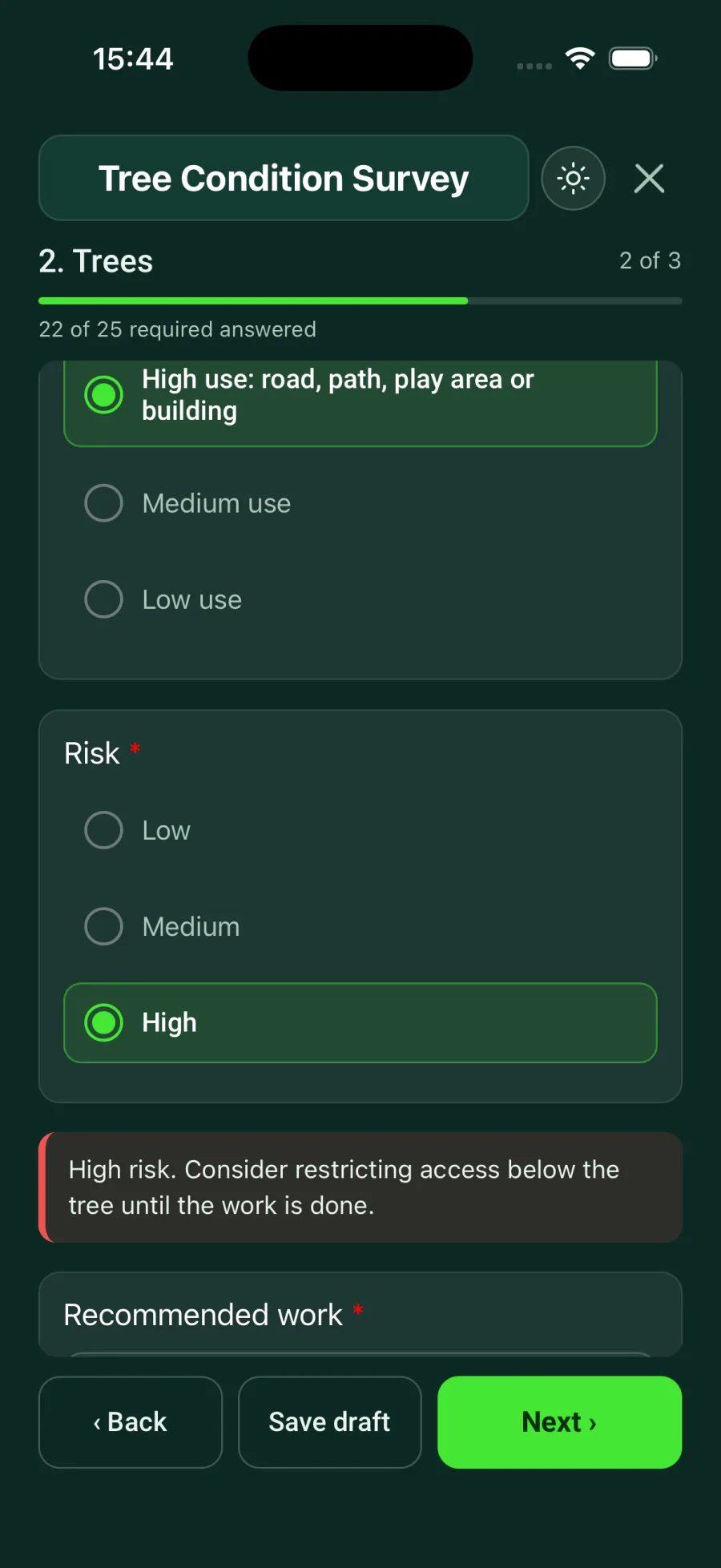
Show a note only when an answer needs one. Rate a tree as High risk and the form says: consider restricting access below the tree until the work is done.
On the phone
These are from the SiteSurvey app with offline mode switched on. The values are worked out on the phone, so nothing waits for a signal.
Step 01
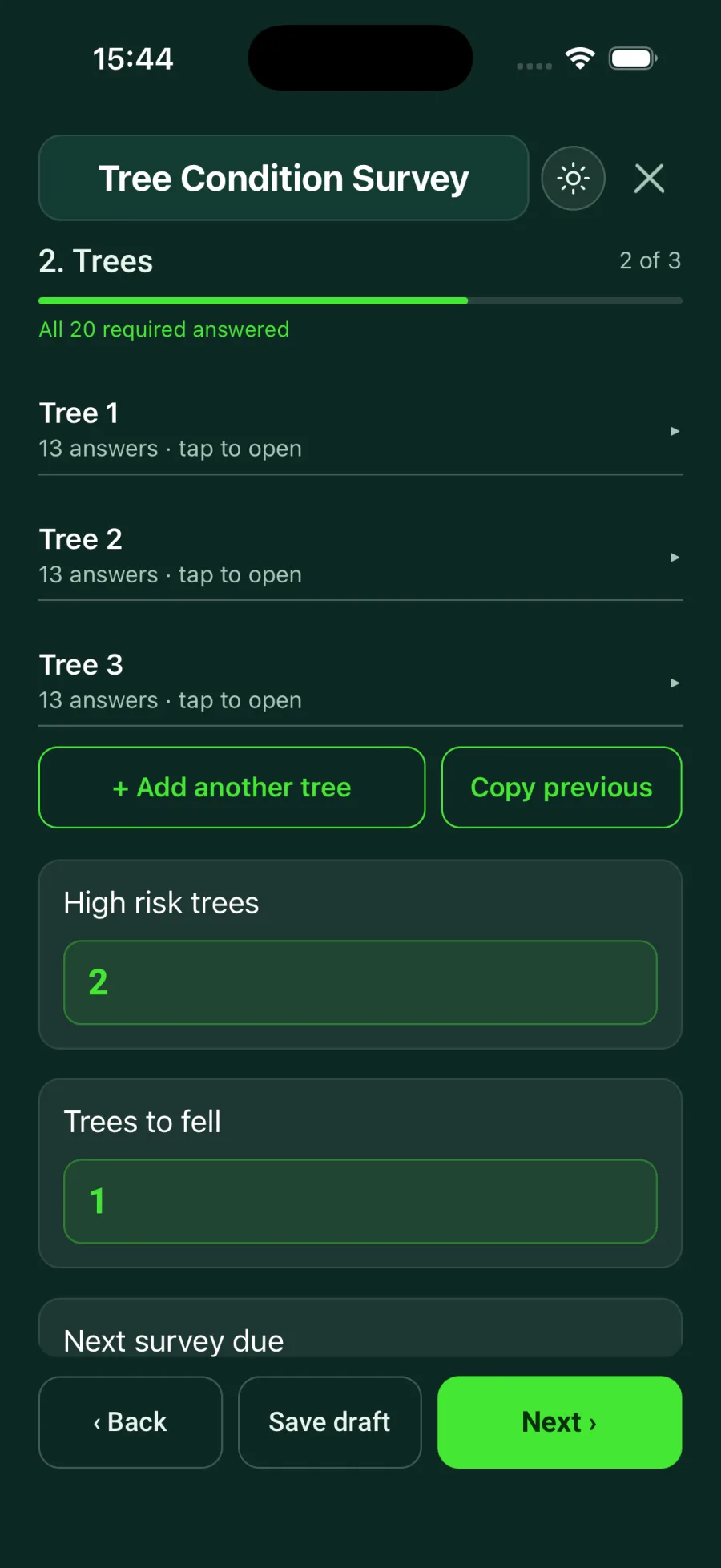
The form counts the trees rated High and the trees marked for felling.
Step 02
Guidance appears under the answer straight away, only when it applies.
Step 03
Add the tree and pick Fell: High risk trees goes to 3 and Trees to fell to 2.
Step 04
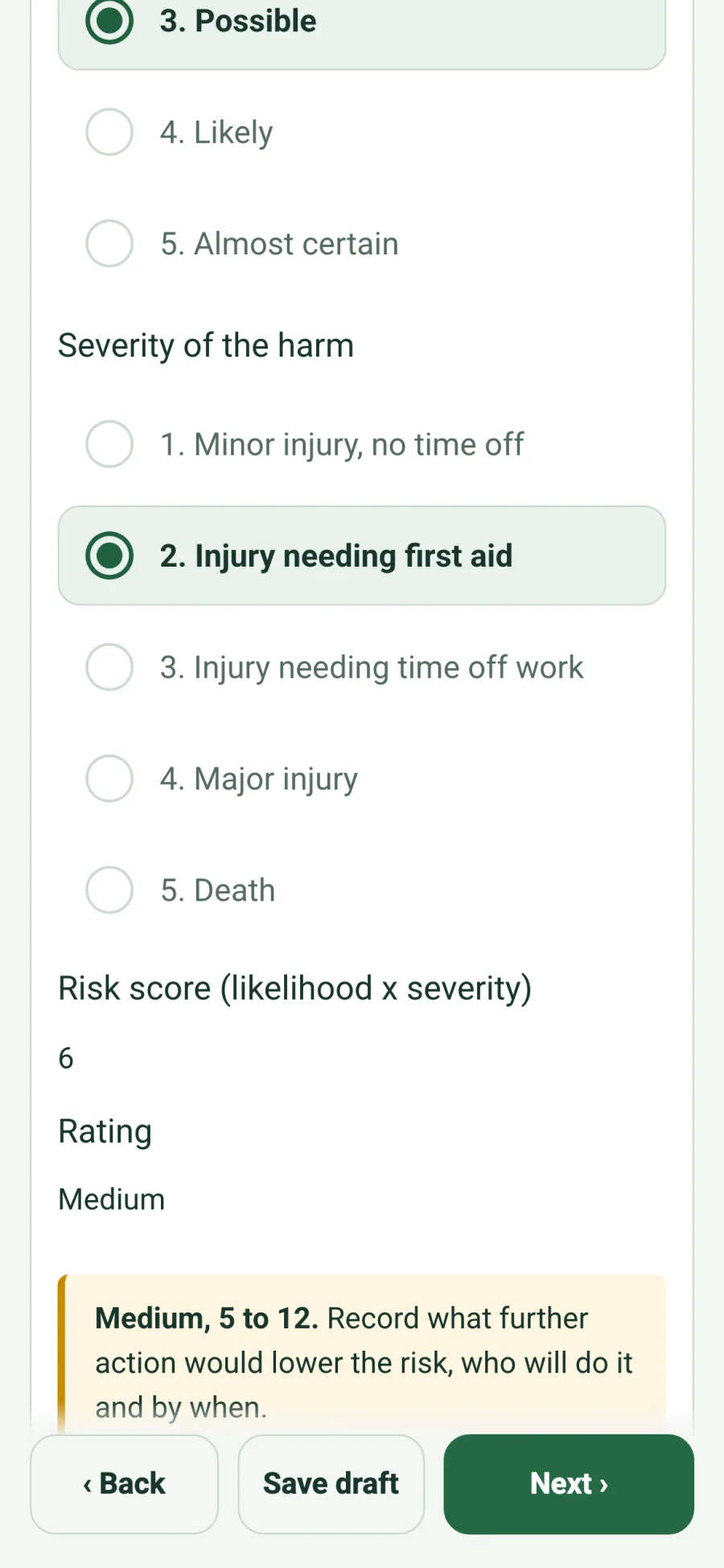
In a risk assessment each hazard gets its own score and rating: 3 x 2 is 6, Medium.
Office and field, connected
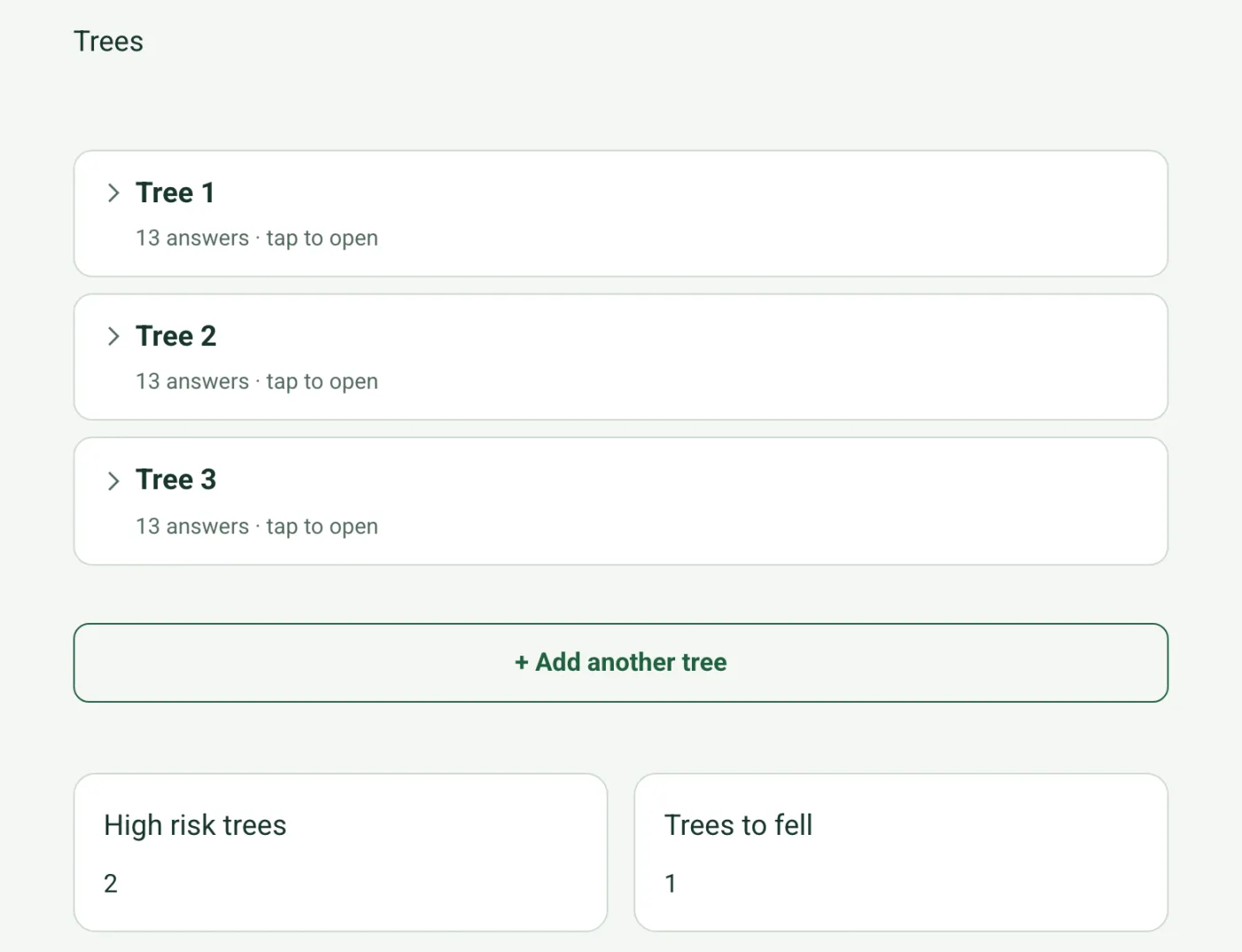
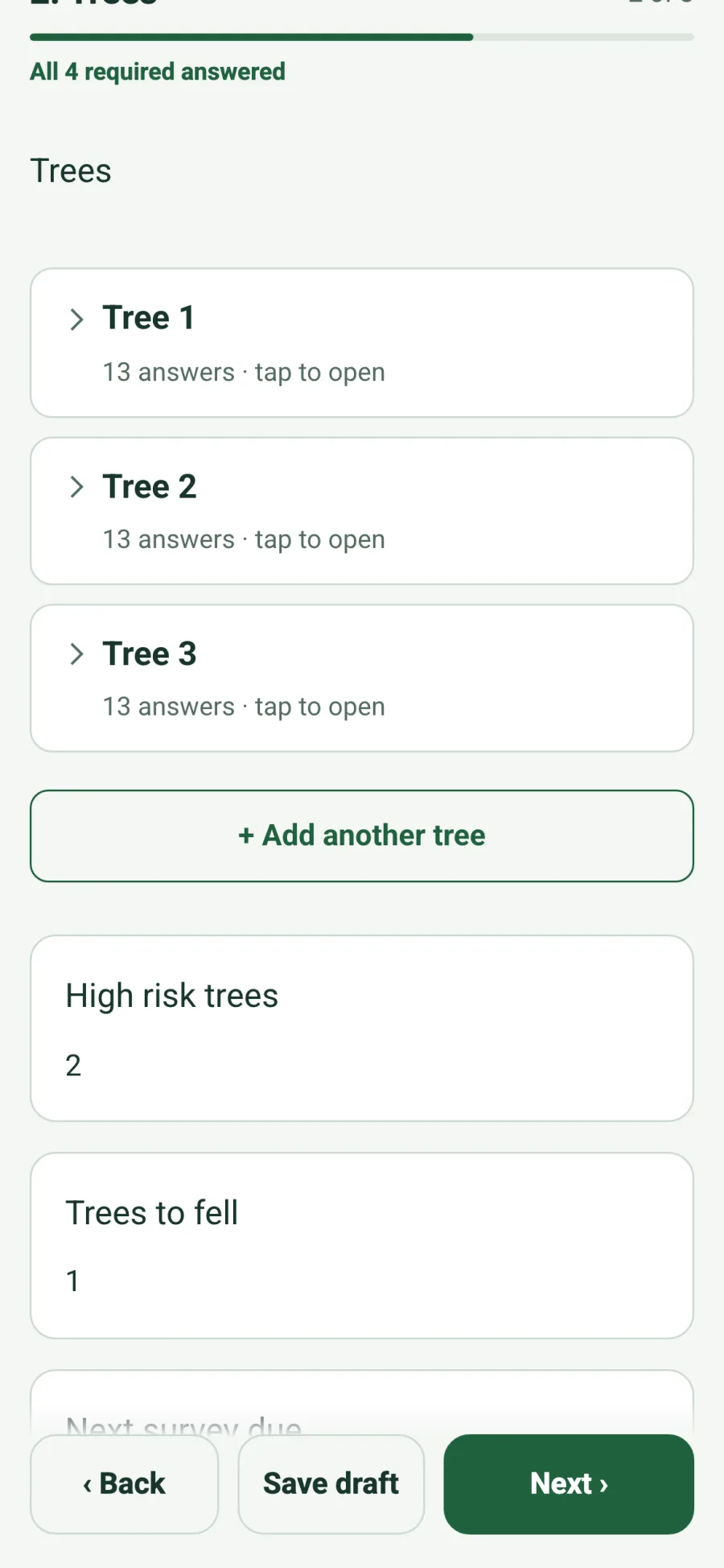
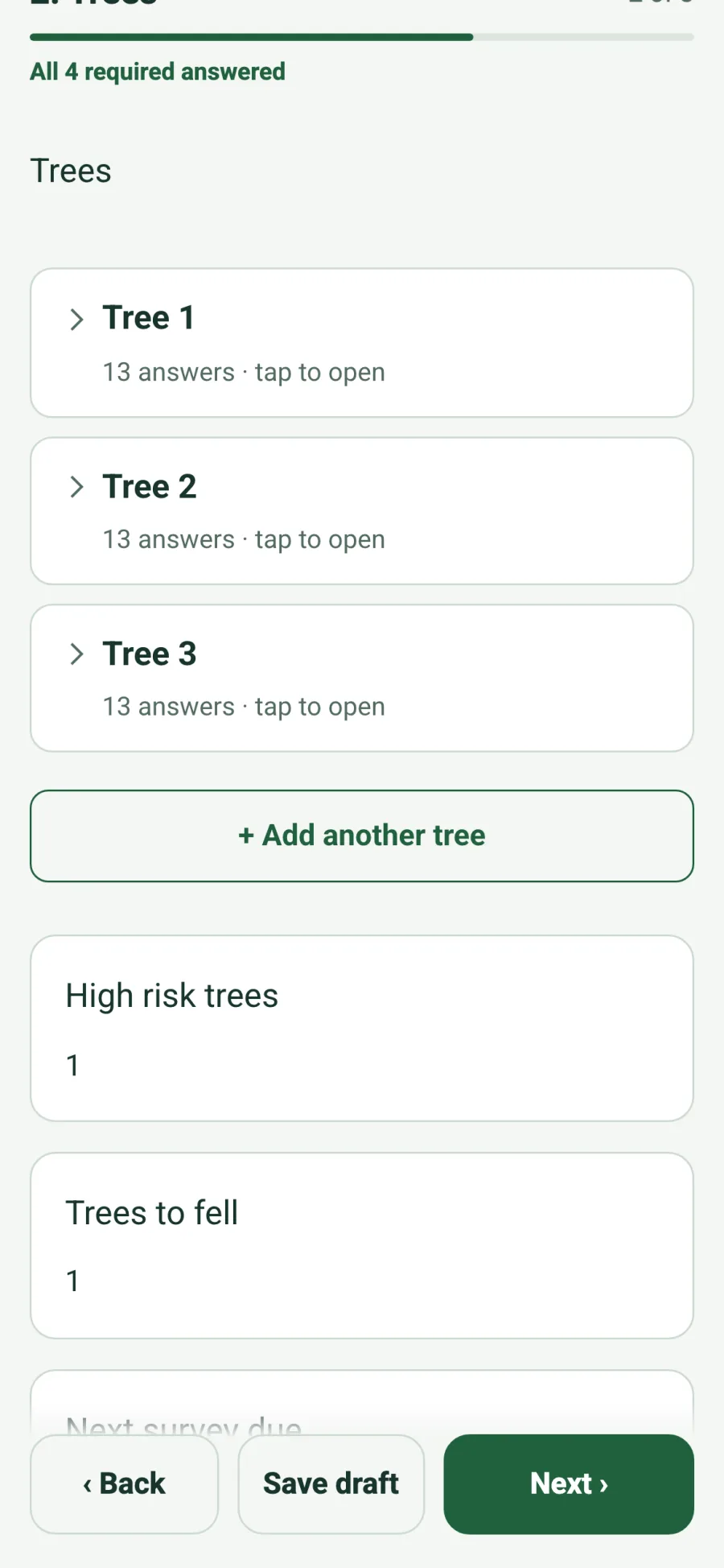
The web form, a shared link and the mobile app all read the same form and the same answers. Change Tree 3 from High risk to Medium in the browser and High risk trees drops from 2 to 1, exactly as it does on the phone. The office sees the right number the moment the form syncs.
✓Values update as soon as an answer changes
✓Calculated fields cannot be typed over, so they always match the answers
✓Works in the app offline, on the web and on shared form links
In the report
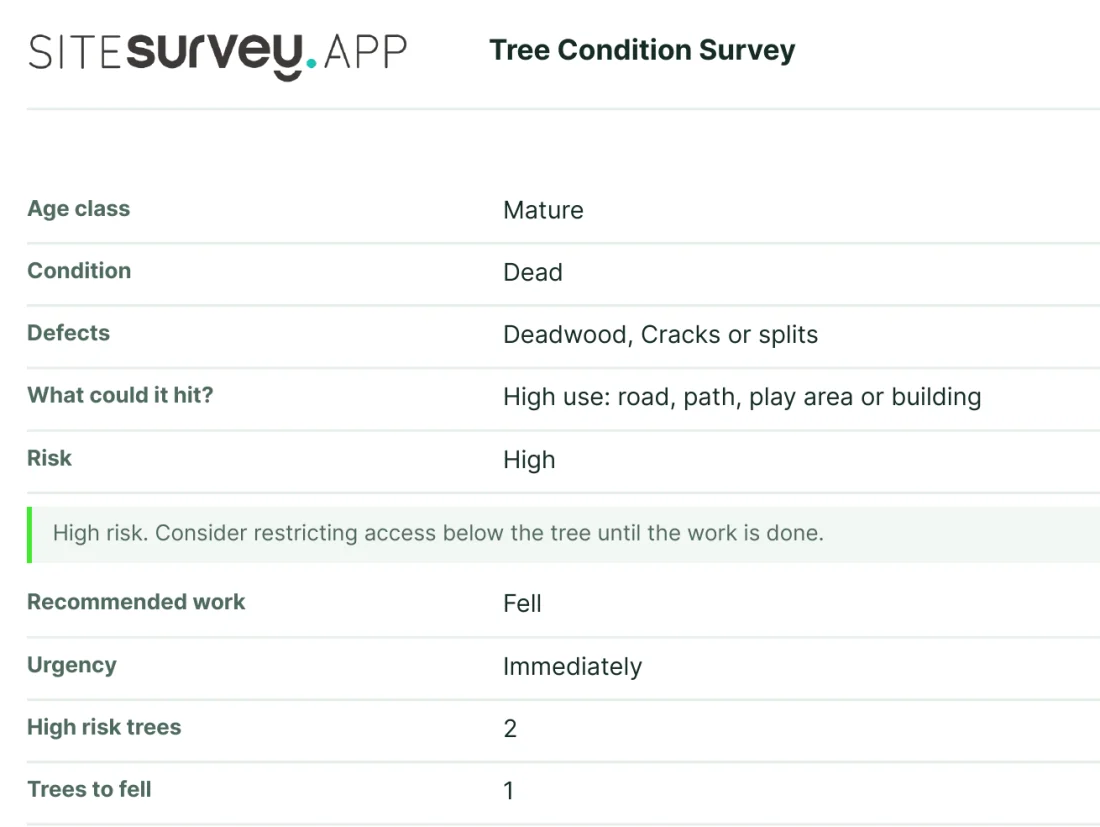
When the form becomes a report, each calculated field appears with its value next to the answers it came from, along with any guidance note that applied. Nobody has to add up the findings again before the report goes out.
✓Calculated values print alongside the answers
✓Guidance notes that applied print too
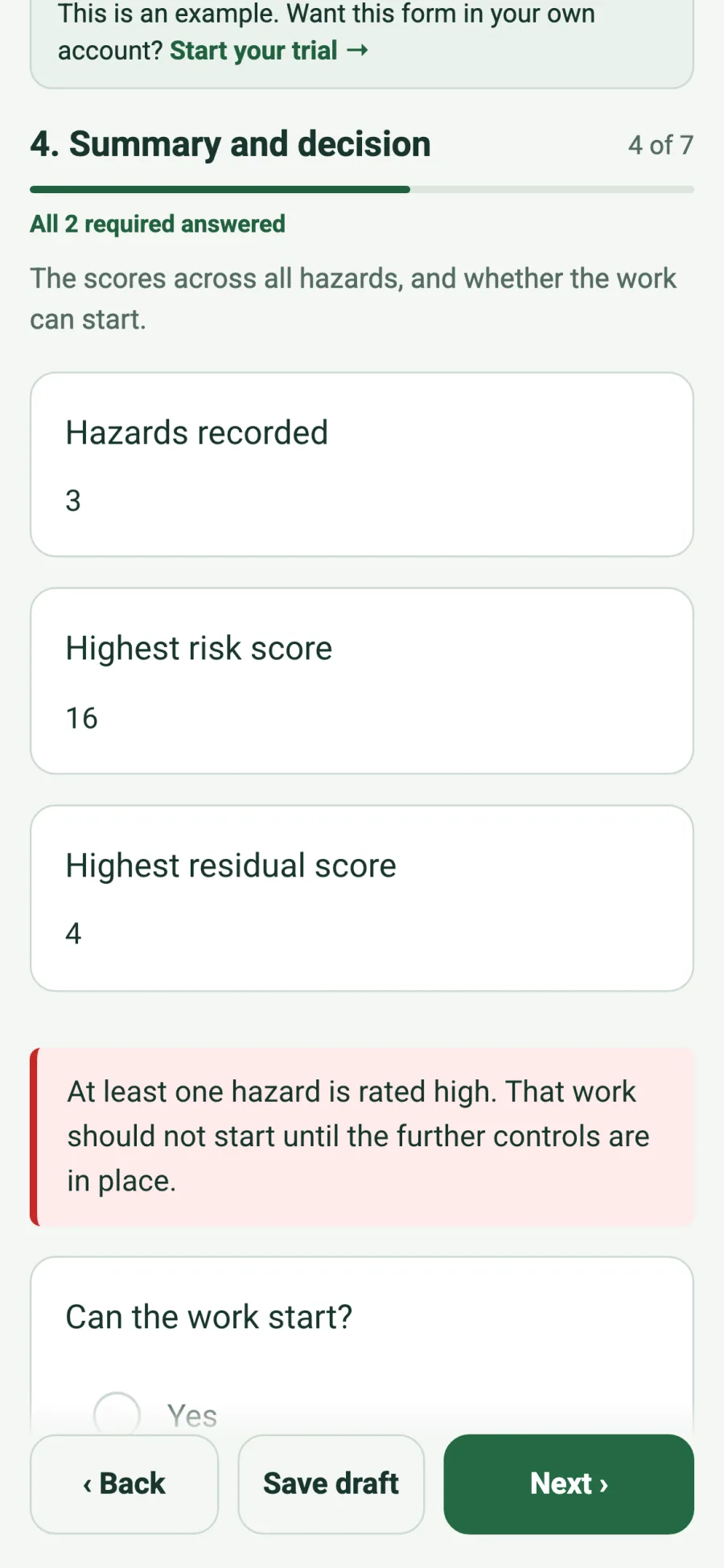
✓Summary pages pull the highest score and counts together
In the form library
160 of the 315 forms in the library already include calculated fields. A few of them, with what each one works out. Every form page has a live example you can fill in.
More smart fields
Tap a reference of known size, then the thing you're measuring. The height or width fills in, with the marked-up photo kept as evidence.
See how it works →Mark current location fills in latitude, longitude, OS grid reference and accuracy, or adds a point per tap for a boundary or route.
See how it works →A calculated field is a box on a form that fills itself in. Instead of asking the surveyor for a number, it works the number out from other answers: a risk score from likelihood and severity, a count of high risk trees, a total weight of equipment, or the days since the last service. Nobody can type over it, so the figure always matches the answers.
Straight away. Change an answer and every calculated field that depends on it changes too. In the Tree Condition Survey example, changing one tree from High risk to Medium drops High risk trees from 2 to 1 before you leave the page.
Yes. The SiteSurvey app works the values out on the phone itself, so scores, counts and totals update while you are offline. We checked it with the app in offline mode: adding a fourth tree rated High moved High risk trees from 2 to 3 and Trees to fell from 1 to 2 with no connection.
Yes. Both read the same form and the same answers. The Tree Condition Survey shows High risk trees 2 and Trees to fell 1 in the browser and in the app for the same three trees.
Yes. A calculated field can count the rows that match a rule, such as trees where Risk is High, add up a value from every row, such as the weight of each piece of equipment, or pick out the highest, such as the highest risk score across all hazards. A row can also have its own calculation, such as a score for each hazard.
Yes. A note can be set to appear only when an answer calls for it. Rate a tree as High risk and the form shows: High risk. Consider restricting access below the tree until the work is done. Change the answer and the note goes away.
Yes. The report shows each calculated field with its value alongside the answers, and any guidance note that applied. The sample Tree Condition Survey report lists High risk trees 2 and Trees to fell 1 under the trees.
In the form builder, add a Calculated value and write what it works out, using question names in curly brackets, such as {length} * {width}. The easier way is to ask the AI form builder in your own words, for example add the total area of all rooms, and it writes the calculation for you. Many forms in the library already include them.
See it on your next site