- 01
Switch on the Customer Portal
In the web dashboard, open Settings, then Customer Portal. Turn on Let customers sign in to see their projects and save. Only an admin on your account can change this. Until it is on, nobody at any of your customers can sign in.
- 02
Choose what customers can see
On the same page, under What customers can see, pick which parts of a project to show: the report, photos (spaces and the photos taken in them), Walk Cam videos, project files and forms (each form's status, and completed forms read-only). Every customer always sees each project's overview.
- 03
Open the customer's Portal access tab
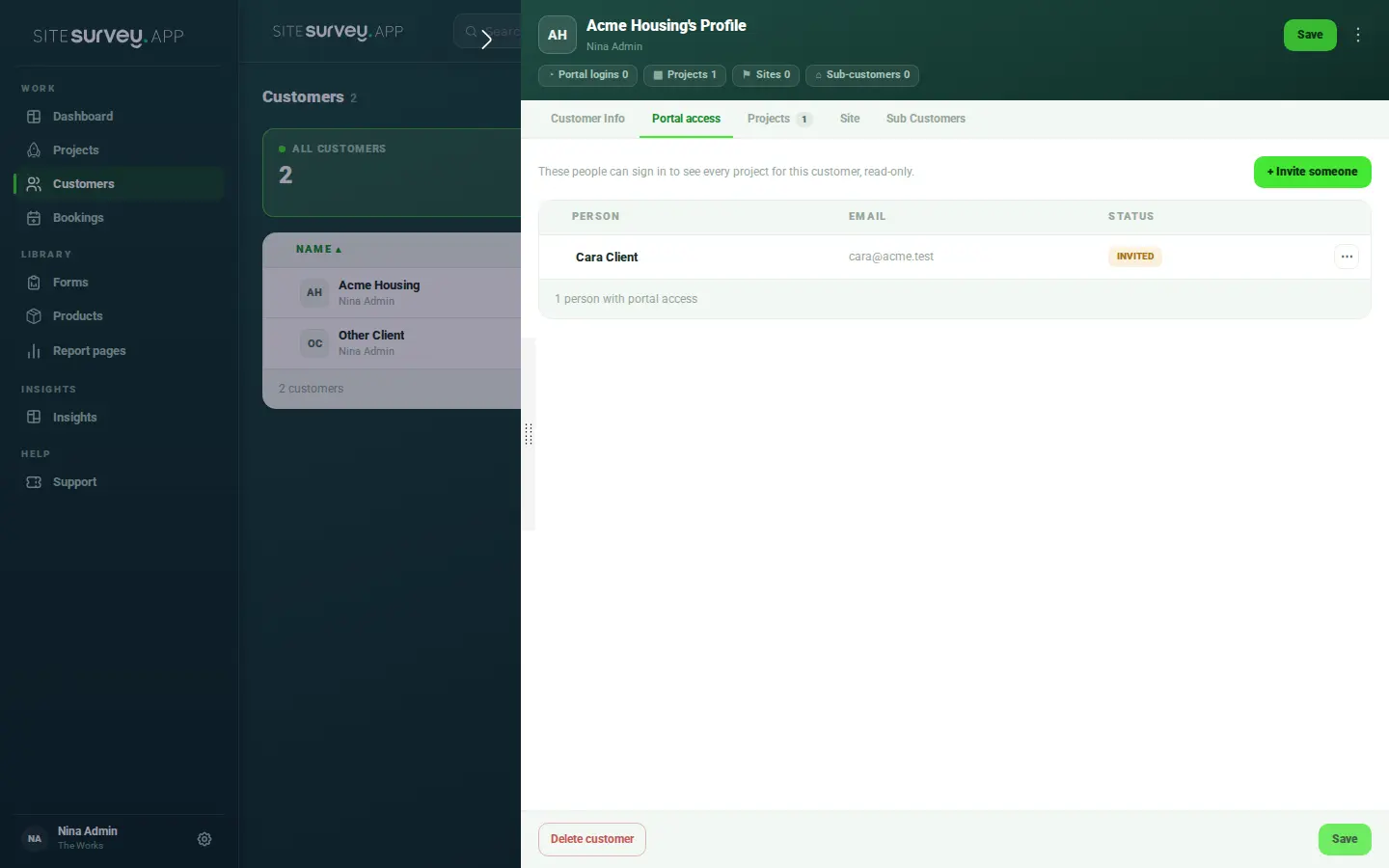
Open Customers, select the customer and open the Portal access tab. It lists everyone at that customer who can sign in, with their status.
- 04
Invite someone
Select + Invite someone, enter their first name and email address, and select Send invite. They get an email with a link that signs them straight in. The link works once and lasts 7 days.
- 05
What your customer sees
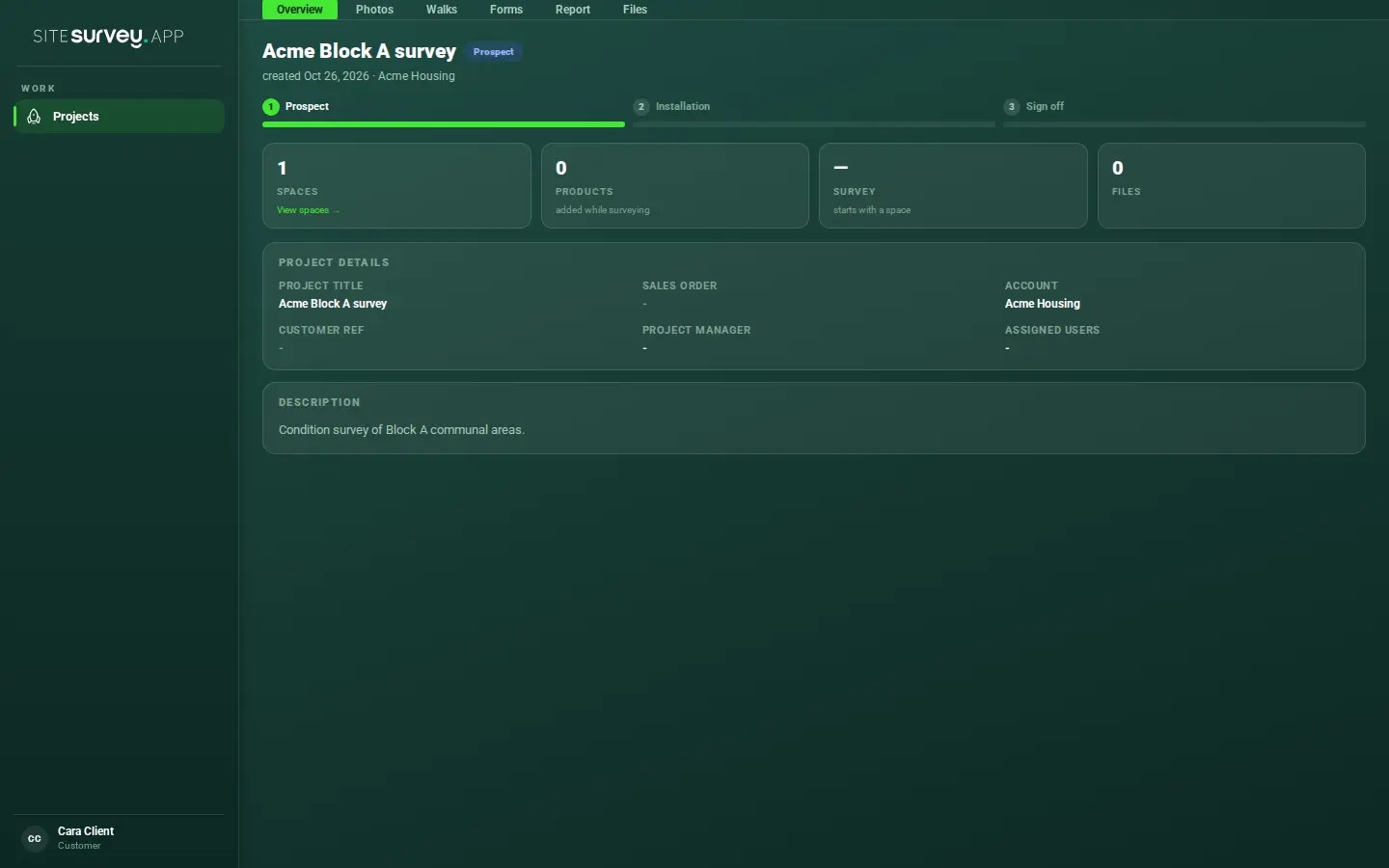
They see every project for that customer and nothing else. Each project opens on its overview, with tabs for the photos, walks, forms, report and files you chose to show. They can open the report and download it as PDF or Word. They can't edit, upload or delete anything, and they never see your other customers, bookings or settings.
- 06
How they sign in next time
There's no password to remember. After the first link, they go to the sign-in page, enter their email, and we email them a code or link. The portal is on the web; there is no customer view in the mobile app.
- 07
Resend, disable or remove a login
Each person on the Portal access tab shows a status: Not invited, Invited, Invite expired, Active or Disabled. Use the menu on their row to Resend invite, Disable sign-in (and Enable sign-in again later), or Remove them.
Good to know
- ✓Customer logins are free on Base and The Works and don't use a seat.
- ✓If a customer can't sign in, check the Customer Portal is switched on and their status is Active, then resend the invite.
- ✓Switching the Customer Portal off stops every customer login straight away, including people already signed in.
Was this guide helpful?
Your feedback helps us improve support content.