Form library · AV and IT
Meeting room checklist
A quick readiness check for a meeting or conference room, for facilities, IT and AV support teams. Start the room the way a user would, test sharing, make a test call, look over the room itself, and record anything that is not right with a priority and a photo. Every question is listed below, and you can fill the live form in on this page.
Ready to use from the form library, and every question is yours to edit. Trial from £1, cancel any time.
Try it on your phone
Try it on this phone
Fill in the meeting room check on your phone now
See how the meeting room check looks on your phone
Scan the code with your phone camera. It opens the real form, no sign-up needed.
Open the live example and fill it in, just as your team would on site. No sign-up needed.
See it on this phoneEvery question is editable. Add this form to your account, then change the wording, add or remove questions and options, and make it fit your own jobs.
What should a meeting room checklist include?
A meeting room checklist should confirm the display switches on and shows a clear picture, sharing works by cable and wirelessly, the touch panel or room controller responds, and a test call proves the microphones, speakers and camera. It should also check the hearing loop and booking panel, that cables, adapters and remotes are present, and that the room is clean, lit and set out. Issues need a priority.
Last updated . Facts checked by the SiteSurvey team on 5 October 2026 against regulation 7 of the Workplace (Health, Safety and Welfare) Regulations 1992 (temperature) and regulation 12 of the Workplace (Health, Safety and Welfare) Regulations 1992 (floors and traffic routes).
Try the meeting room check form live
Answer a few questions and watch it adapt. Your answers are not saved, and any photos you add are deleted within the hour.
This is the real form as your team would use it: questions appear as you answer, scores work themselves out and you can add photos and signatures. No sign-up needed.
Want to see one filled in? See a completed meeting room check report (PDF), made by SiteSurvey from a fictional site visit.
Fill it in on a phone or tablet
Your team completes the meeting room check on site in the SiteSurvey app on iPhone, iPad and Android phones and tablets. The project name and address fill in for them, it works without signal, and it syncs when the device is back online with photos kept against the question they answer.
Customers and subcontractors do not need the app: send them a link and they can fill it in from any browser.
Every question in the meeting room check template
Quick readiness check for a meeting or conference room: display, sharing, test call, audio, camera, room and furniture, with issues and photos. 5 sections and 37 questions. Follow-up questions and guidance appear only when an answer calls for them, so the person on site never sees the ones that do not apply.
Make it your own: every question is editable
This is a starting point, not a fixed form. Once it is in your SiteSurvey account you can reword any question, add or remove questions, sections and answer options, and add your own logo, so it fits the way your team works and the jobs you do.
Details you only enter once
Add this form to a project in SiteSurvey and it fills in what the project already knows, so nobody on site retypes it and every form on the job uses the same names. Anything filled in can still be changed.
- Project: the project name
- Room: the site, when the form is opened for a space or a product
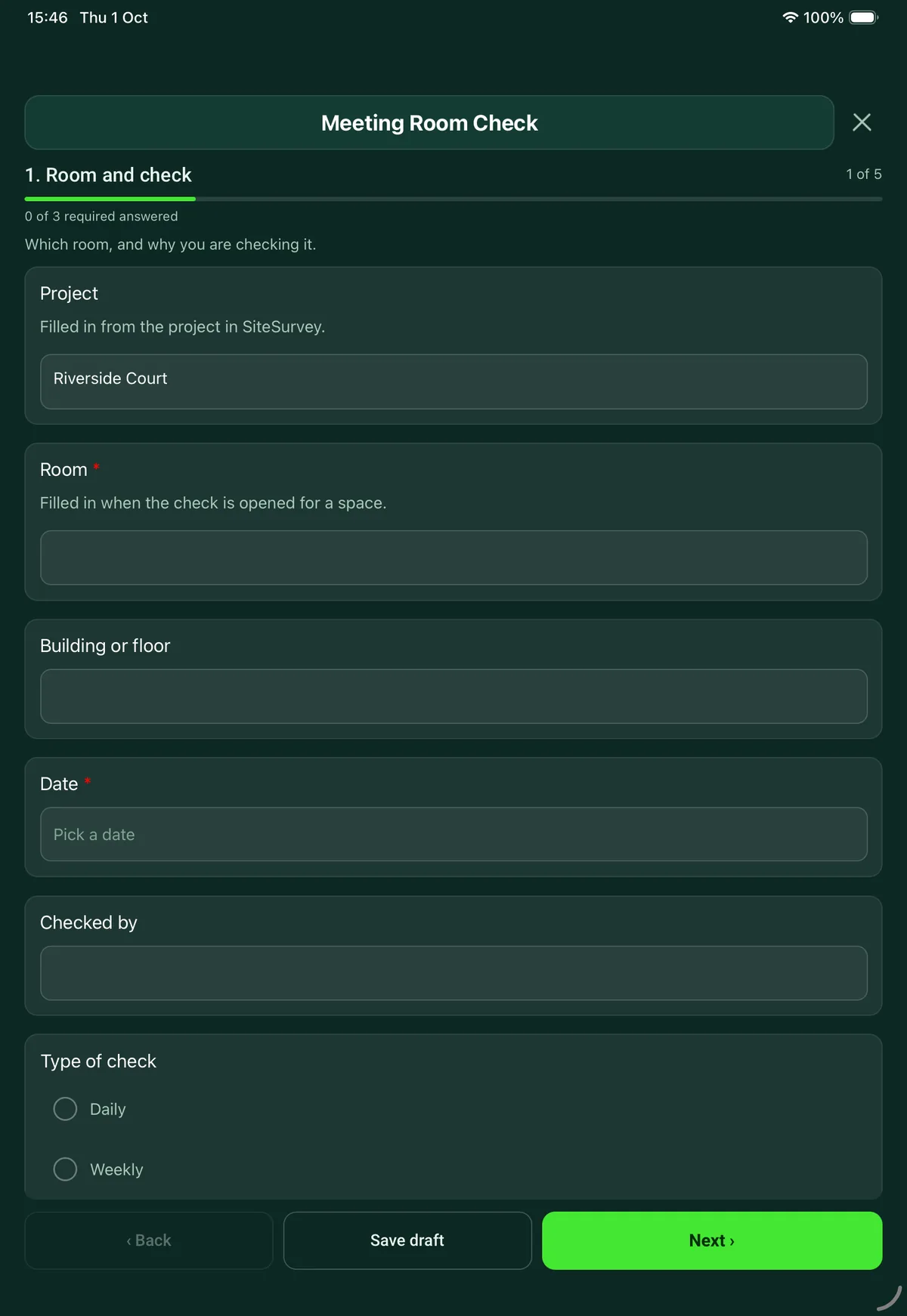
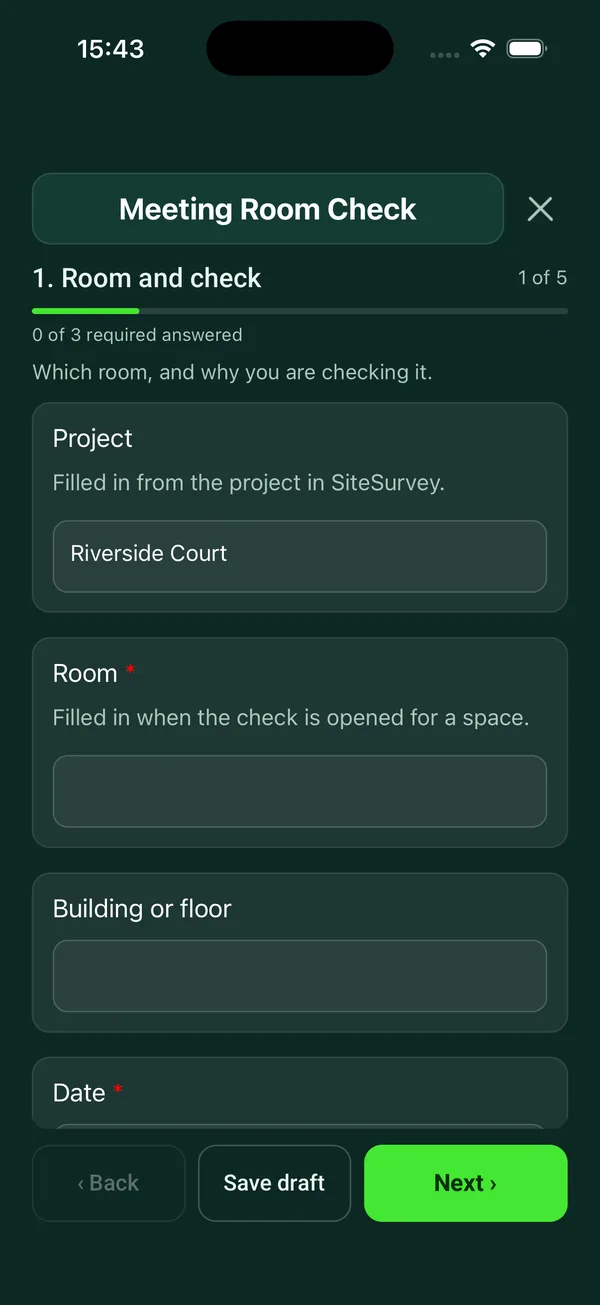
Room and check
Which room, and why you are checking it.
- ProjectShort answer
Filled in from the project in SiteSurvey.
Fills in from the project name - Room*Short answer
Filled in when the check is opened for a space.
Fills in from the site, when the form is opened for a space or a product - Building or floorShort answer
- Date*Date
- Time of the checkTime
- Checked byShort answer
- Type of checkChoose one
- Daily
- Weekly
- Before an important meeting or event
- After a reported fault
- How does the room join calls?Choose one
- Microsoft Teams Rooms
- Zoom Rooms
- Google Meet hardware
- Bring your own laptop
- No video calls
- Other (describe)
Display and sharing
Start the room the way a user would.
- Display switches on from the panel or remoteChoose one
- Yes
- No
- No display
- PictureChoose one
- Clear
- Defect
Shown when “Display switches on from the panel or remote” is “Yes” - Sharing by cable (HDMI or USB-C)Choose one
- Works
- Does not work
- Not fitted
- Wireless sharingChoose one
- Works
- Does not work
- Not fitted
- Touch panel or room controllerChoose one
- Works
- Does not work
- Not fitted
- Anything missing from the room?Tick all that apply
- HDMI cable
- USB-C cable
- Adapters
- Remote control
- Batteries
- Whiteboard pens
- Other (describe)
Test call, audio and camera
A call to another room or a colleague is the only real test.
- Did you make a test call?Yes or NoShown only when the answers above make it relevant
- Could the far end hear the room clearly?Choose one
- Yes
- Faint or echoing
- No
Shown when “Did you make a test call?” is Yes - Could the room hear the far end clearly?Choose one
- Yes
- Faint or distorted
- No
Shown when “Did you make a test call?” is Yes - CameraChoose one
- Clear and framed on the table
- Poor picture or framing
- No picture
- Not fitted
Shown only when the answers above make it relevant - Hearing loopChoose one
- Working
- Not working
- Not tested
- Not fitted
- Room booking panelChoose one
- Works and shows the right bookings
- Defect
- Not fitted
The room
What people notice before the technology.
- Clean and tidy, with the furniture set out?Yes or No
- Lights and blinds working?Yes or No
- Comfortable temperature?Yes or No
- Cables tidy, with no trip hazards?Yes or No
- Photo of the room as you left itPhotos
Issues
One entry for each thing that is not right.
- Did you find any issues?Yes or No
- IssuesRepeat for each issue. Each one asks:Shown when “Did you find any issues?” is Yes
- What is wrong?*Short answer
- AreaChoose one
- Display
- Sharing
- Audio
- Camera
- Control or booking panel
- Network
- Furniture or room
- Other (describe)
- PriorityChoose one
- Stops the room being used
- Annoying but usable
- Cosmetic
- Fixed on the spot?Yes or No
- What did you do?Short answerShown when “Fixed on the spot?” is Yes
- Reported toShort answerShown when “Fixed on the spot?” is No
- PhotosPhotos
- Issues recordedWorked out by the formShown when “Did you find any issues?” is Yes
- Issues still openWorked out by the formShown when “Did you find any issues?” is Yes
- Room status*Choose one
- Ready to use
- Usable with an issue
- Out of use
- CheckBlock the room in the booking system and put a notice on the door, so nobody finds out at the start of their meeting.Shown when “Room status” is “Out of use”
- SignatureSignature
See it filled in
A completed meeting room check report, made by SiteSurvey from a fictional site visit: every answer, the photos, the guidance that applied and the sign-off, ready to send as a PDF.
Meeting room check FAQs
How often should meeting rooms be checked?
The form offers a daily check, a weekly check, a check before an important meeting or event, and a check after a reported fault. How often you run it is your choice: there is no rule. Busy rooms and rooms used for client or board meetings are the usual candidates for a daily check.
Does it work for Microsoft Teams Rooms and Zoom Rooms?
Yes. Record how the room joins calls: Microsoft Teams Rooms, Zoom Rooms, Google Meet hardware or bring your own laptop. The test call questions ask whether the far end could hear the room clearly, whether the room could hear the far end, and whether the camera picture is clear and framed on the table.
What does it check besides the technology?
Whether the room is clean and tidy with the furniture set out, lights and blinds work, the temperature is comfortable, and cables are tidy with no trip hazards. The Workplace Regulations 1992 require a reasonable temperature indoors and floors kept free of anything that may cause a trip, so far as reasonably practicable. It also lists items that often go missing: HDMI and USB-C cables, adapters, the remote control, batteries and whiteboard pens.
How are issues recorded?
Each issue has what is wrong, the area, a priority (stops the room being used, annoying but usable, or cosmetic), whether it was fixed on the spot, who it was reported to and photos. The form counts the issues recorded and those still open.
What happens if the room cannot be used?
Set the room status to out of use. The form prompts you to block the room in the booking system and put a notice on the door, so nobody finds out at the start of their meeting.
Can the check be done on a phone?
Yes. In the SiteSurvey app, open the check for a room and the room name fills in. It works offline and syncs later, and the result goes out as a PDF or a share link.
Related
Related templates
Templates that go with the meeting room check form
Preventive maintenance for meeting room and classroom AV: room by room display, audio, video call and control checks, defects and sign-off.
Room survey for AV installs: dimensions, photos, power and data, ceiling and structure, equipment positions, access.
Per screen: mounting, height, fixings, power and signal, final picture test and photos.
Commissioning and handover for AV and network installs: tests, equipment and photos, snags, documents and training.
Use this meeting room check form with your team
Add it from the form library in one click, change any question, and every completed form becomes a branded PDF report.
Start your trial →