- 01
Open Free Walk
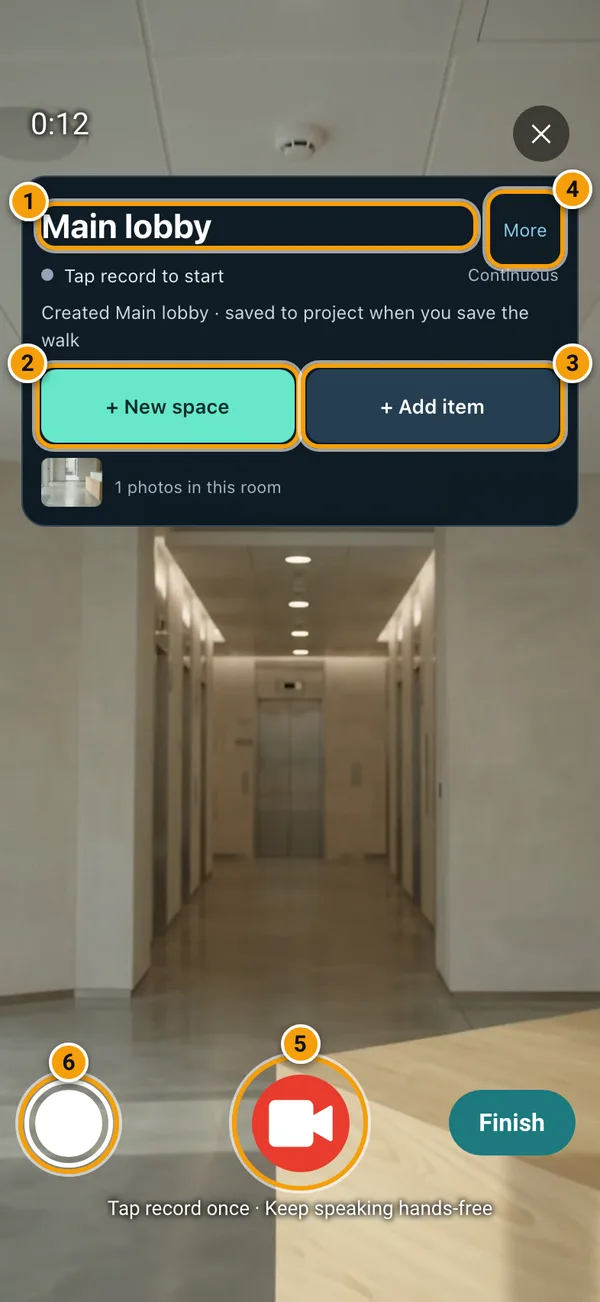
Open your project in the SiteSurvey mobile app, tap the + / Add New menu and choose Free Walk. Allow camera and microphone access when asked. The space card sits at the top of the screen and the record row at the bottom: 1 is the active space, 2 is + New space, 3 is + Add item, 4 is More, 5 is the record button and 6 takes a room photo.
- 02
Tap record and talk
Tap the record button once to start recording and talk about what you see. You do not need to hold it. Tap it again to stop, and tap once more to carry on. The REC badge and timer show when you are recording, and Finish sits beside the record button when you are done.
- 03
Create and name a space
Tap + New space and the card shows Waiting for space name. Tap record if you are not already recording, then say the name, for example “Main lobby” or “This is the main lobby”. When the card shows Heard “Main lobby”, keep talking for a moment while it confirms. The title changes to Main lobby and the card tells you the space will be saved to the project when you save the walk. While recording, you can also say “Add new space, Main lobby” at any time, or tap Type name to type it.
- 04
Move to the next space
When you walk into the next room, tap + New space again or say “Add new space, Meeting room 1”. Everything you say and every photo you take is filed under the space named at the top of the card, so check it as you go. Tap More to see the live transcript, Return to… and Undo.
- 05
Return to a space you have already named
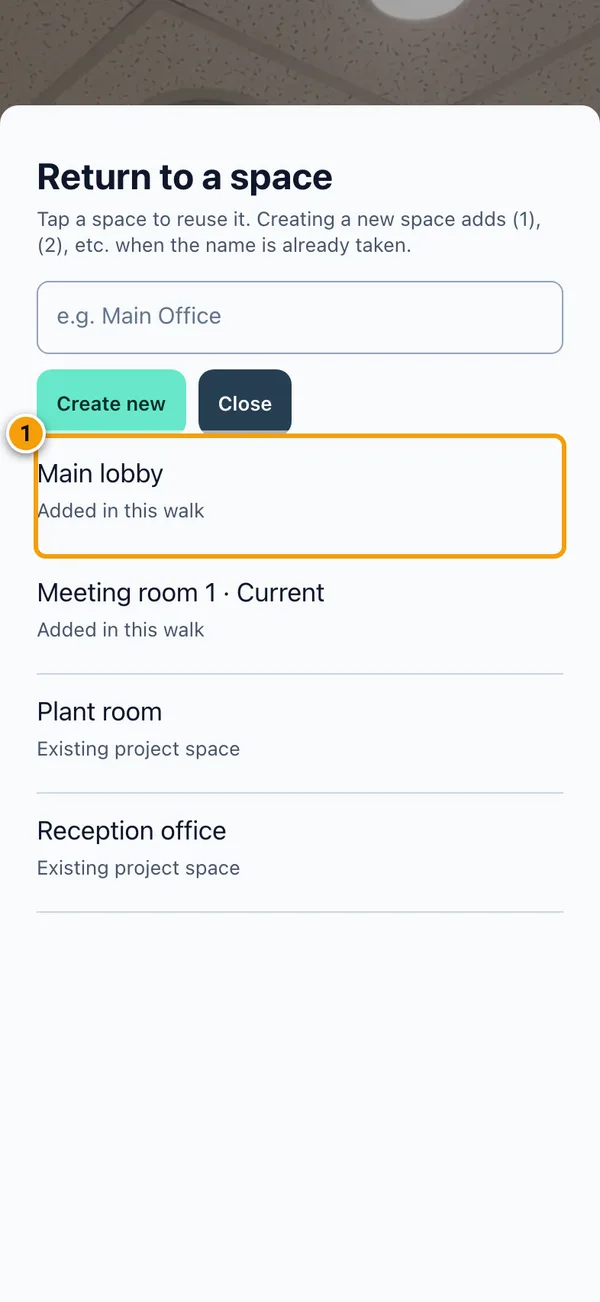
To go back to a room, say “Back to Main lobby”, or tap More, then Return to…, and tap the space in the list (1). Spaces already in the project are listed too. Reuse the existing entry when you mean the same room: creating a new space with a name that is already taken adds (1), (2) and so on. If the space changes by mistake, tap More, then Undo.
- 06
Add an item to the active space
Check the space name, then tap + Add item or say “Add item”. The Add item sheet opens and listens. Say the item name, pause briefly, then describe it, for example “Ceiling speaker”, then “Above the entrance. Grille hanging loose, needs refitting.” You can tap either field to type instead. Say “Save item” or tap Save item; say “Cancel item” to discard it. The card confirms Item saved on phone.
- 07
Take and confirm an item photo
Inside the item, say “Take photo” or tap Add photo. Frame the item and say “Capture” or tap the shutter. Check the photo, then say “Use photo” or tap Use photo to attach it, or Retake to try again. Back to item returns without a photo. The photo appears on the item; tap it there to remove it. For a general photo of the room, tap the white photo button beside record once you have started recording.
- 08
Finish and save the walk
Tap Finish (you can tap it while recording). Name the walk, for example “Ground floor walkthrough”, and tap Save. Keep the app open while it saves the recording. Items saved during the walk are stored on the phone until you finish, so always finish the walk to upload them.
- 09
Review the spaces, notes and evidence
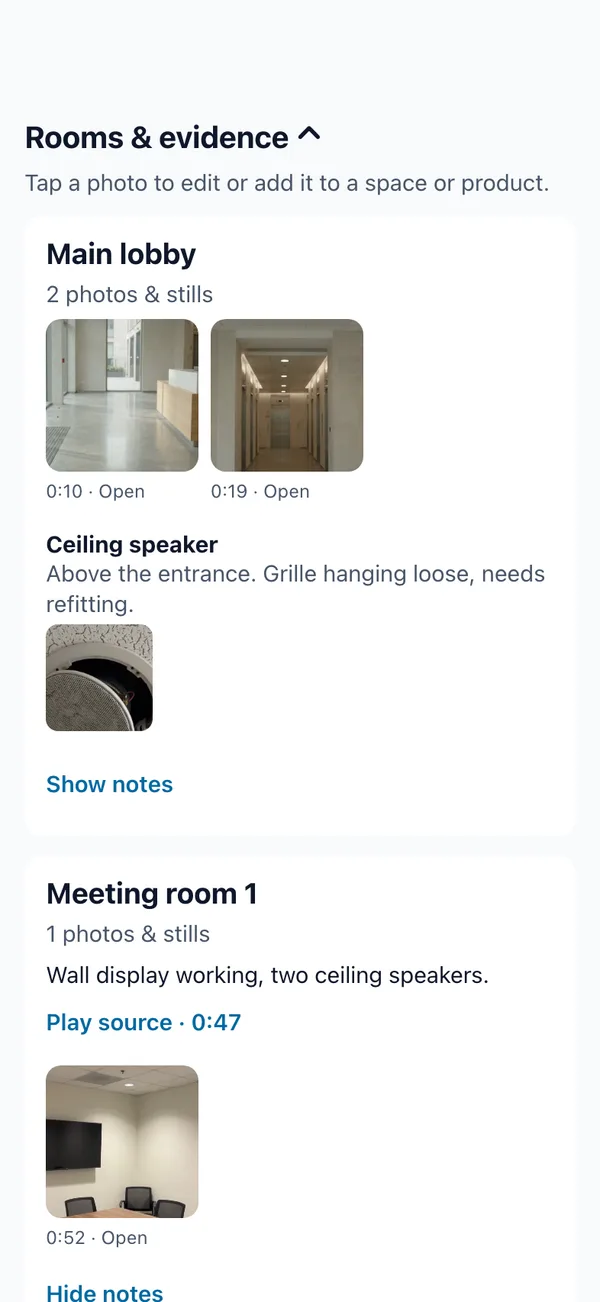
Open the saved walk and expand Rooms & evidence. Each space lists its photos and stills, the items you added and their photos. Tap Show notes to read the spoken notes and Play source to jump to that moment in the recording. Tap a photo to edit it or add it to a space or product. Check the walk has synced before you share it or expect the office team to see it.
Good to know
- ✓Check the space name at the top of the card before you talk about a room, add an item or take a photo.
- ✓Say “Back to <space>” or use More, then Return to…, to reuse a space. A new space with a taken name gets (1), (2) and so on.
- ✓Tap record once to start and again to stop. There is no need to hold the button.
- ✓Saving an item keeps it on the phone. Finish and save the walk to upload it, then check sync.
- ✓The videos show the Free Walk screen over example site footage.
Was this guide helpful?
Your feedback helps us improve support content.