- 01
Open a form that has an AI brief
Add the Fire Door Inspection form from the form library to a project or a space. Its Walk Cam field, Fire door inspection, carries a brief with four points and 18 checks. A form built by your own team has a brief only if someone switched on AI inspector on its Walk Cam field (see the form builder steps below). The field's description says when the AI inspector will review each point.
- 02
Tap Record Walk Cam
On the form, scroll to the Walk Cam field and tap Record Walk Cam. The first time you record on a form with a brief, the app shows a one-off notice that clips are sent to Google Gemini for assessment. Allow camera and microphone access if asked.
- 03
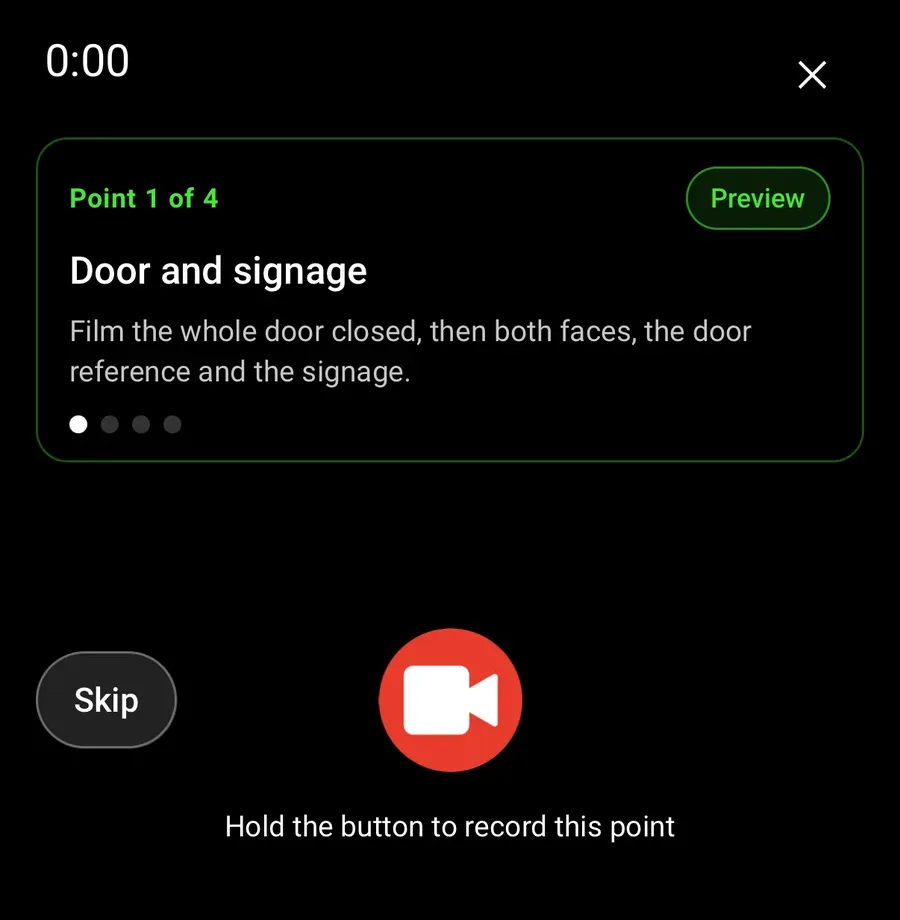
Film a point and let go
Each point card tells you what to film. Hold the record button, film what it asks for, and let go. The clip uploads straight away in the background and the app moves to the next point. You do not need to wait for the verdict before filming the next point.
- 04
Wait for the findings sheet
The strip under the camera shows a chip for each recorded point. The chip shows three dots while the point is being checked, usually for six to ten seconds. When the verdict is ready the chip changes and the findings sheet opens. Tap the chip to open the sheet again at any time during the walk.
- 05
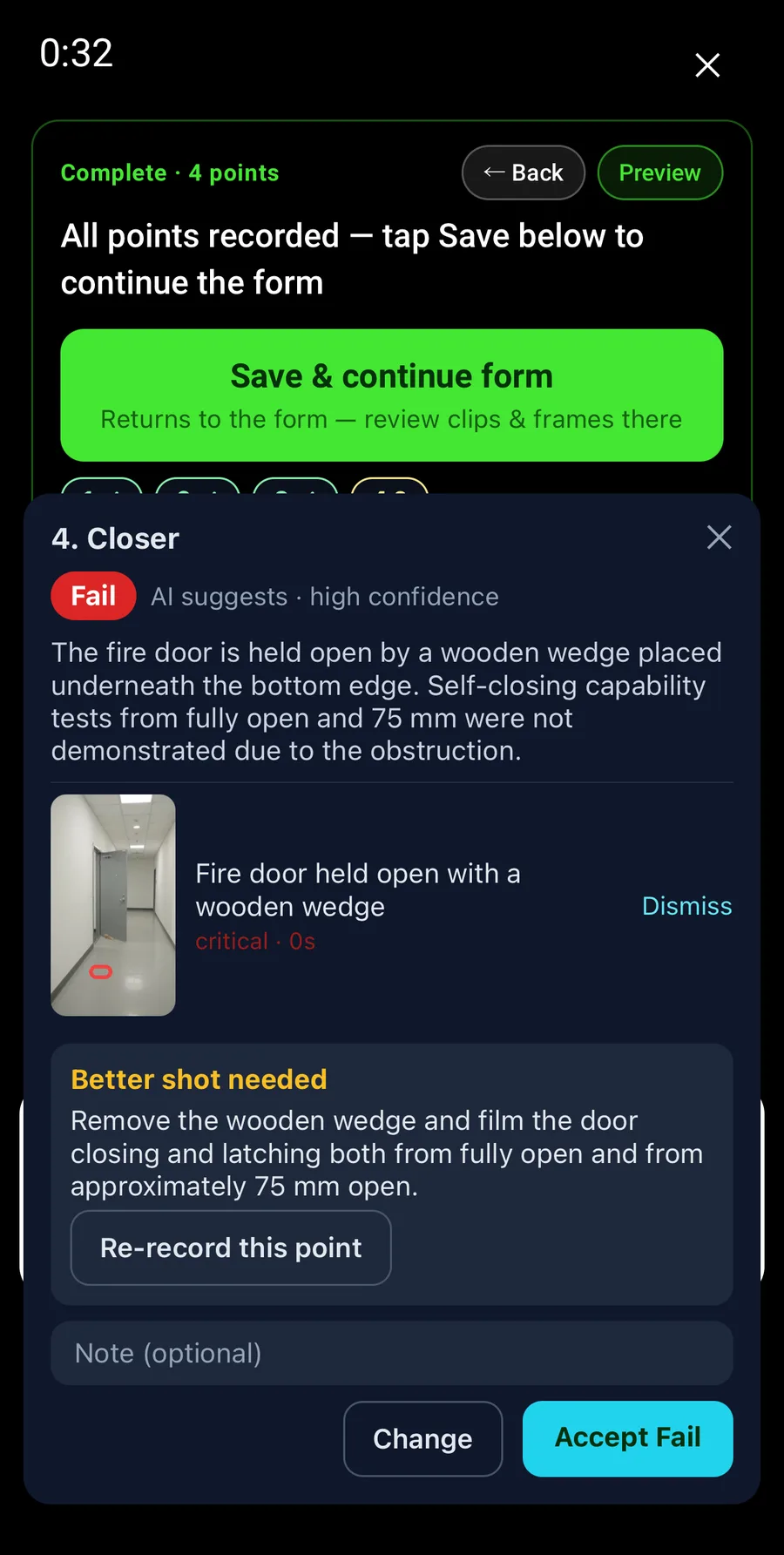
Read the verdict and the boxed stills
The sheet shows the point name, a verdict chip (Pass, Fail or Cannot assess) with the AI's confidence, and a two-sentence summary of what it saw. Below that, each finding has a still taken from your clip with a red box round the defect, a label, a severity and the time in the clip. If the AI could not see enough, a yellow Better shot needed box says exactly what to film.
- 06
Accept, Change or Re-record
Tap Accept to confirm the suggested verdict. Tap Change to pick the verdict you would give instead: pass, fail or cannot assess. If the sheet asks for a better shot, tap Re-record this point to film the point again; the new clip replaces the old one and the point is checked again. You can also close the sheet and carry on. An unconfirmed point stays on the form marked Review AI findings.
- 07
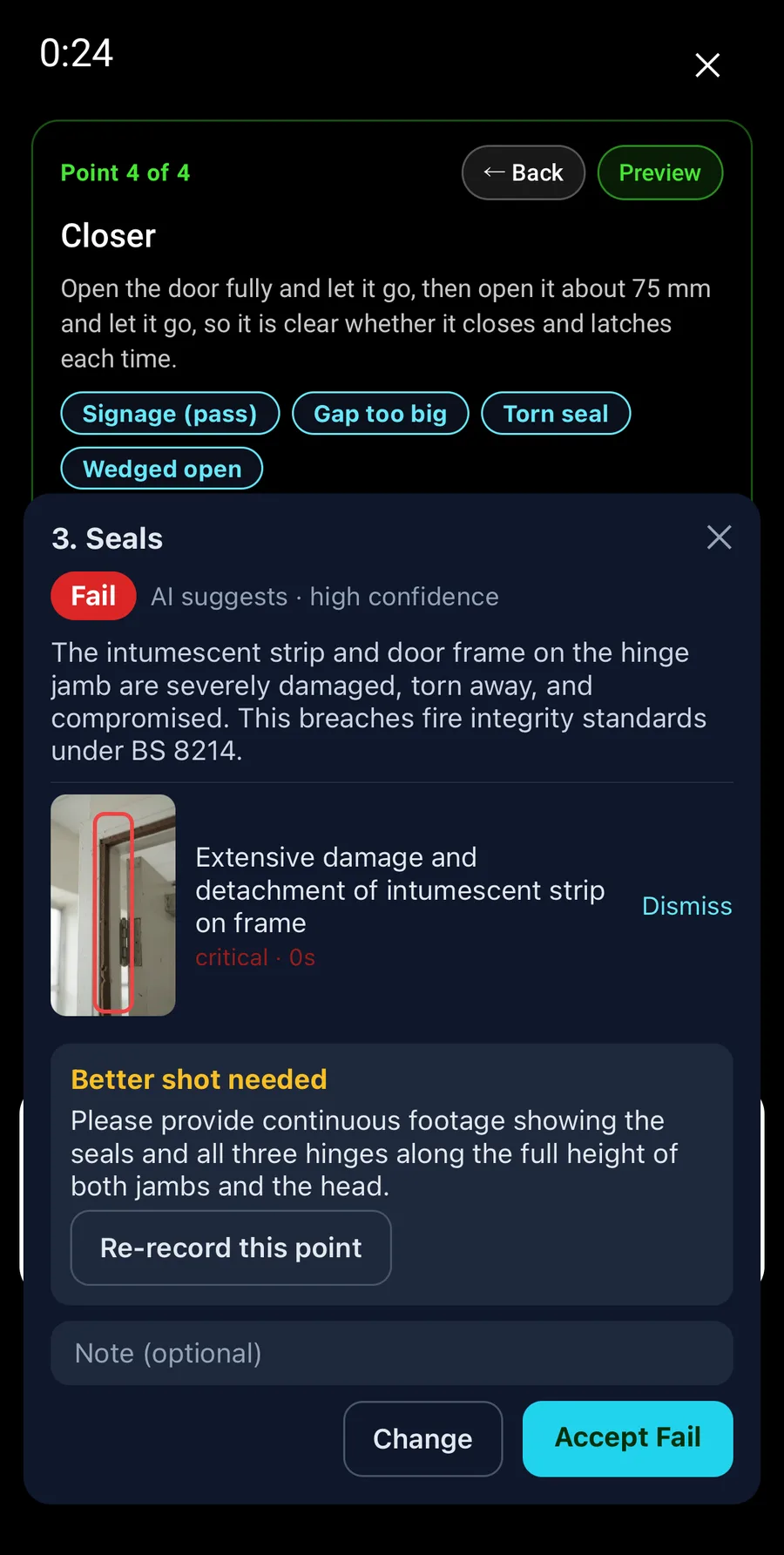
Dismiss a finding you disagree with
Tap Dismiss next to any finding that is wrong. A dismissed finding is not saved as a photo and does not appear in the report. The verdict stays as it is, so change it too if the finding was the only reason for a fail.
- 08
Add a note
Type in the Note field before you accept or change. Use it when the AI was wrong or when you want the report to say why you gave the verdict you did. The note is saved with the point and printed in the report under the verdict.
- 09
Save the walk
When every point is recorded, tap Save and continue form. The walk is stored on the device straight away and syncs in the background. Your confirmations are sent as you tap them and again when the walk saves, so a dropped connection on site does not lose them.
- 10
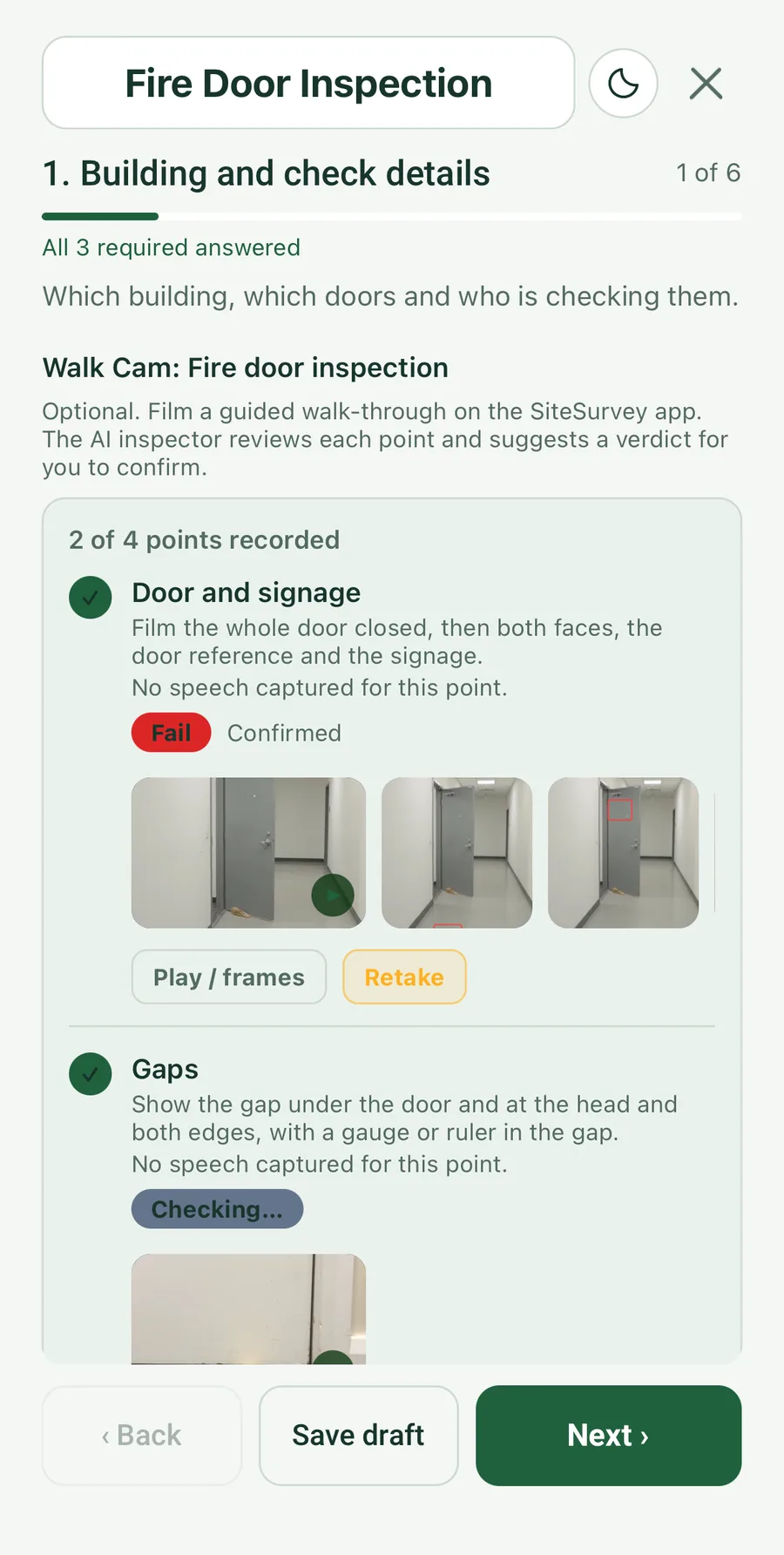
Check the verdicts on the form card
Back on the form, the Walk Cam card lists each point with its verdict chip and the word Confirmed. The accepted stills sit under the point with the red box burned into each one. A point still being checked shows Checking. A point you did not confirm shows Review AI findings: tap it to open the sheet and confirm from the form. Then save the form as normal.
- 11
Find the verdicts in the report
Open the form's PDF. Each confirmed point prints AI inspector: Pass, Fail or Cannot assess (confirmed by the inspector), with the accepted findings and their boxed photos, and the footer line AI-assisted inspection. Verdicts confirmed by the inspector. A point you did not confirm prints as not yet confirmed and nothing else. The AI's raw output never reaches a report.
- 12
Form builders: turn on the AI inspector
In the web dashboard, open Forms and edit the form. Open the Walk Cam field. Under the points there is an AI inspector panel with a master switch. Switch it on. A field with the switch off behaves exactly as Walk Cam does today: no upload on seal and no findings sheet. The Fire Door Inspection library form comes with the switch on and the brief filled in, so copy it if you want a worked example.
- 13
Form builders: write the role, standard and guidance
Role says who the AI is, for example an experienced fire door inspector in the UK reviewing phone footage of a single door. Standard says what it inspects against, for example the Fire Safety (England) Regulations 2022 checks with BS 8214 as the reference for gaps and seals. Guidance holds your house rules: what needs a gauge in shot, what never to guess, how to describe where a defect is. Each box takes up to 600 characters. Plain sentences work best.
- 14
Form builders: write the checks for each point
Each Walk Cam point can carry up to eight checks of up to 200 characters. Write one thing the AI must see to pass the point, such as three hinges fitted and secure with no missing screws, or door closes and latches from about 75 mm open. The point's own prompt tells the inspector what to film, so make sure the checks can be seen in that footage. A point with no checks is judged on its question alone.
- 15
Form builders: the three verdict rules
Pass when, Fail when and Cannot assess when tell the AI how to decide. The fire door brief uses: pass only when every check for the point is met with clear visual evidence; fail when any check is clearly not met or the door is held open by anything other than an approved device; cannot assess when the element is not shown, the footage is too blurry or dark to judge, or a check needs a measurement or label that is not visible. Keep cannot assess generous. A verdict the AI is unsure of should come back as cannot assess, not as a guess. The prompt version shown at the bottom of the panel is set by the server and is stamped on every assessment for audit.
- 16
If a point says AI pending or AI failed
The phone had no signal, or the upload or the assessment did not get through. The walk carries on as normal and nothing is lost. Save the walk. Once it syncs, the server assesses any point that was missed, usually within five minutes, and the form shows the findings marked as assessed after the walk the next time it opens. They stay unconfirmed until you confirm them.
- 17
If it says Cannot assess
The clip did not show enough to judge. Read the Better shot needed box: it says what was missing, such as the gauge in the head gap or the door closing from fully open. Tap Re-record this point and film exactly that. If you can judge the point yourself from what you saw on site, tap Change and give your verdict with a note.
- 18
If the box is on the wrong spot
The box marks where the AI thinks the defect is on one frame of the clip. If it is on the wrong place, dismiss the finding and re-record the point with the defect held steady in the middle of the frame for a few seconds. Do not accept a finding whose box is wrong: the boxed still is saved as a photo and printed in the report.
- 19
If you cannot see the AI inspector at all
The AI inspector is in early access and is switched on per company. If a form has a brief but no findings appear, your company is not on it yet, or your app is not on the update that includes it. Update the app from the App Store or Google Play, then contact support to have it switched on for your account.
Good to know
- ✓Carry on filming while a point is being checked. The verdicts catch up and you review them from the form.
- ✓Measurements need a gauge or ruler in shot. The fire door brief tells the AI never to state a gap it cannot read.
- ✓Clips are sent to Google Gemini for assessment and are not used to train Google's models. They are also stored in your project like every other Walk Cam clip.
- ✓A confirmed Cannot assess is a valid answer. Only unconfirmed points are flagged on the form.
Was this guide helpful?
Your feedback helps us improve support content.