- 01
Open Page templates
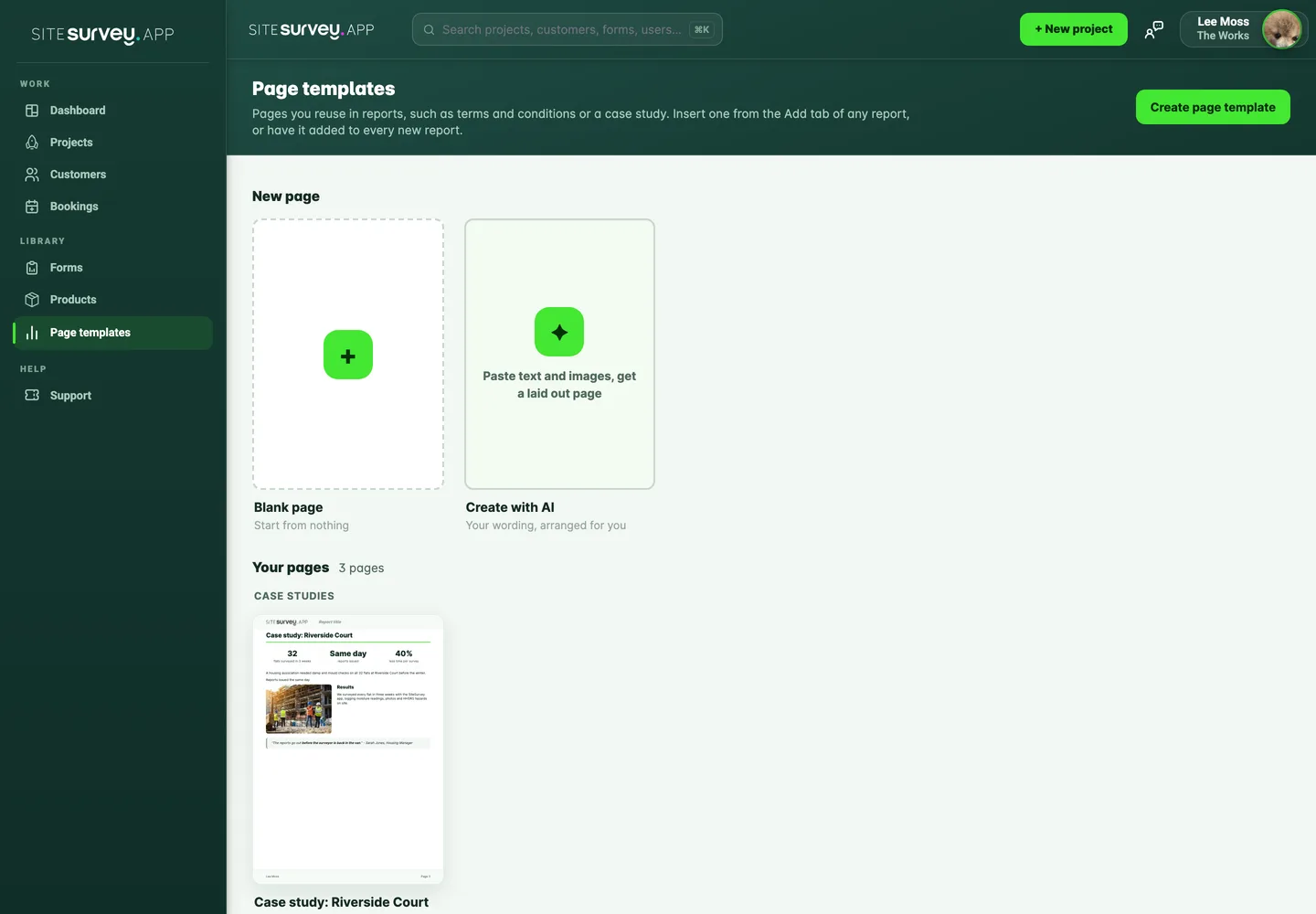
Select Page templates under Library in the main menu. Your pages are shown as A4 previews with their page count, grouped by the group you give them.
- 02
Start a page
Choose Blank page to start from nothing, Create with AI to paste your content and have it laid out for you, or one of the layouts under Start from a layout (terms and conditions, about us or a case study). A layout opens a copy with placeholder text in [square brackets] for you to replace.
- 03
Name it and choose a group
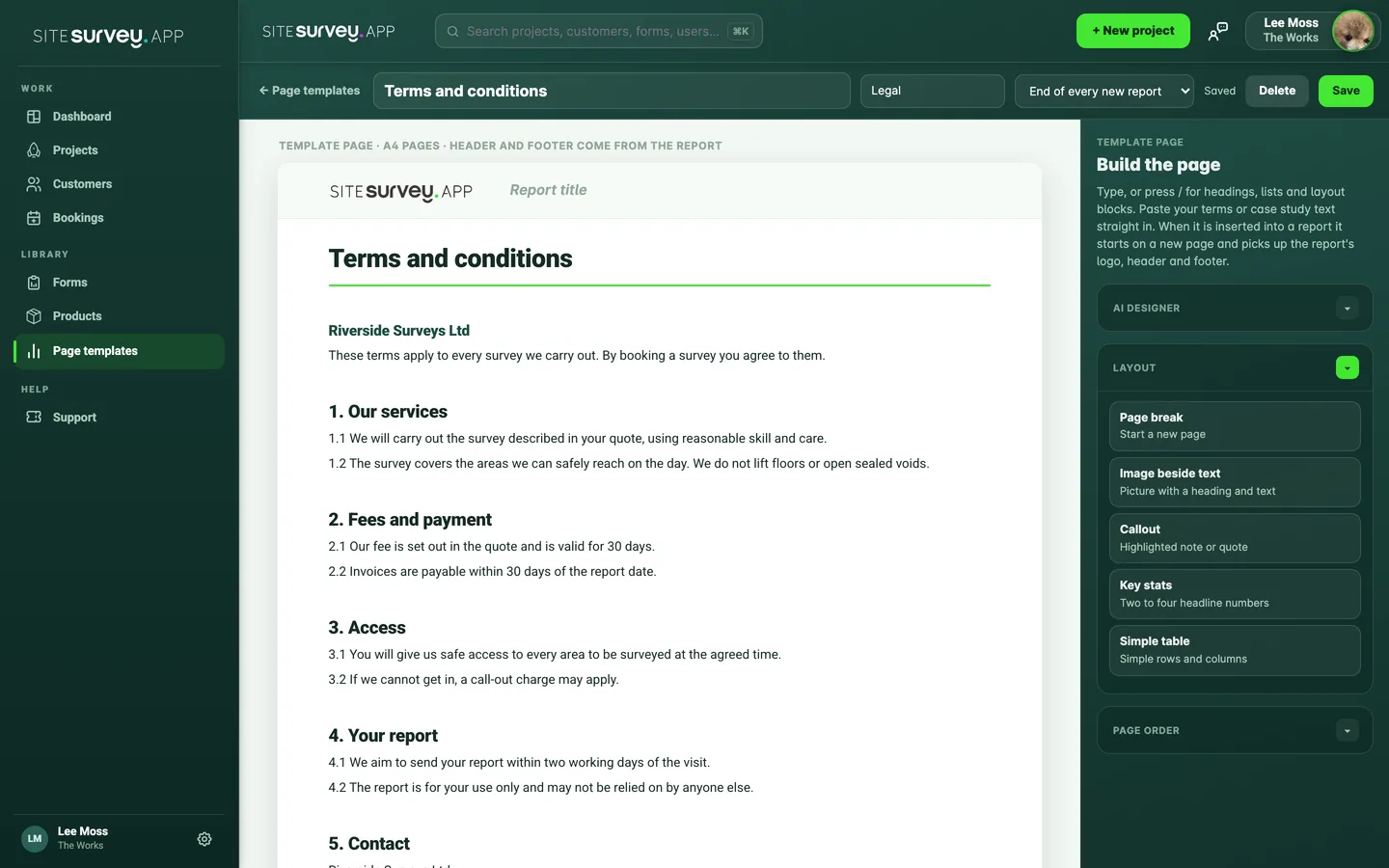
Type a name at the top, such as Terms and conditions, and an optional group such as Legal or Case studies. Groups keep the library and the report's list of pages tidy. The page saves automatically as you work. A new page is saved as Untitled page until you name it.
- 04
Build the page
Type straight onto the page, or press / for headings, lists, images and layout blocks. The Layout section on the right adds a page break, an image beside text, a callout, key stats or a simple table. The page is shown at A4 size with a header and footer. The Report title in the header is filled in by each report the page is added to.
- 05
Let the AI designer lay it out
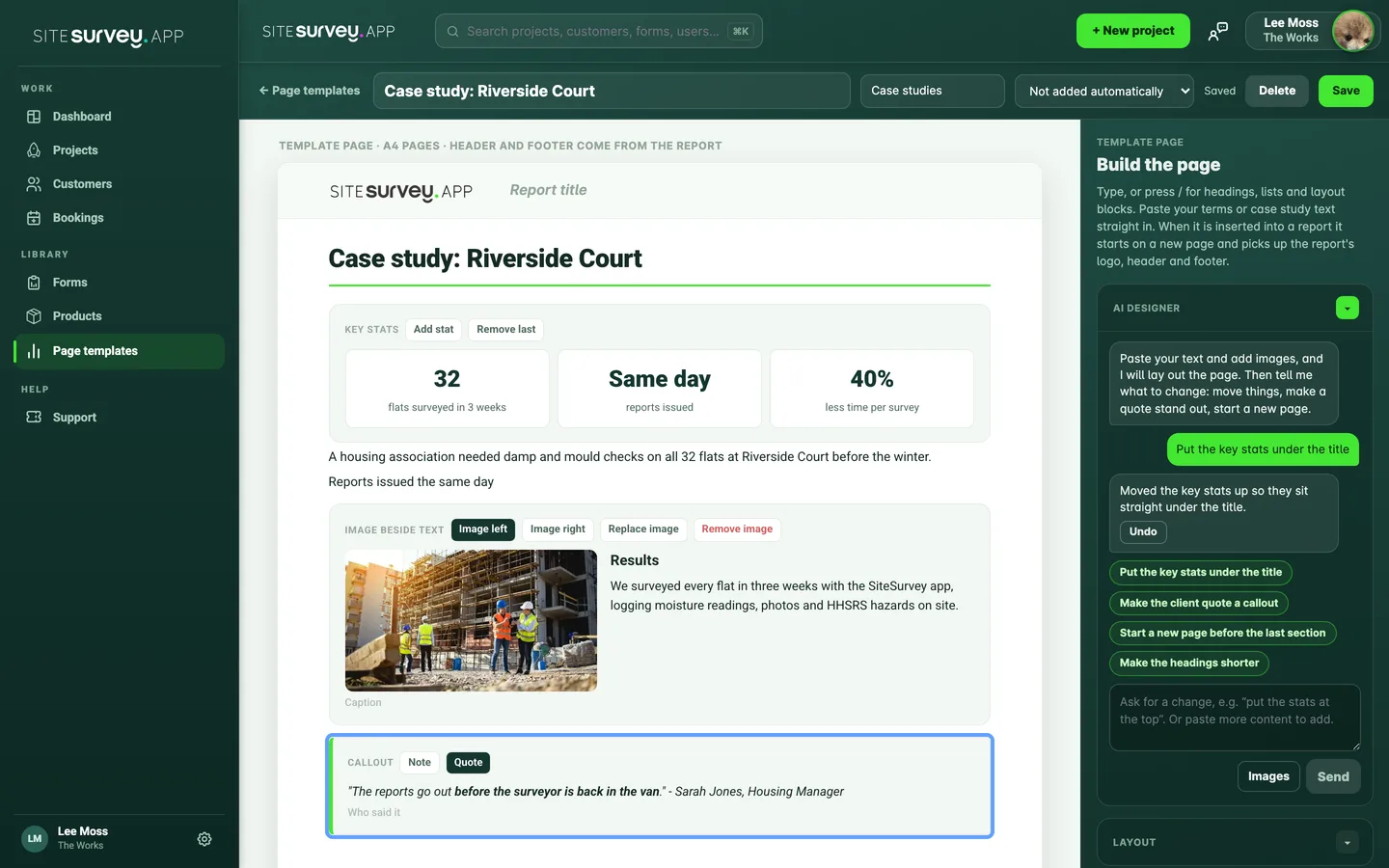
Open AI designer, paste your text and paste or drop in any images, choose the page type and select Arrange page. Formatted text from Word or a website keeps its headings, bold, lists and links. Your wording is kept exactly as you pasted it: the AI only decides the layout.
- 06
Ask the AI for changes
Once the page is laid out, tell the AI designer what to change, for example "put the key stats under the title", "make the client quote a callout" or "start a new page before the results". It makes the change and says what it did. Select Undo to put the page back. To add a picture, paste it into the box and say where it should go, such as "add this photo under the results".
- 07
Reorder or delete pages
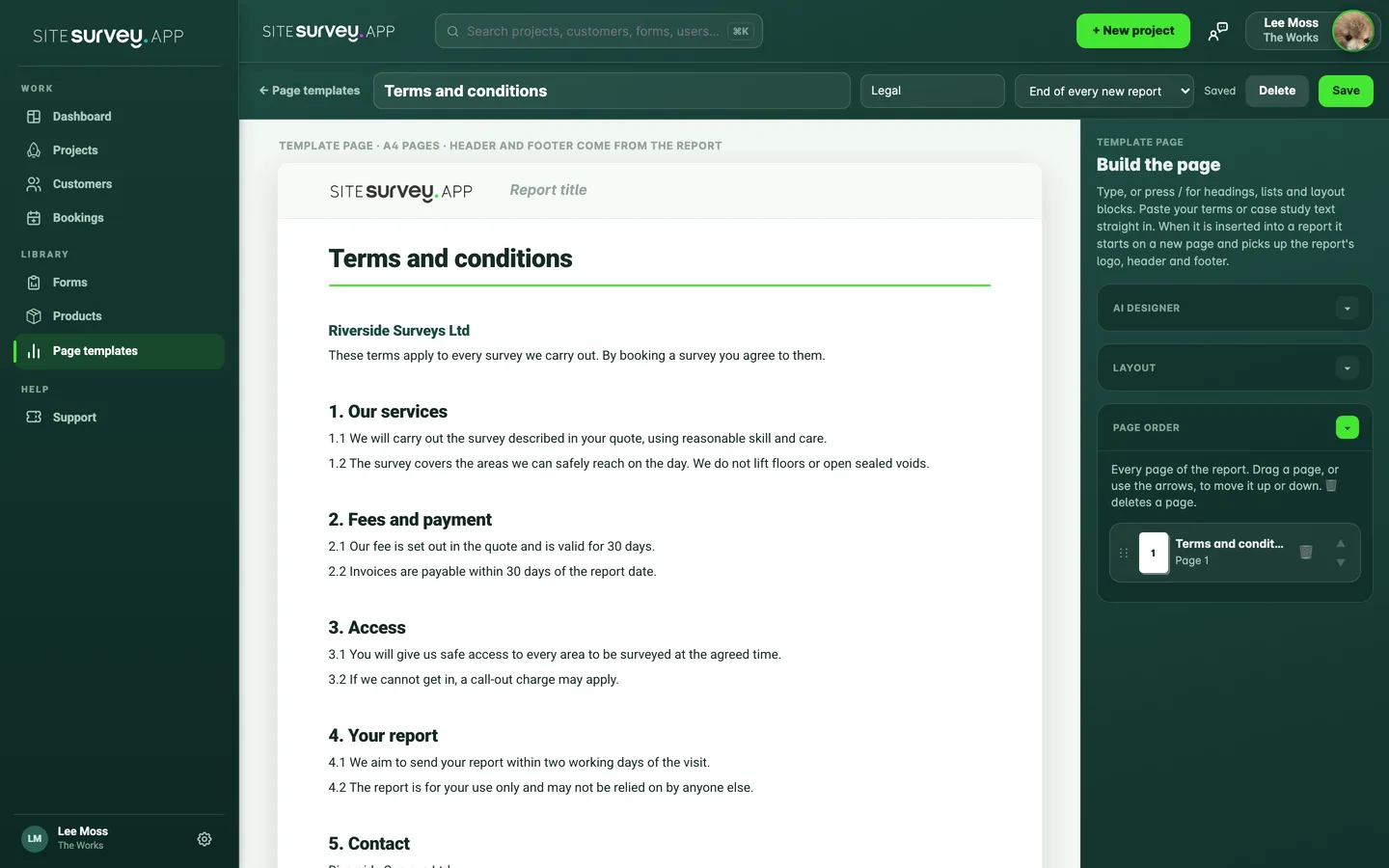
A long template can run over several pages. Open Page order to see every page: drag a page or use the arrows to move it, and use the bin to delete a page you do not need.
- 08
Add it to every new report
Use the menu at the top of the editor to choose Start of every new report or End of every new report. New reports then open with this page already in place. Reports that already exist are not changed.
- 09
Duplicate or delete a template
In Page templates, select Duplicate under a page to make a copy to edit. To delete a template, open it and select Delete. Reports that already include the page keep their copy.
Good to know
- ✓Inserting a template copies it into the report. Editing the report never changes the template, and editing the template later never changes reports you have already made.
- ✓Blocks you leave empty, such as an unfilled table, are not printed in the PDF or Word file.
- ✓Customer accounts cannot see or use page templates.
Was this guide helpful?
Your feedback helps us improve support content.