- 01
Open the report
Open the project and select Reporting. The report is shown as A4 pages.
- 02
Open the Add tab
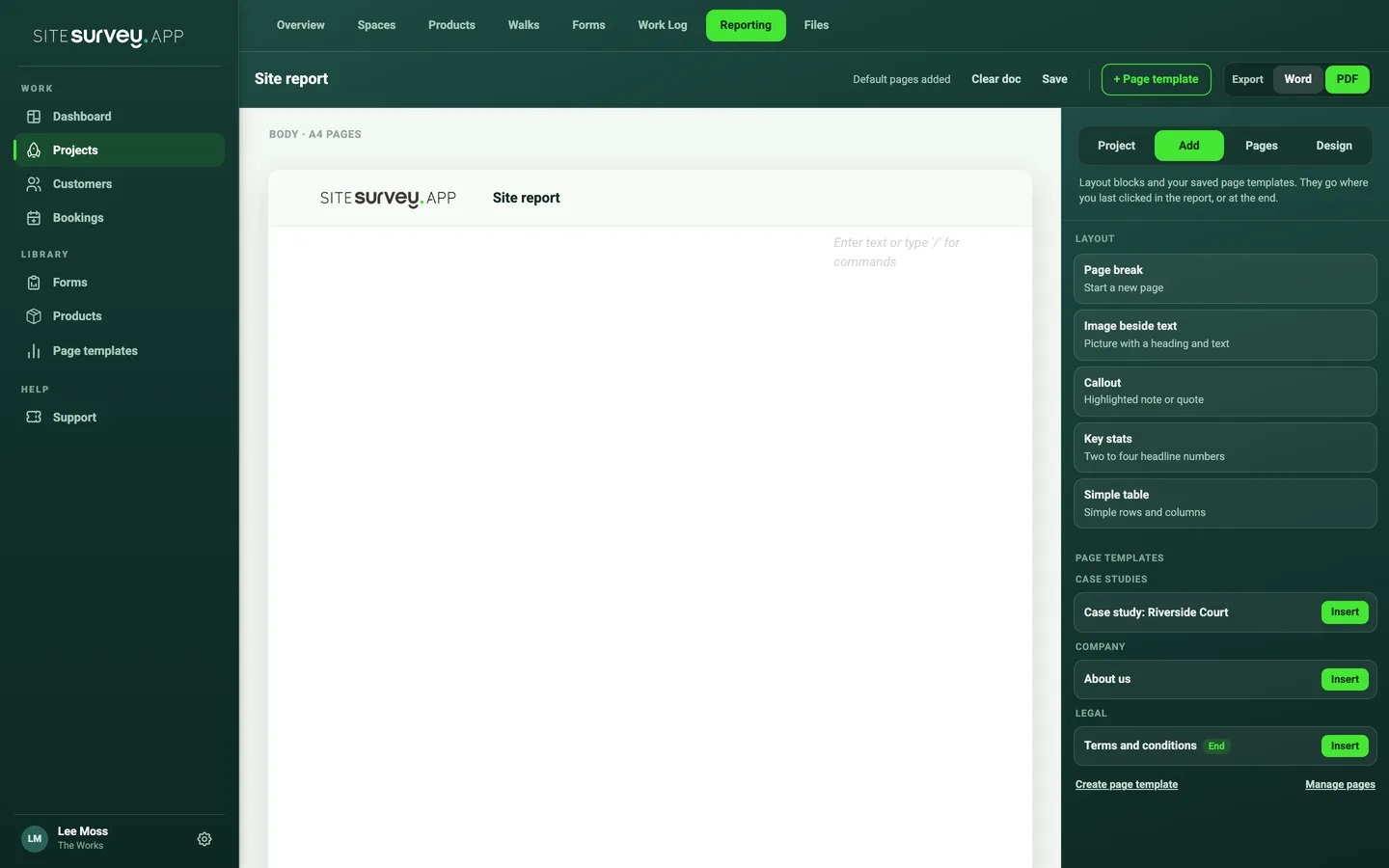
In the panel on the right, select Add. Your page templates are listed under Page templates, grouped as they are in the library. A template marked Start or End is already added to every new report.
- 03
Choose where it goes
Click in the report where the page should go. If you have not clicked in the report, the page is added at the end. The template always starts on a new page, and anything after it continues on a fresh page.
- 04
Insert the page
Select Insert next to the template. The page is copied into the report, so you can change its wording for this customer without changing the template.
- 05
Move it into place
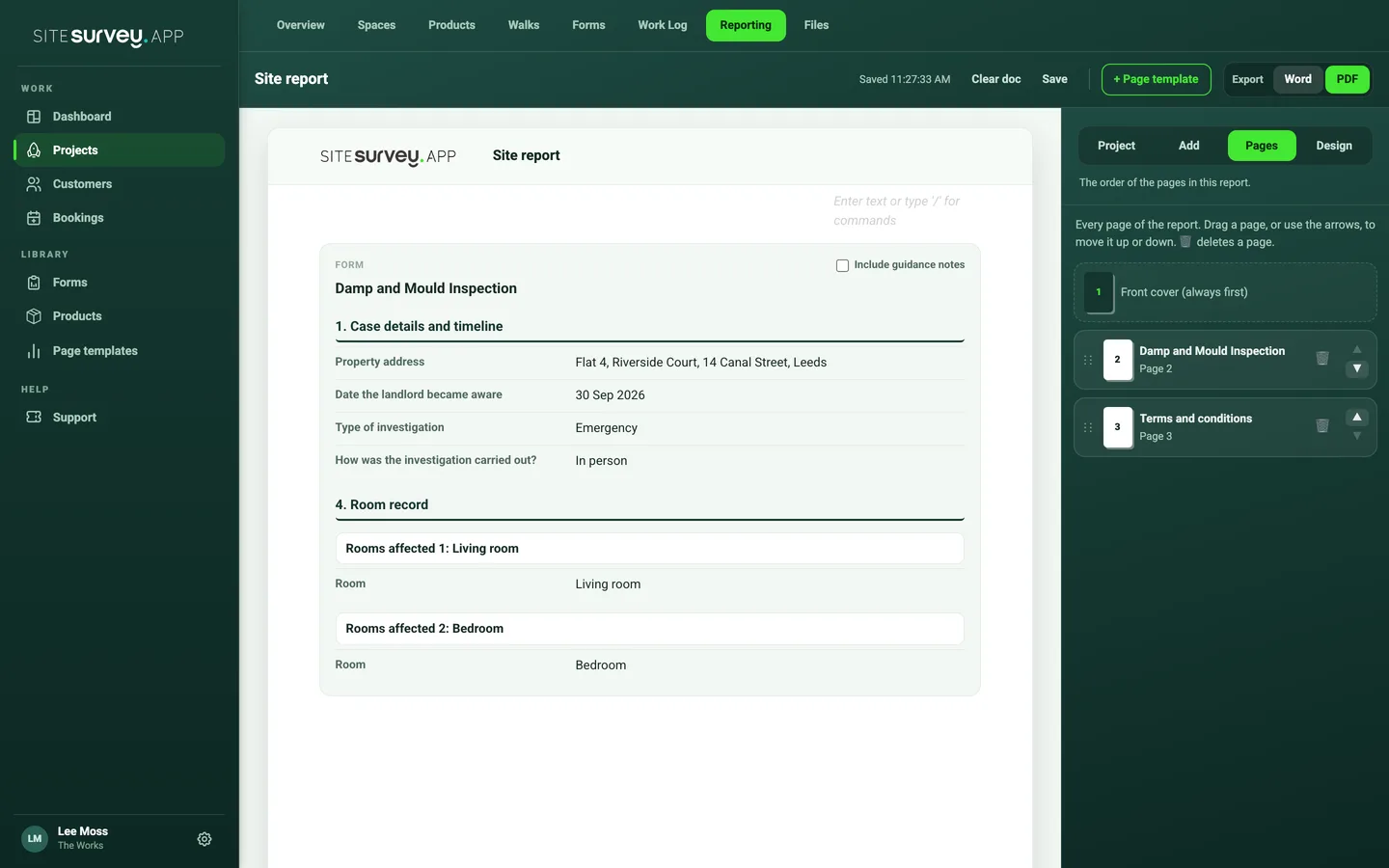
Open the Pages tab to see every page. Drag the page, or use the arrows, to move it up or down. Use the bin to remove a page you do not want.
- 06
Add pages to every new report
To have a page added automatically, open it in Page templates and choose Start of every new report or End of every new report. The next new report opens with it, and a message at the top says the default pages were added.
- 07
Export
Use Export at the top of the report and choose Word or PDF. The pages print as you see them, with your header and footer on each one.
Good to know
- ✓Use Manage pages at the bottom of the Page templates list to edit your templates.
- ✓Select + Page template at the top of the report to make a new template without losing your place. The report is saved first.
Was this guide helpful?
Your feedback helps us improve support content.