- 01
Open the project's Spaces tab
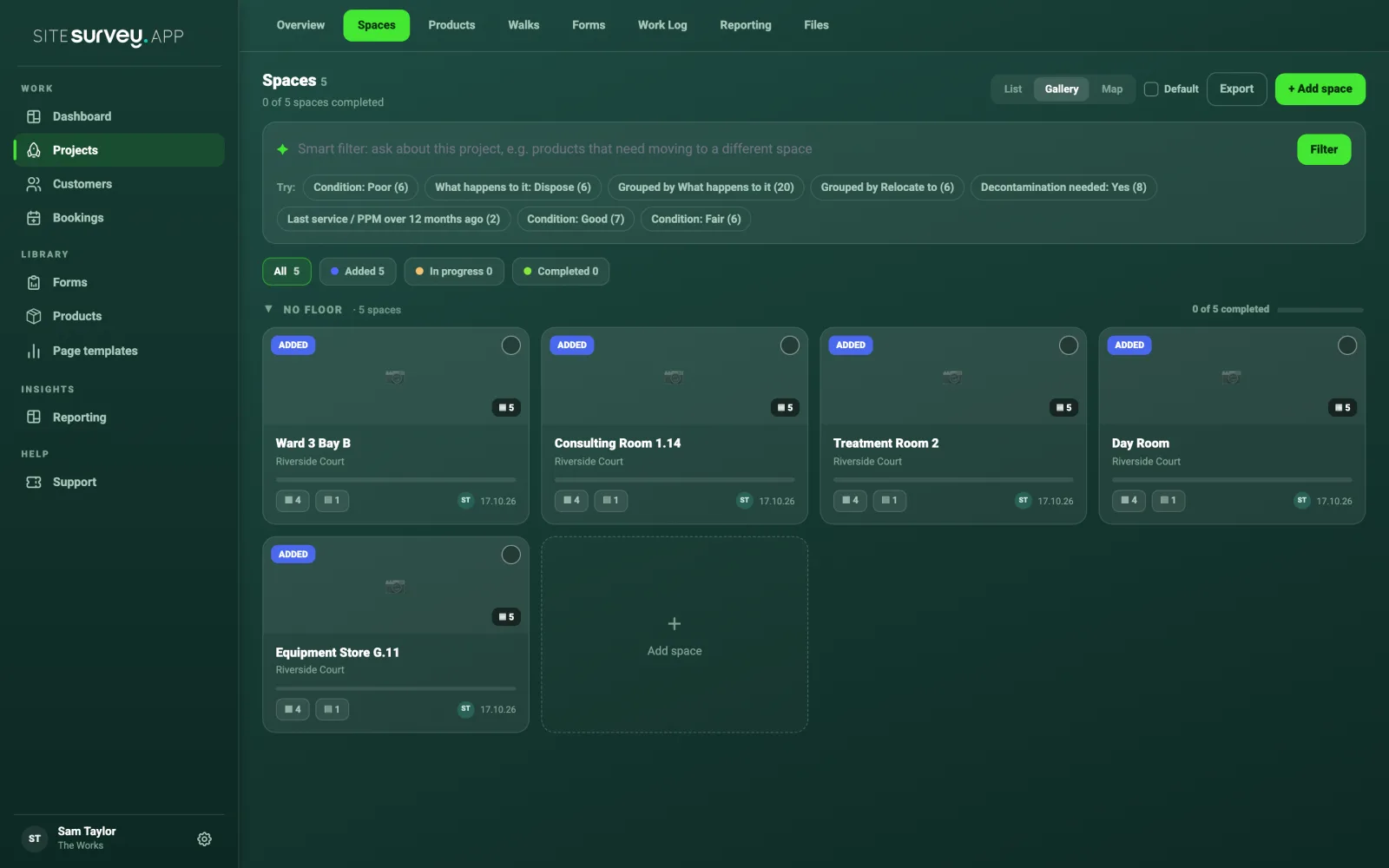
Open the project on the web dashboard and select Spaces. The smart filter box sits above your spaces. Under it, Try suggests ready-made filters built from this project's own answers, with a count beside each, for example Condition: Poor (6) or Grouped by Relocate to (6). Different projects get different suggestions, because they come from what was recorded on that project.
- 02
Ask a question in your own words
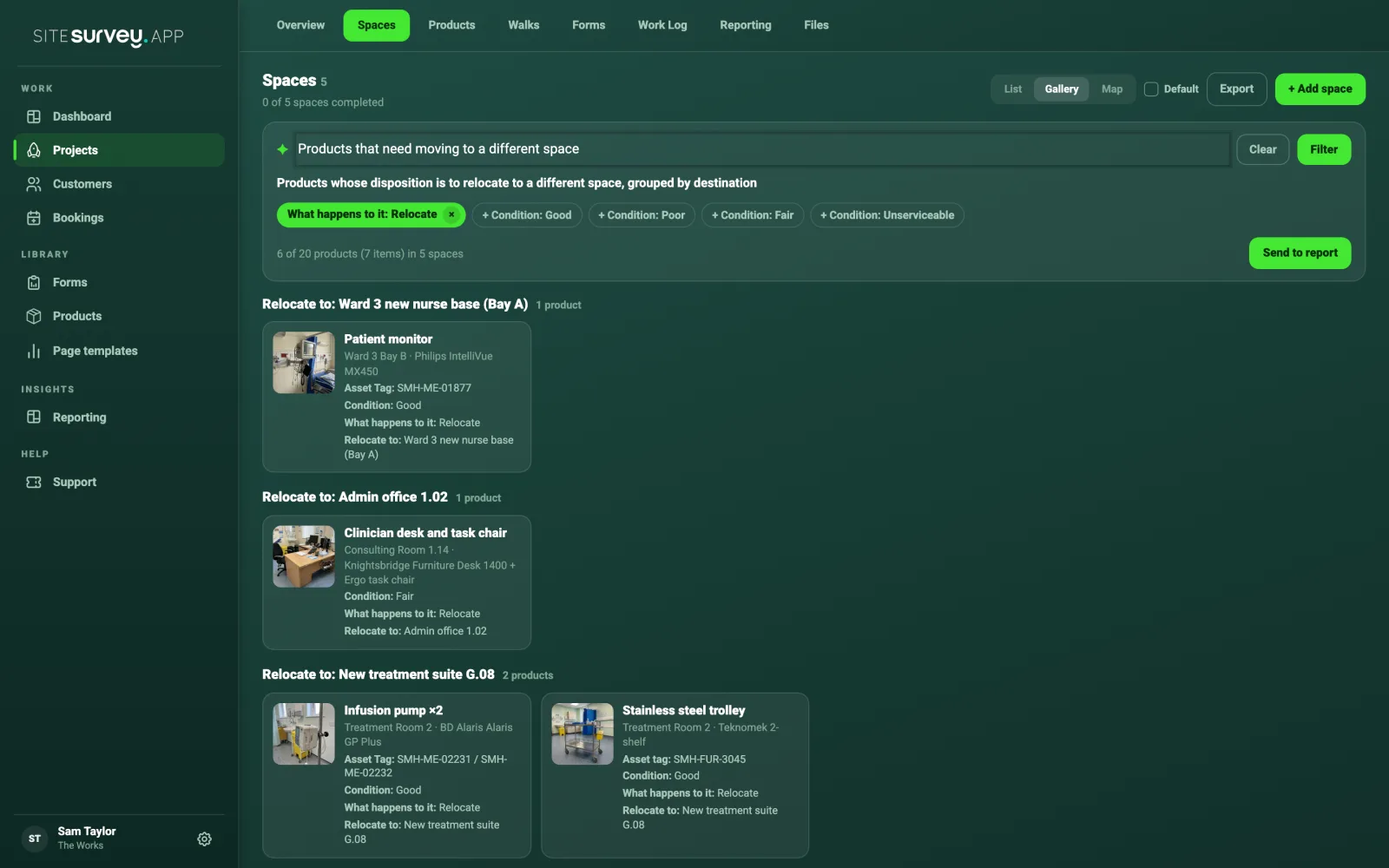
Type what you want to see and press Enter or Filter. For example: products that need moving to a different space, what needs decontaminating before it moves, medical equipment not serviced since January, or everything going to WEEE. SiteSurvey works out which recorded details answer the question and shows only the matching products, grouped by space or, where it helps, by destination.
- 03
Check the filter it used
The line under the box says what is shown, and the green chips show the exact filter, such as What happens to it: Relocate. The count tells you how many products and items match and in how many spaces. Each card shows the product's photo, where it is, its make and model and the details that matter for the search. Click a card to open the product.
- 04
Narrow or widen it with chips
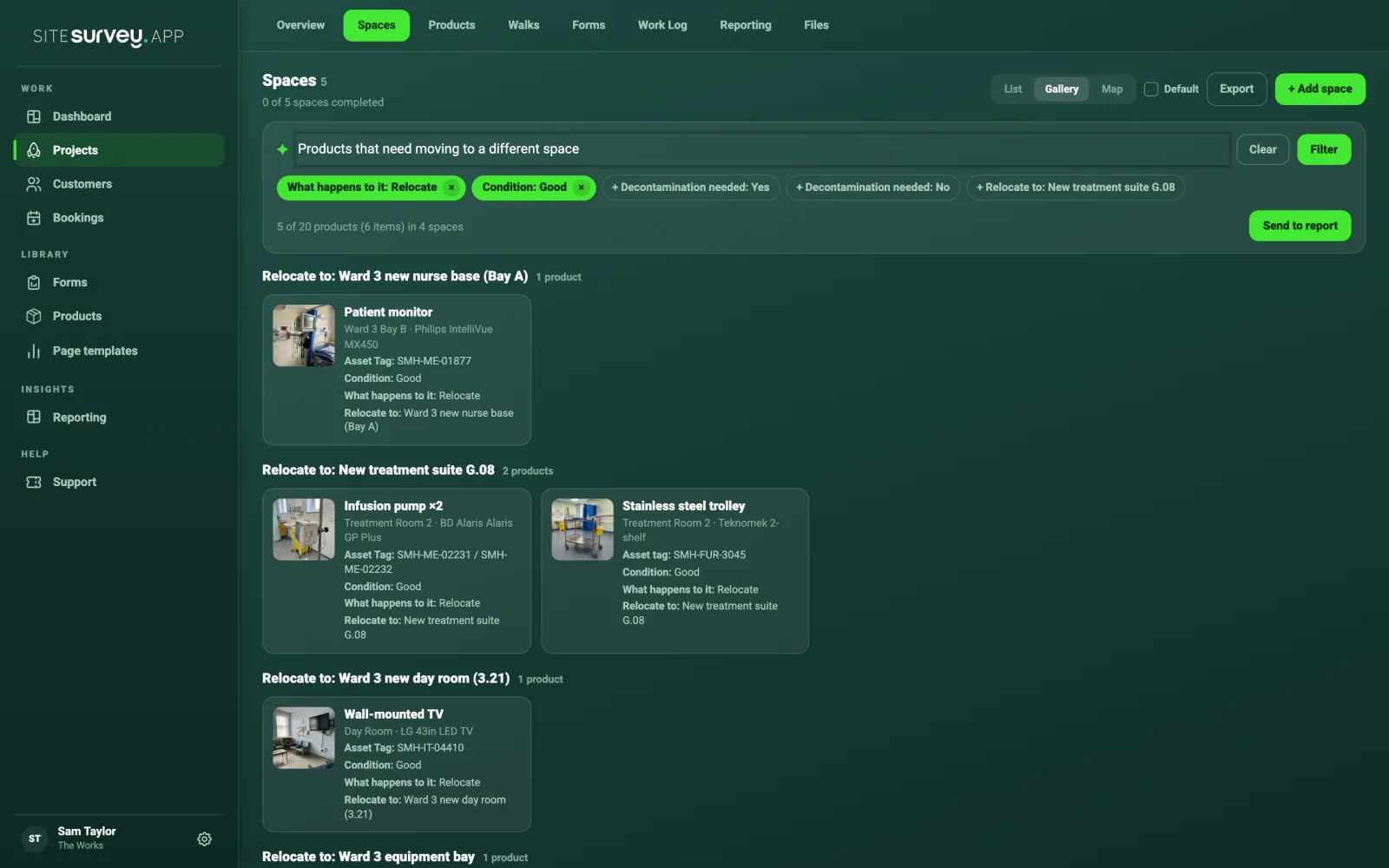
Tap a + chip to add another condition, for example + Condition: Good to see only the items in good condition. Tap the x on a green chip to remove it. The results update straight away and keep the same grouping.
- 05
Or tap a suggestion
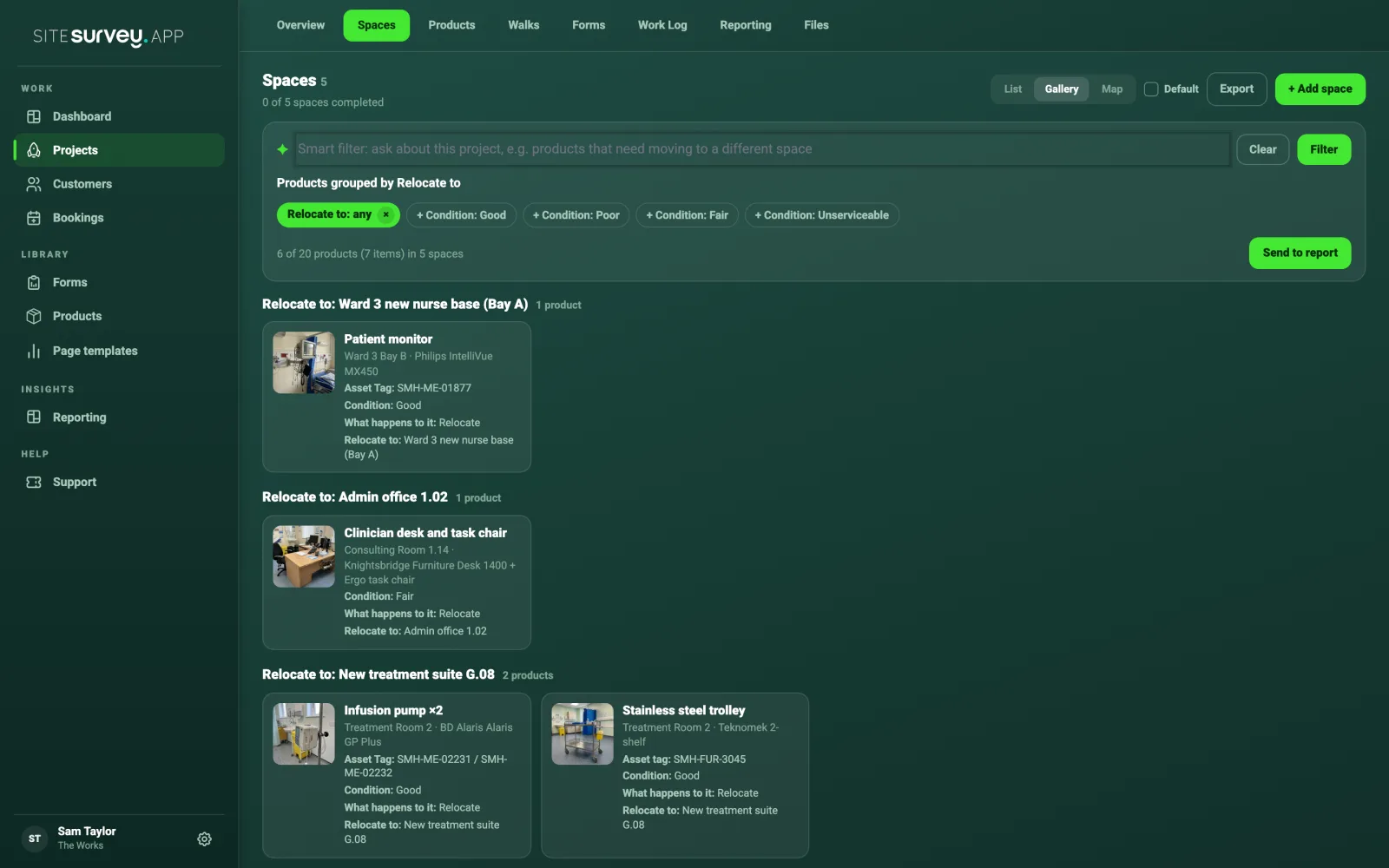
Suggestions run instantly without typing. Grouped by suggestions list every product that has an answer for that field, grouped by its value, which turns Relocate to into a move schedule for the removals team.
- 06
Send the results to the report
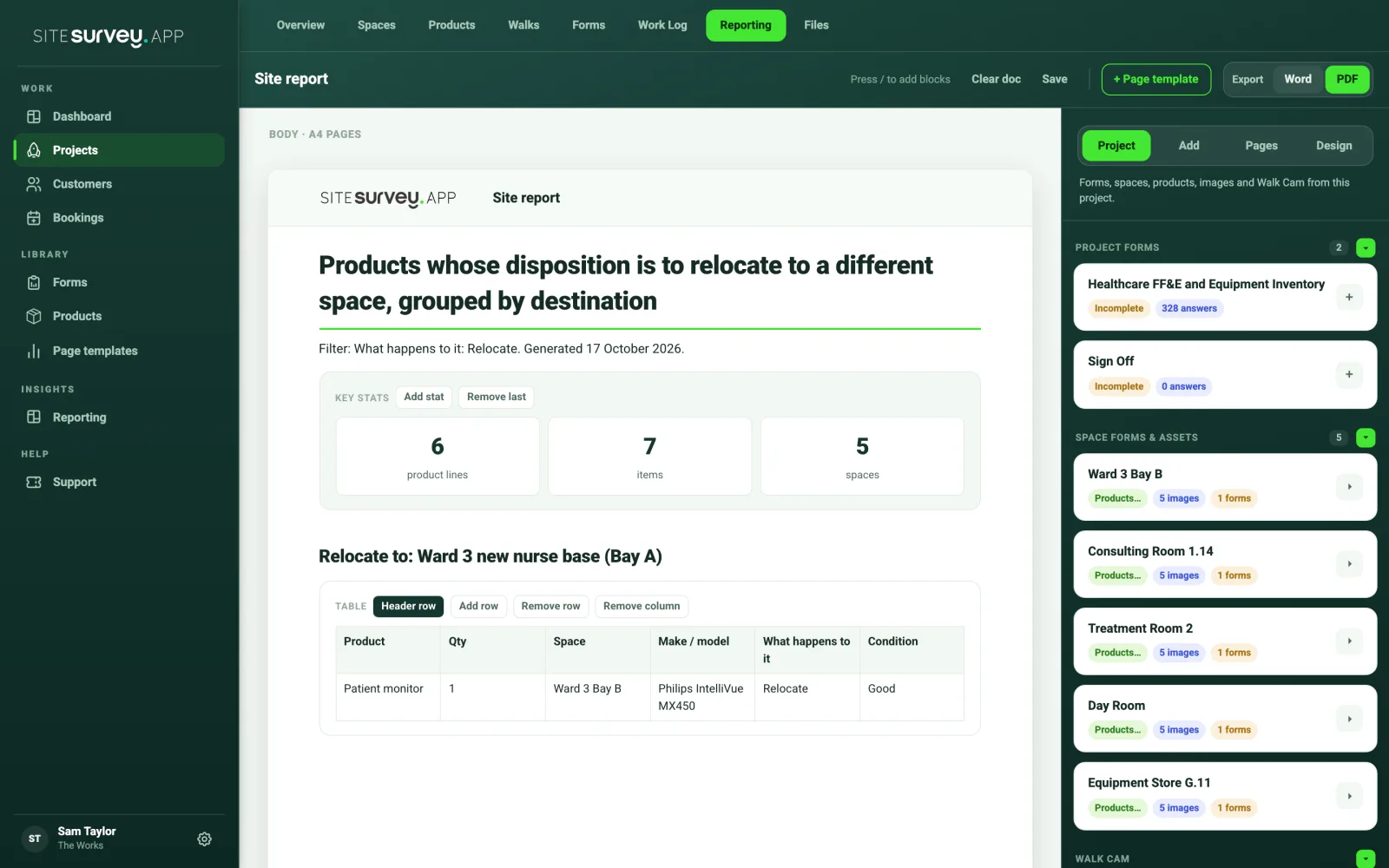
When the results show what you need, select Send to report. SiteSurvey adds a new section to the end of the project report and opens the Reporting tab. The section has a heading, a line saying which filter was used and when, a summary of products, items and spaces, then a table and the photos for each group. The table columns are the details most often recorded for those products.
- 07
Edit and export the report as usual
The new section is ordinary report content: change the wording, remove columns or rows, move it up or down, then export to PDF or Word. Send more filters to build up the report; each one is added after the last, on a new page.
- 08
Clear the filter
Select Clear to go back to the normal Spaces view with every space showing.
Good to know
- ✓The filter can only find what was recorded. Forms that capture condition, what happens to each item and where it is going give the most useful results.
- ✓A section in the report is a snapshot. If answers change on site later, send the filter to the report again and remove the old section.
- ✓Typed questions work best when they use the words on your form, for example relocate, dispose, condition or serial number.
Was this guide helpful?
Your feedback helps us improve support content.