Capability 01
A verdict for every point
Pass, fail or cannot assess, with a confidence level and a two-sentence summary of what it saw. Pass needs clear evidence for every check on the point.
AI inspector for Walk Cam
Record each point of a guided Walk Cam. A few seconds later the AI suggests pass, fail or cannot assess, with the defect boxed on a still from your clip. You confirm every point before it reaches the report. It is coming in the next SiteSurvey app update, in early access.
Trial from £1 · full access · cancel any time
In SiteSurvey, a Walk Cam field on a form can carry an inspector brief: a role, a standard, guidance and checks for each point. When you film a point in a guided walk, the clip is sent to Google Gemini with the brief. Six to ten seconds later the point shows a suggested verdict of pass, fail or cannot assess, each defect boxed on a still from the clip, and a request for a better shot if it could not see enough. You accept, change or dismiss. Only confirmed verdicts and accepted photos go on the form and into the report.
Last updated 23 October 2026.
A second pair of eyes on every point
A guided Walk Cam already takes you through the points in order, one clip each. With the AI inspector on, each clip is checked against the form's brief as soon as you let go of the record button. The point gets a suggested verdict and the evidence behind it. You stay in charge: every verdict is yours to confirm, and only confirmed verdicts and accepted photos go any further.
Capability 01
Pass, fail or cannot assess, with a confidence level and a two-sentence summary of what it saw. Pass needs clear evidence for every check on the point.
Capability 02
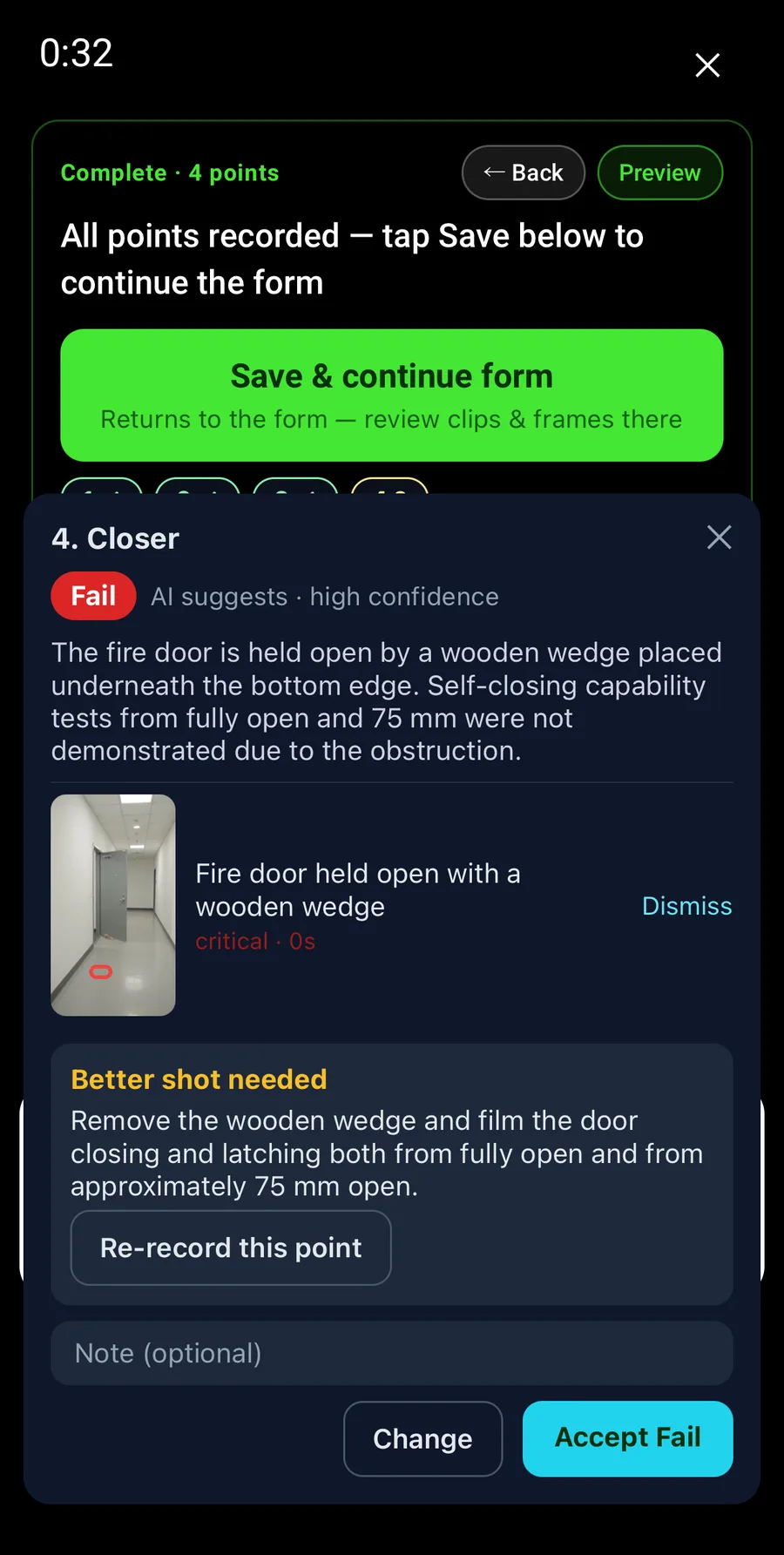
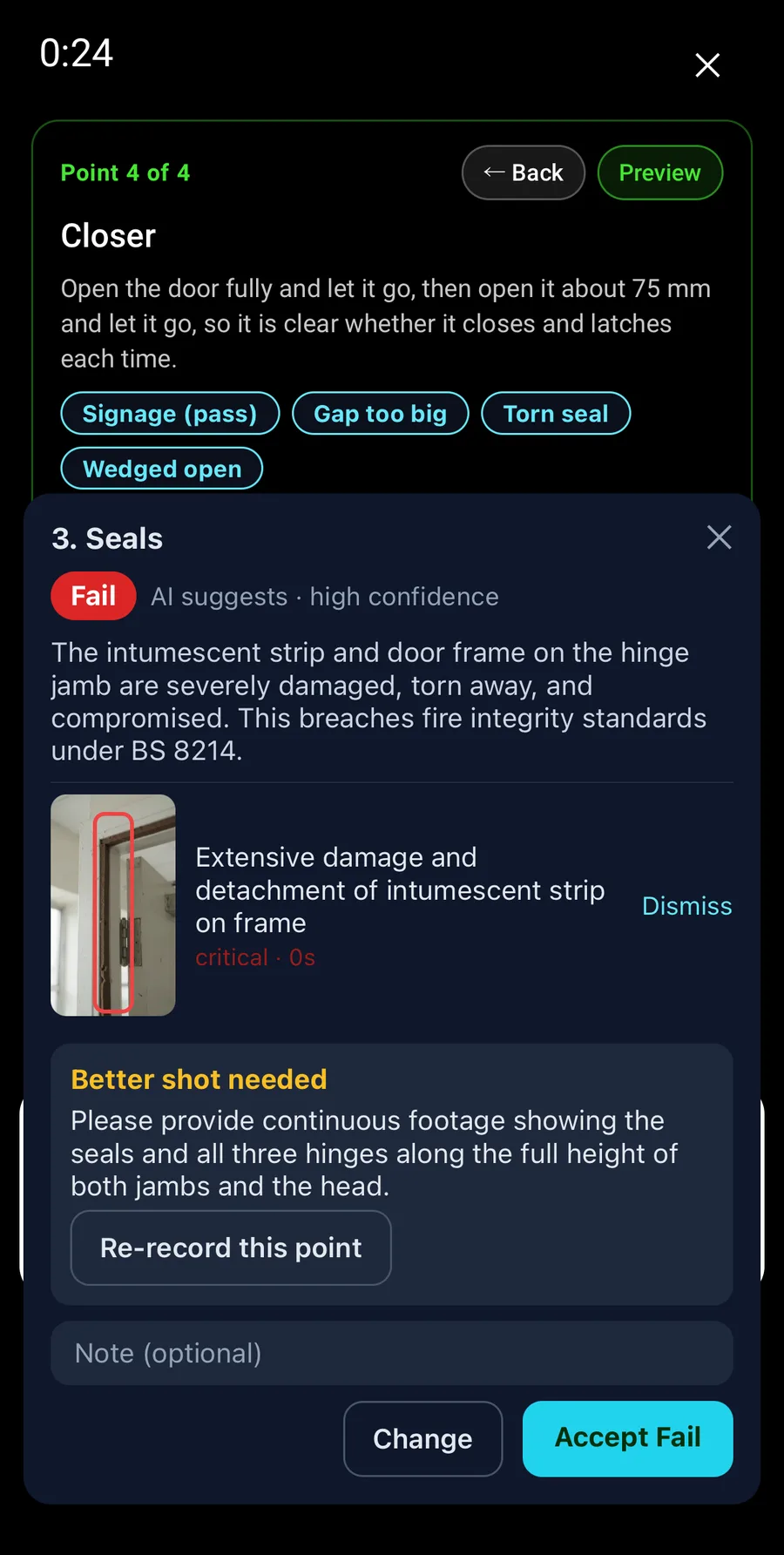
Each finding comes with a frame from your clip and a red box round the problem: the wedge under the door, the torn strip, the missing charger. Accept it and the boxed still is saved as a photo.
Capability 03
When the clip does not show enough it says exactly what to film: hold the gauge in the head gap for three seconds, or remove the wedge and film the door closing. Tap Re-record this point and film it.
Capability 04
Accept the verdict, change it to the one you would give, dismiss a finding you disagree with and add a note. The report names the inspector who confirmed, not the model.
Capability 05
Each Walk Cam field carries its own inspector brief: the role, the standard, house guidance, the three verdict rules and the checks for every point. The fire door library form ships with one. Write your own in the form builder.
Capability 06
With no signal the point is marked AI pending and the walk carries on. The server assesses the clips after the walk syncs and the form shows them for review next time it opens.
On the phone
Here it is on the library Fire Door Inspection form. Four Walk Cam points, 18 checks, one real door with a wedge under it and a torn strip on the hinge jamb.
Step 01
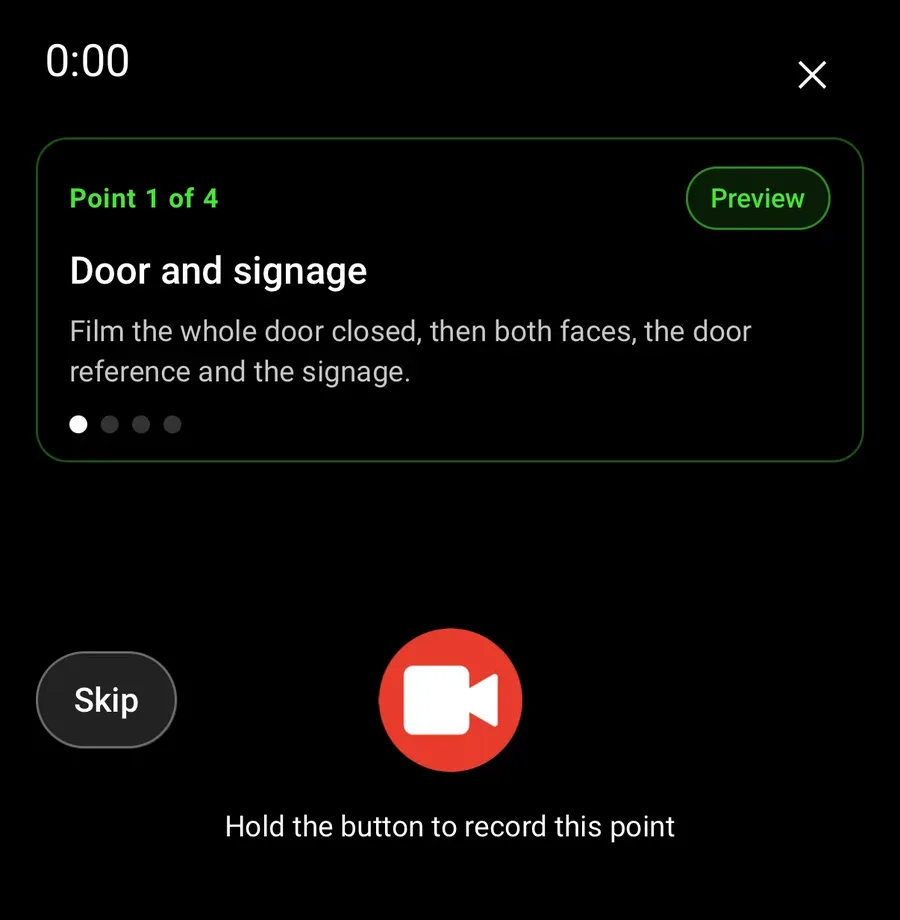
Hold record, film what the prompt asks for, let go. The clip uploads while you move to the next point.
Step 02
A suggested verdict, a summary and the wedge boxed on a still from the clip. It asks for the door to be filmed closing without the wedge.
Step 03
Accept Fail, or Change to the verdict you would give. Dismiss a finding you disagree with. Add a note. Re-record if it asks for more.
Step 04
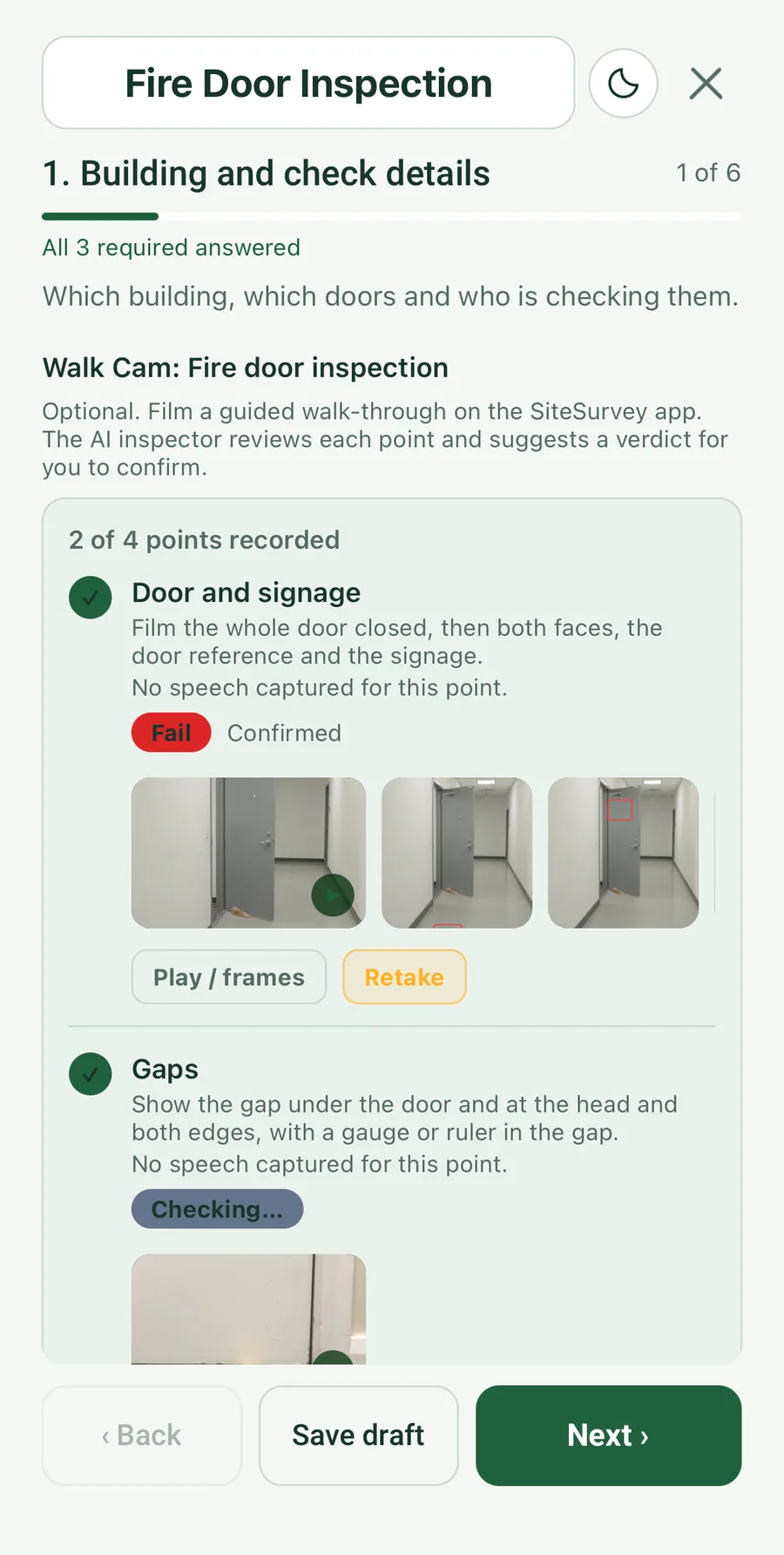
Each point shows its confirmed verdict and the boxed stills. A point still being checked says Checking. A skipped one says Review AI findings.
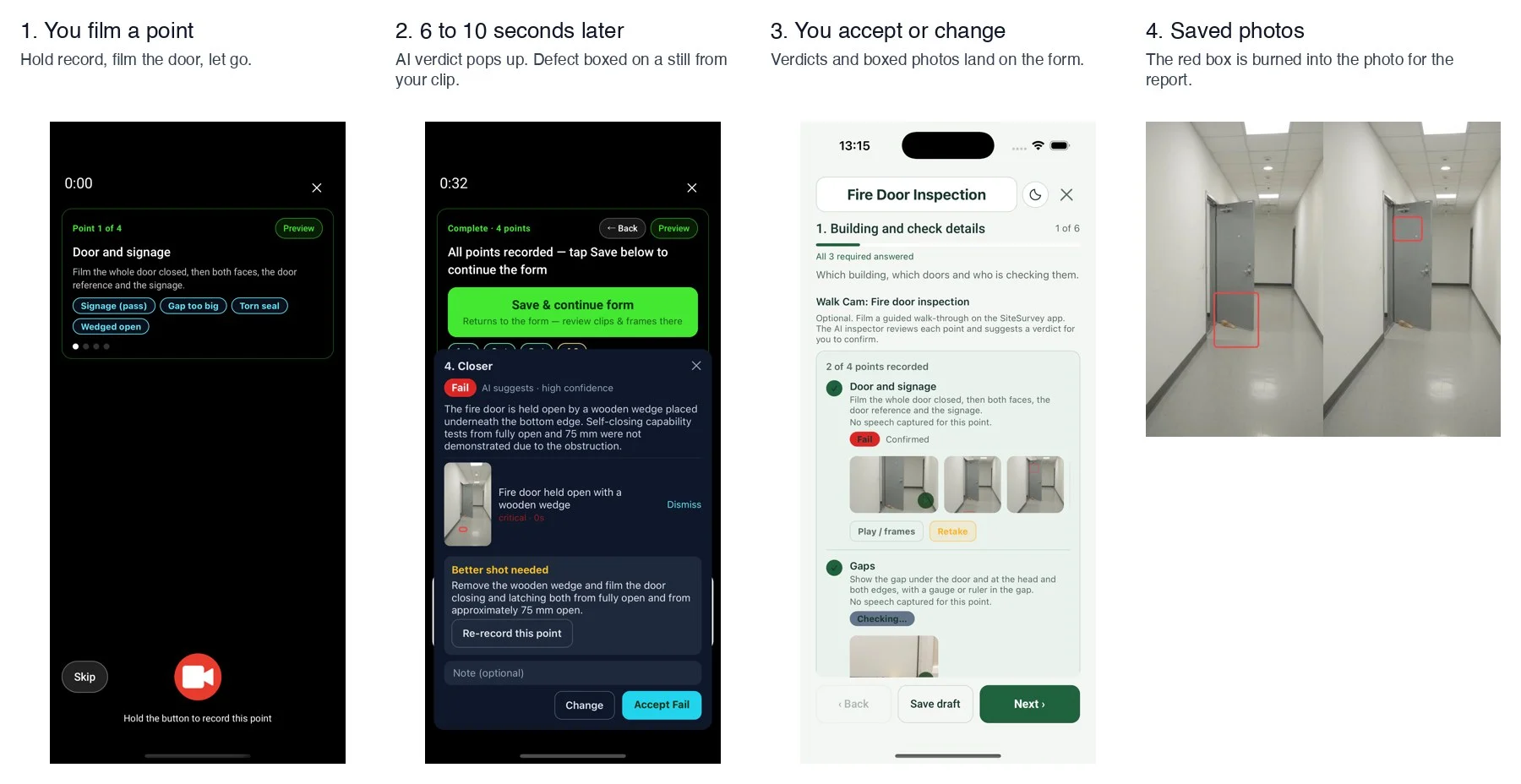
Office and field, connected
Confirmed verdicts sit on the Walk Cam card with the accepted stills, the red box burned into each photo. Save the form and the report prints the verdict for every point, the accepted findings with their photos, and the line AI-assisted inspection, verdicts confirmed by the inspector. A point you did not confirm prints as not yet confirmed and nothing else.
✓Film a point, get a verdict in 6 to 10 seconds, confirm it
✓Accepted boxed stills are saved as photos on the form
✓The report shows confirmed verdicts only, with the inspector's name
What it will not do
The AI suggests. The inspector decides. The report names the inspector who confirmed each verdict, not the model.
A skipped point stays marked Review AI findings on the form. The report prints it as not yet confirmed and nothing else.
Out of shot, too dark, too blurry or no gauge in the gap all come back as cannot assess, with a sentence saying what shot would settle it.
It reads a gauge or ruler on camera. It never estimates a gap, a length or a distance by eye.
Speed, cost and privacy
The AI inspector is new. We tested it on real fire doors in October 2026 and it caught a wedged door, a torn strip and a missing charger. It also said cannot assess when a shot was too short, which is what we want. We are rolling it out company by company and reading every result.
Step by step for inspectors and form builders: Use the AI inspector on a Walk Cam. The form it ships with: Fire door inspection checklist.
It is an assistant that watches each clip of a guided Walk Cam and suggests a verdict. You film a point and let go. Six to ten seconds later the point shows pass, fail or cannot assess, a short summary, and each defect it found boxed on a still from your clip. You confirm or change the verdict. Nothing reaches the form or the report until you do.
No. The AI suggests. The inspector decides. Every point has Accept and Change buttons, and every finding has Dismiss. The report prints the confirmed verdict and the line AI-assisted inspection, verdicts confirmed by the inspector. The AI is not the competent person and SiteSurvey does not present it as one.
Pass means every check for the point is met with clear evidence in the clip. Fail means a check is clearly not met, for example a wedge under the door or a torn intumescent strip. Cannot assess means the clip does not show enough to judge: the element is out of shot, the footage is too dark or blurry, or a measurement is needed and no gauge is visible. The AI is told to say cannot assess rather than guess.
A brief is the set of instructions on a Walk Cam form field. It has a role, such as an experienced UK fire door inspector, the standard to inspect against, house guidance such as never state a measurement you cannot see, the rules for pass, fail and cannot assess, and a list of checks for each point. The AI reads the brief, the point and the clip, and nothing else.
The Fire Door Inspection form in the form library ships with one: four Walk Cam points and 18 checks covering the door and signage, the gaps, the seals and hinges, and the closer. For any other form, open the Walk Cam field in the form builder, switch on AI inspector and write the brief and checks yourself.
Only when a gauge or ruler is in the gap on camera. The fire door brief tells the AI to read the gauge and state the number it sees, or to return cannot assess and ask for the gauge shot. It never estimates a gap by eye.
The point is marked AI pending and the walk carries on as normal. Nothing is assessed on the phone. When the walk syncs, the server assesses the clips that were missed and the form shows the findings for you to review the next time it opens. They stay unconfirmed until you confirm them.
Each clip is sent to Google Gemini for assessment, together with the brief and the point. The clips are not used to train Google's models. The first guided walk with a brief shows a one-off notice in the app saying this. Clips are also stored in your SiteSurvey project as every Walk Cam clip is today.
About six to ten seconds from letting go of the record button to the verdict appearing. You can move on to the next point while it checks. The AI inspector is included in the SiteSurvey subscription. There is no per-clip charge.
It is coming in the next SiteSurvey app update, in early access. It is switched on per company while we gather results from the first inspections, so ask support if you would like it on your account.
See it on your next site