Capability 01
One plan per floor
Each floor that has spaces gets its own tab and its own plan. Spaces with no floor share a plan of their own. Upload a PNG or JPG up to 40MB; replace it with a new revision and the pins stay where they were.
Space map
Upload the floor plan and pin every project space to the place it sits. Click a pin to open the space, with its forms, photos, products and status, from the web dashboard.
Trial from £1 · full access · cancel any time
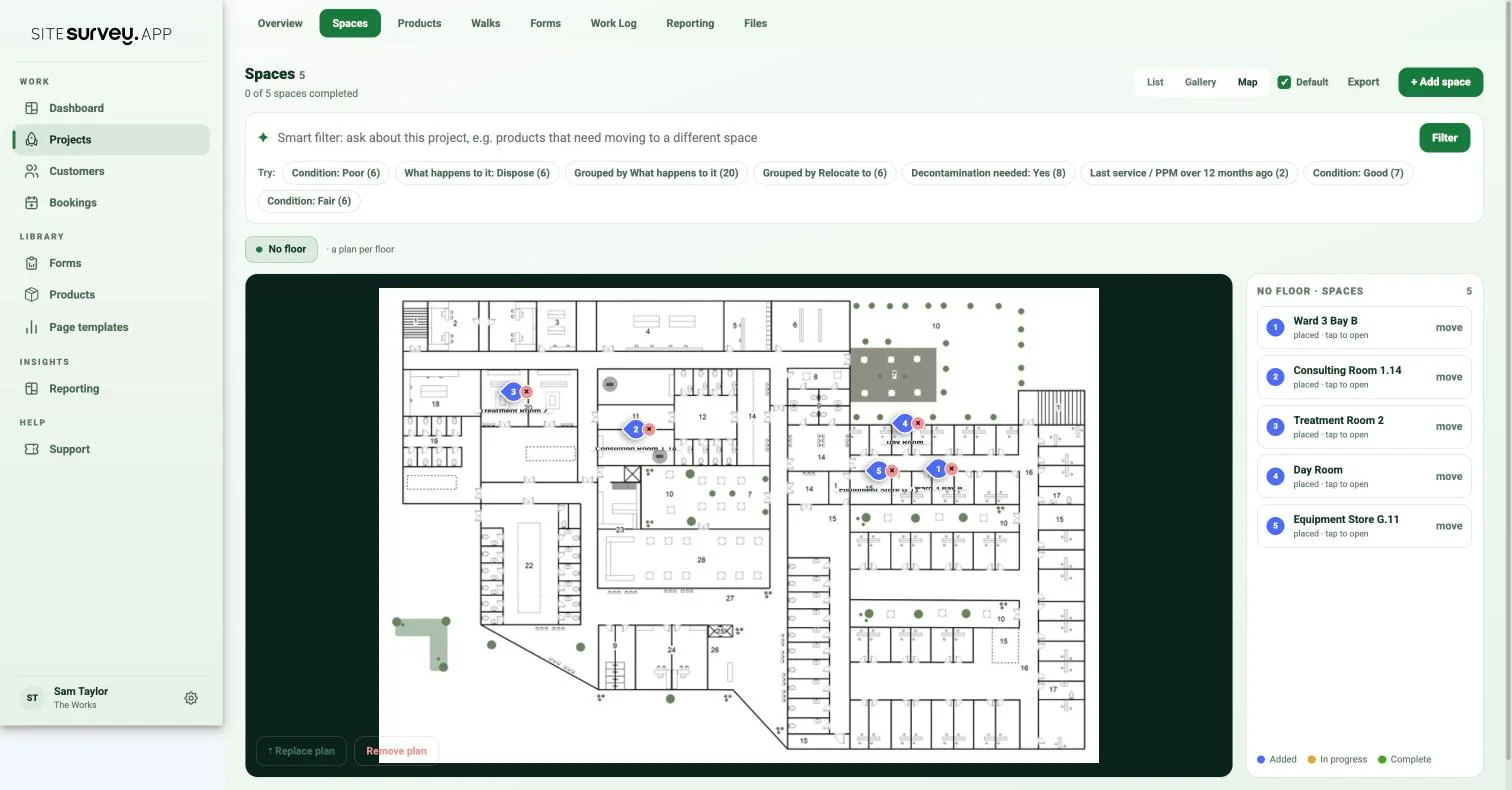
Open a project's Spaces tab on the web dashboard and choose Map. Upload a PNG or JPG plan for the floor, then pick a space from the list and click the plan where it sits. The pin lands on that point, numbered and named, in the colour of the space's status. Click any pin to open the space with its forms, photos, products and sign-off. Each floor has its own plan, and replacing a plan keeps the pins.
Last updated 17 October 2026.
The project, laid out on the drawing
A list of twenty spaces tells you what was surveyed. The same twenty spaces pinned to the plan tell you where, what is next door, which end of the floor is finished and which has not been started. The space map gives the office the view the surveyor had on site.
Capability 01
Each floor that has spaces gets its own tab and its own plan. Spaces with no floor share a plan of their own. Upload a PNG or JPG up to 40MB; replace it with a new revision and the pins stay where they were.
Capability 02
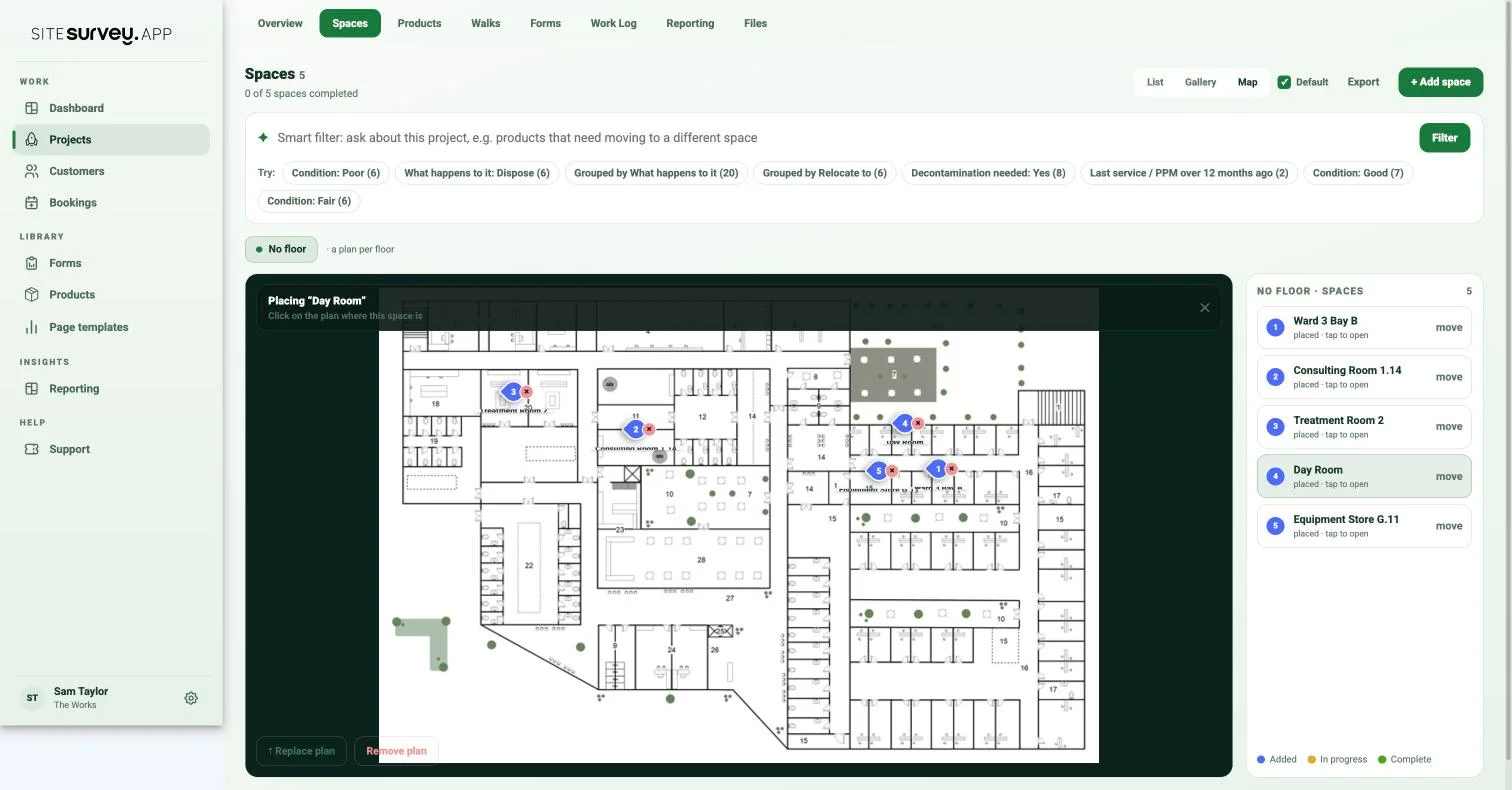
Choose a space, click the plan, and the pin's tip sits on that point. Each pin carries its number and the space name. Move it from the list or remove it from the pin, and the space is free to place again.
Capability 03
Pins take the colour of their space: blue for added, amber for in progress, green for complete. The plan becomes the progress board for the floor, and the list beside it shows which spaces are still to place.
Capability 04
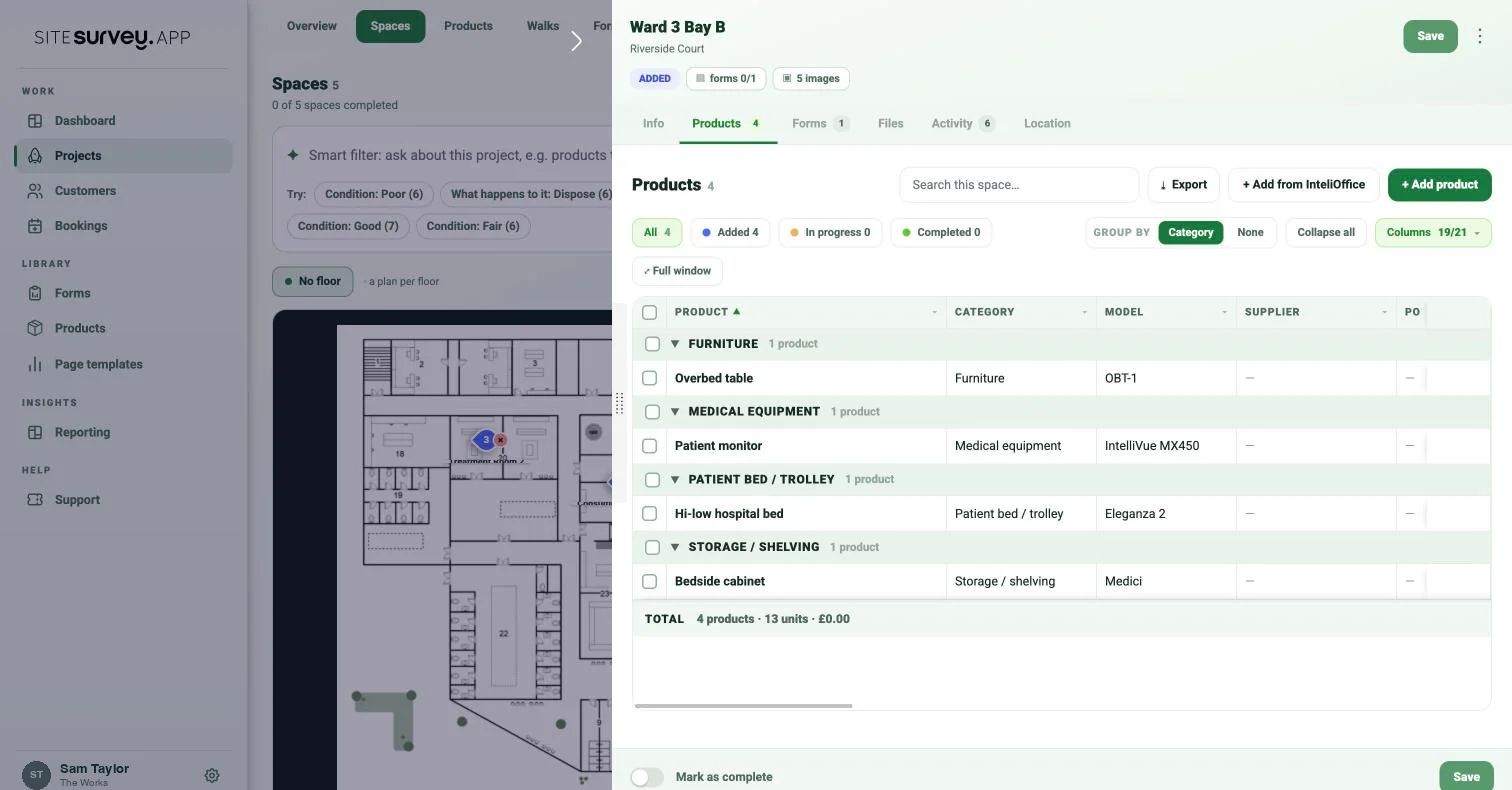
Click a pin or its caption to open the space, with its forms, photos, products and sign-off. Pinned spaces also carry a Pinned badge in the Gallery and List views, and any of the three views can be your default.
Office and field, connected
Choose a space from the list and the plan asks where it is. Click, and the pin lands on that point with its number and name. Spaces still to place stay in the list with a plus beside them, so you can see at a glance what is left. If the plan was captured with the app instead, the same tab shows it with zoom, pan and dimensions.
✓Place, move and remove pins from the list or the pin itself
✓Spaces grouped by floor, each floor with its own plan
✓Switch between an uploaded plan and the plan captured with the app
From the plan to the record
Every pin is a door into the space record. Click one and the space opens beside the plan: its details, the products installed there with make and model, the forms assigned to it, its files and its activity. Mark it complete from the same drawer and the pin turns green.
✓Products, forms, files and activity, one click from the plan
✓Works in light and dark appearance
✓Make Map the default view for the Spaces tab
The space map is the Map view of a project's Spaces tab in the web dashboard. You upload a plan for each floor, then pin every project space to the place it sits on the drawing. Each pin opens the space, with the forms, photos, products and status recorded there, so the project reads as a plan rather than a list.
A PNG or JPG image of the floor plan, up to 40MB. An architect's PDF can be stored, but pins are placed on image plans, so export the page you need as a PNG or JPG first. If you have no drawing, walk the rooms with the mobile app and SiteSurvey draws the plan for you: see the floor plans feature.
Open the Map view, choose the floor, then pick a space in the list on the right and click the plan where that space is. The pin lands on the point you clicked, numbered and captioned with the space name. Use move to reposition it, or remove it from the pin itself.
Yes. Each floor that has spaces gets its own tab and its own plan. Spaces are grouped by the floor they belong to, so the Ground Floor plan only lists ground floor spaces.
The pins stay. Positions are stored as a proportion of the plan, so a new revision of the drawing at a different size keeps every pin where it was. Use Replace plan for a new revision and Remove plan to start again.
The pin takes the status of its space: blue for added, amber for in progress and green for complete. The map doubles as a progress view of the floor.
Pinned spaces show a Pinned badge in the Gallery and List views, and the Map view can be set as the default view for the Spaces tab. Any of the three views can be the default.
They share the same Map tab. The space map is for a drawing you already have: upload it and pin the spaces. The AR floor plan is captured on site with the phone, and every room captured becomes a space on the plan automatically. A floor can show either, and you can switch between an uploaded plan and the app capture.
See it on your next site