Capability 01
Branded labels, ready to print
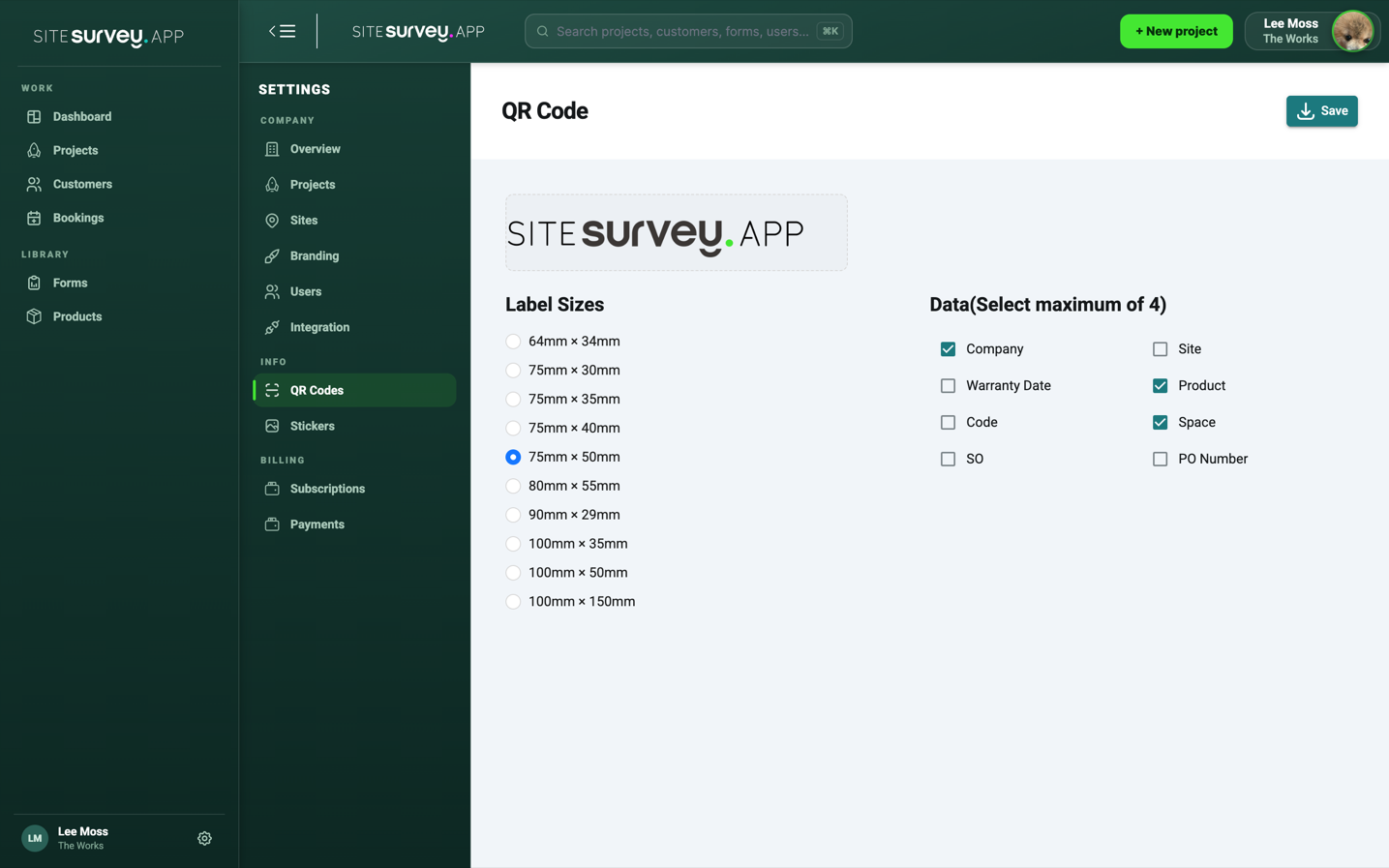
One label per product with your logo, the product name, order references, site and space. Ten PDF sizes from 64 × 34 mm to 100 × 150 mm, or 75 × 50 mm on a Zebra printer.
Product QR codes
Print a branded QR label for every product in the project. On site, one scan opens the product, and a room's worth of scans books every product into the space it was installed in. After handover, your customer's staff scan the same label with a phone camera to report a fault or see what it is.
Trial from £1 · full access · cancel any time
Try it: a live example label

75in interactive display
Example building · Classroom 4
Scan to report a fault or check this item
Scan me with your phone camera
On a computer? Open the example label. It is a live demo, so the answers you send are not kept.
How it works
Step 1
Print a label for each product from the project's Products tab and stick it on. Each label opens that one product.
75in interactive display
Example building · Classroom 4
Scan to report a fault or check this item
Step 2
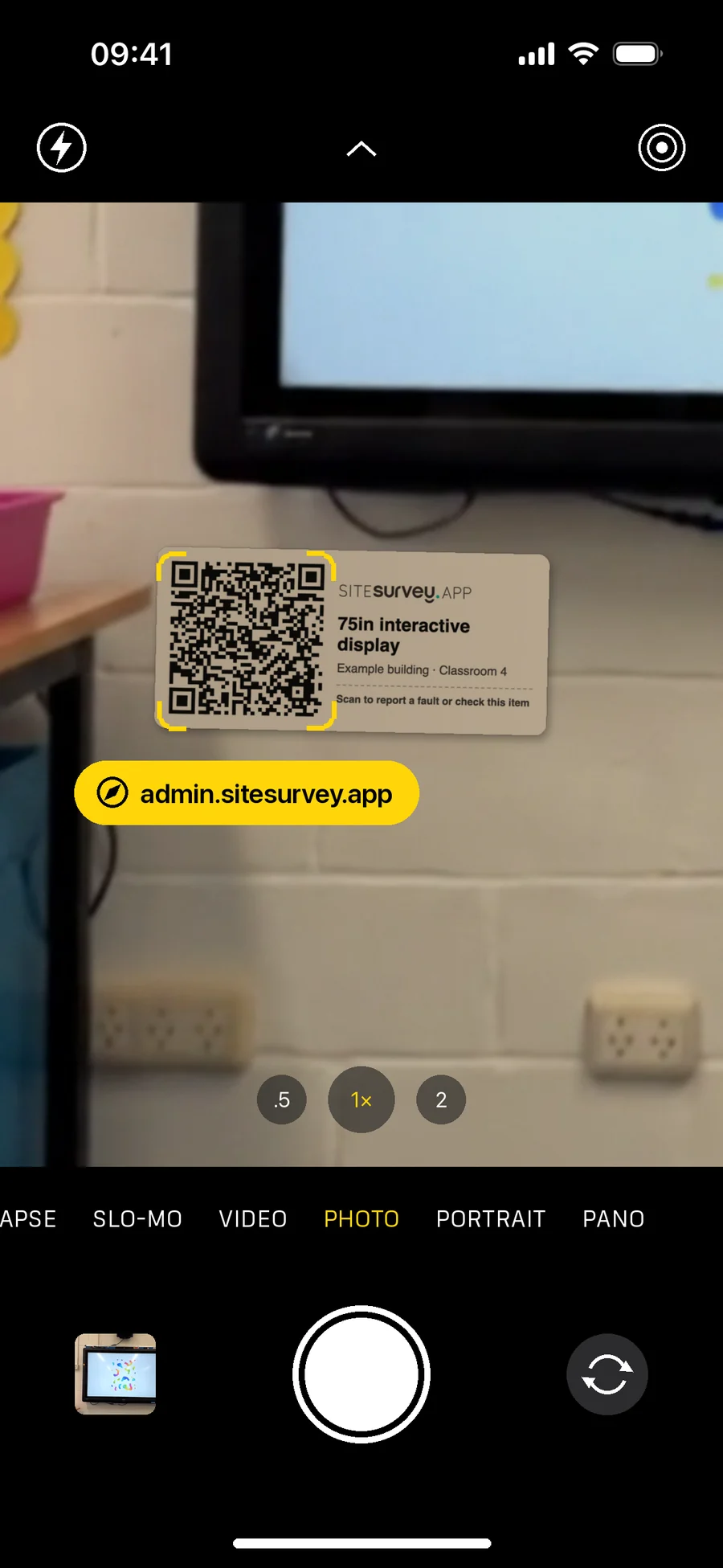
No app and no login. The phone's own camera opens the label's page in the browser.
Step 3
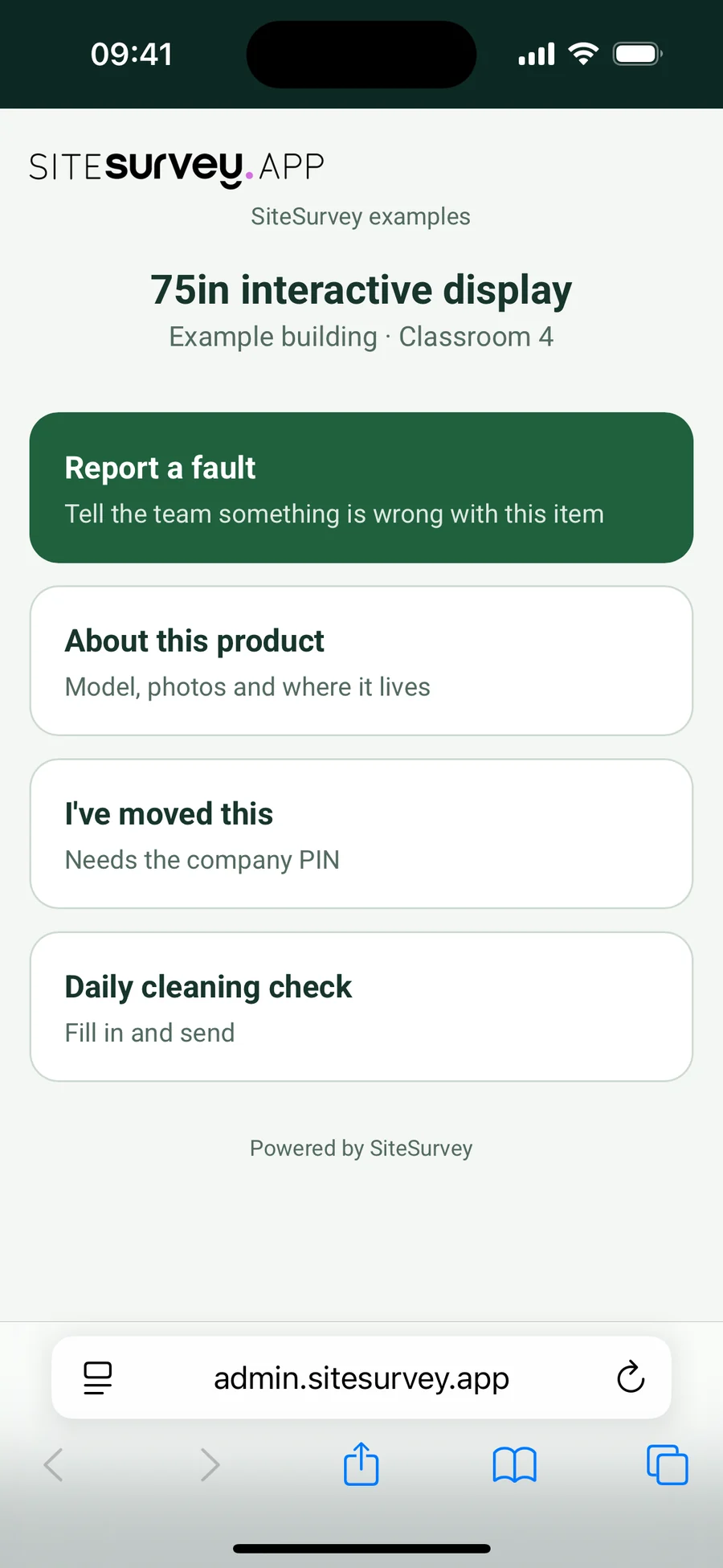
Report a fault, About this product, I've moved this (needs your company PIN) and any forms you add, such as a daily cleaning check.
Step 4
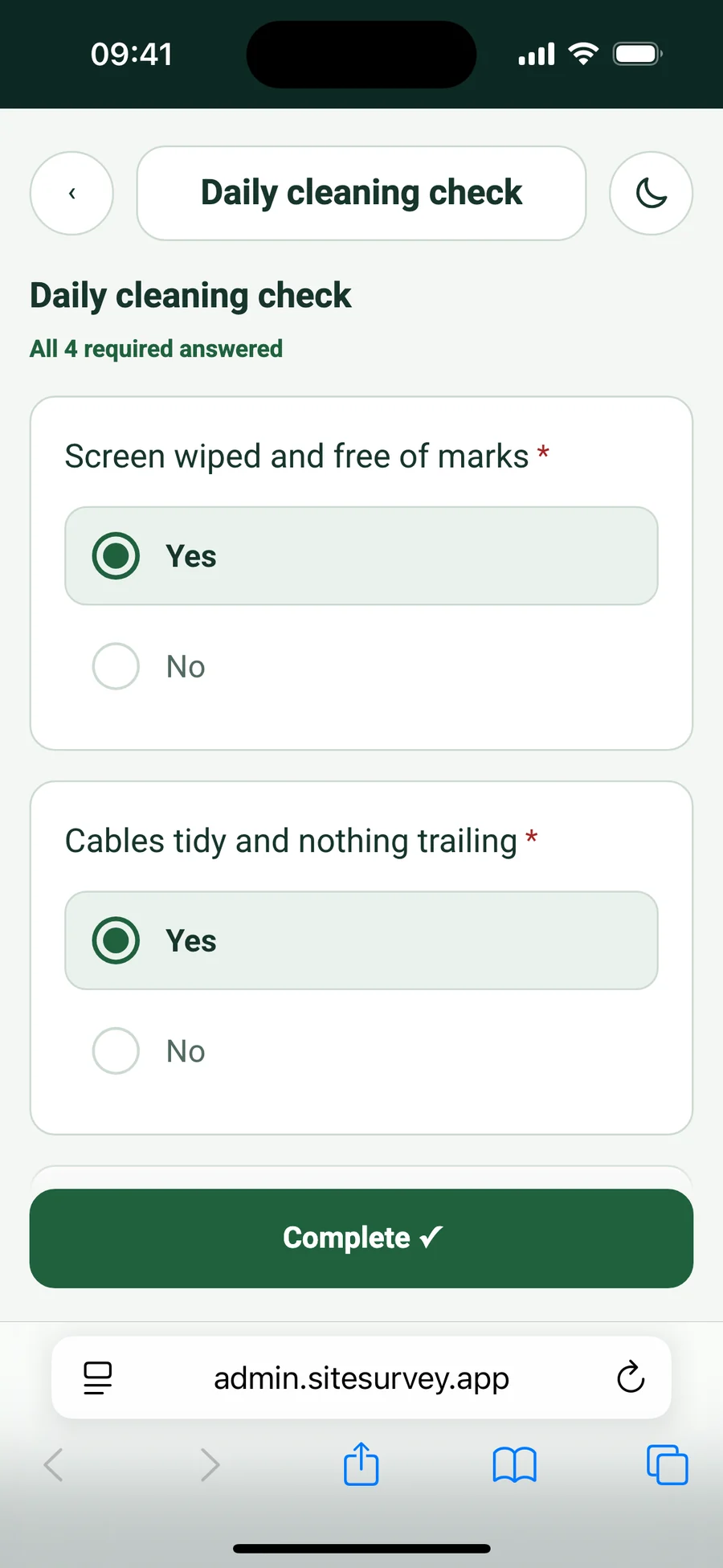
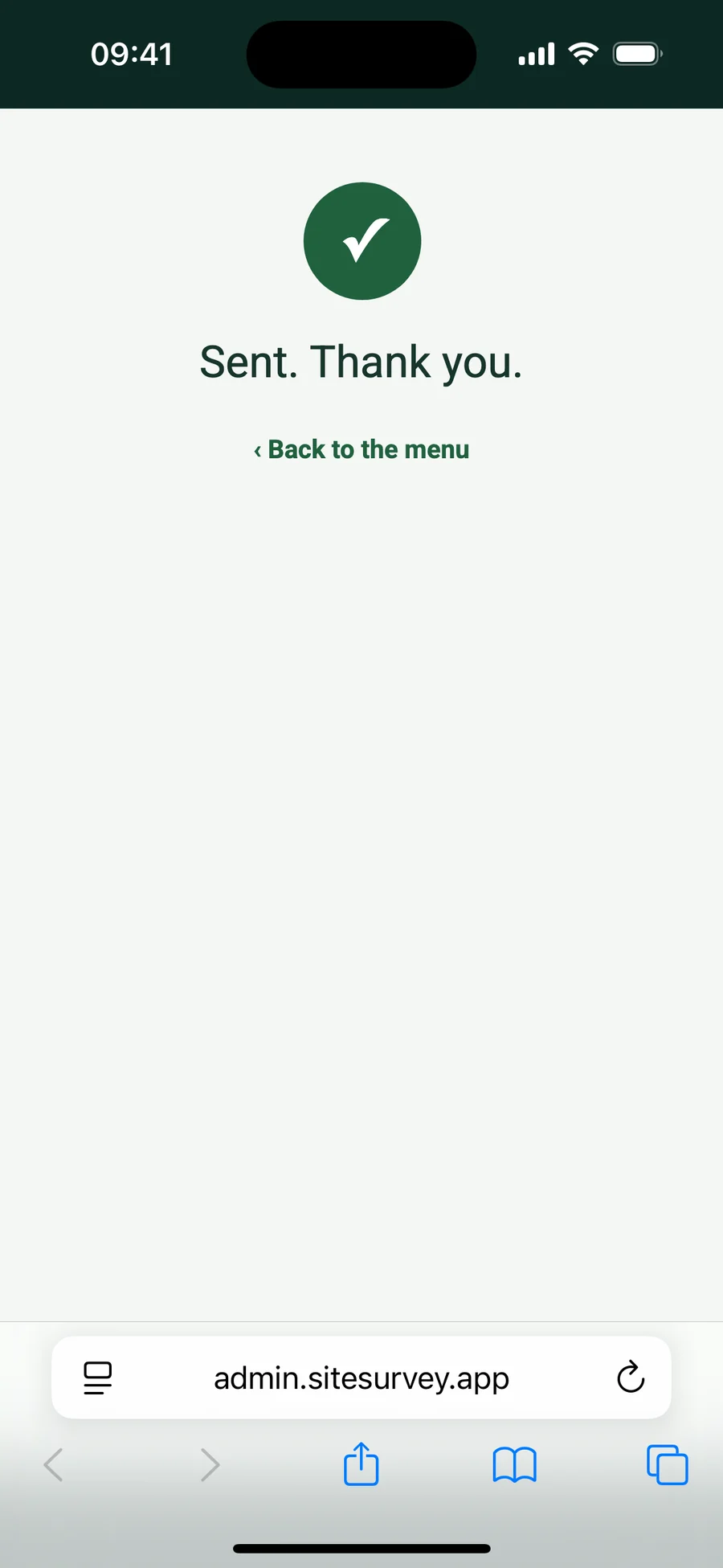
The form already knows the product, site and space. They tap Complete and see Sent. Thank you.
Step 5
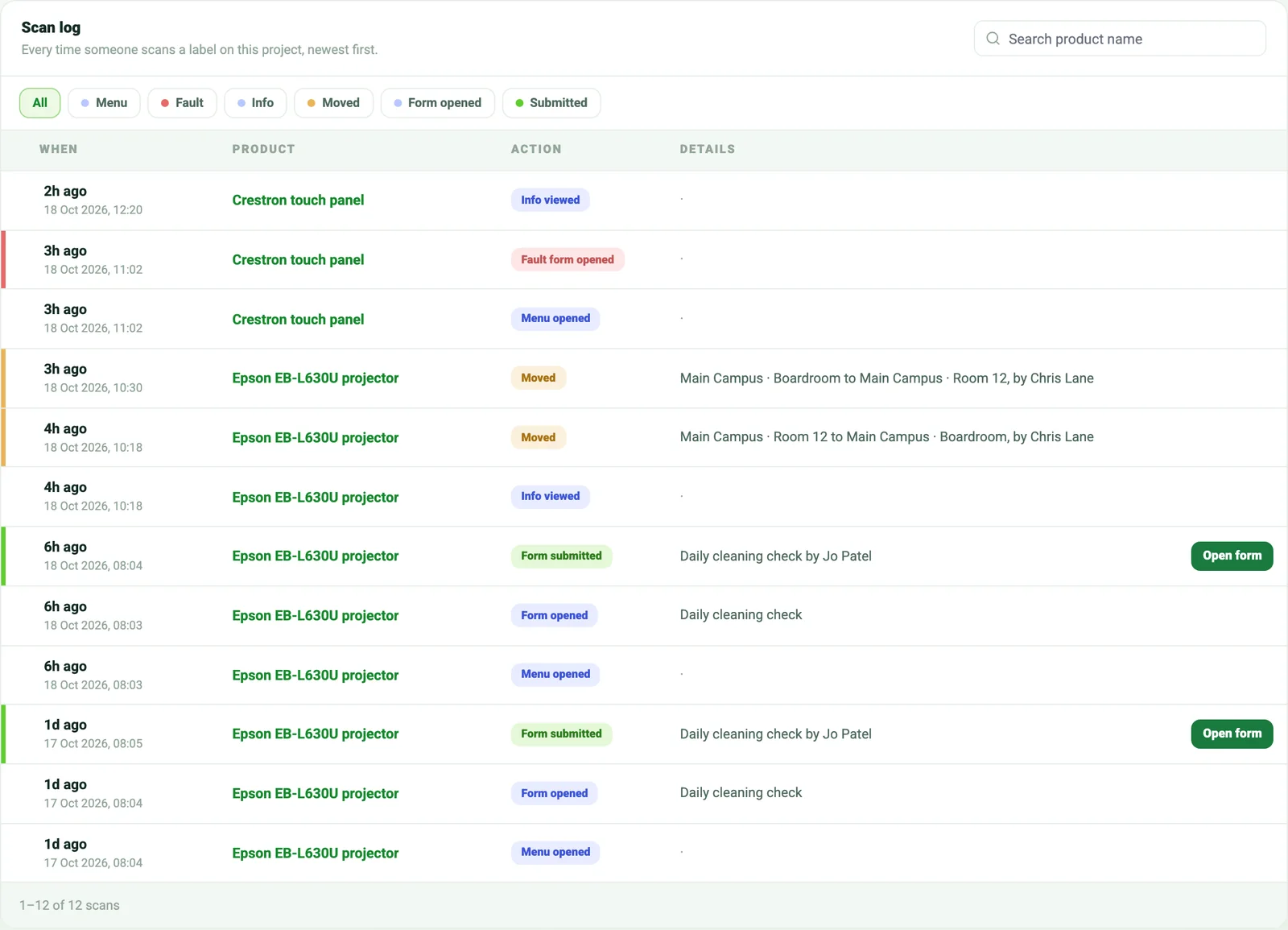
Each submission is saved as its own completed form on the product and shows in the project's scan log. Your support address gets an email, and a fault report also opens a helpdesk ticket.
Step 6
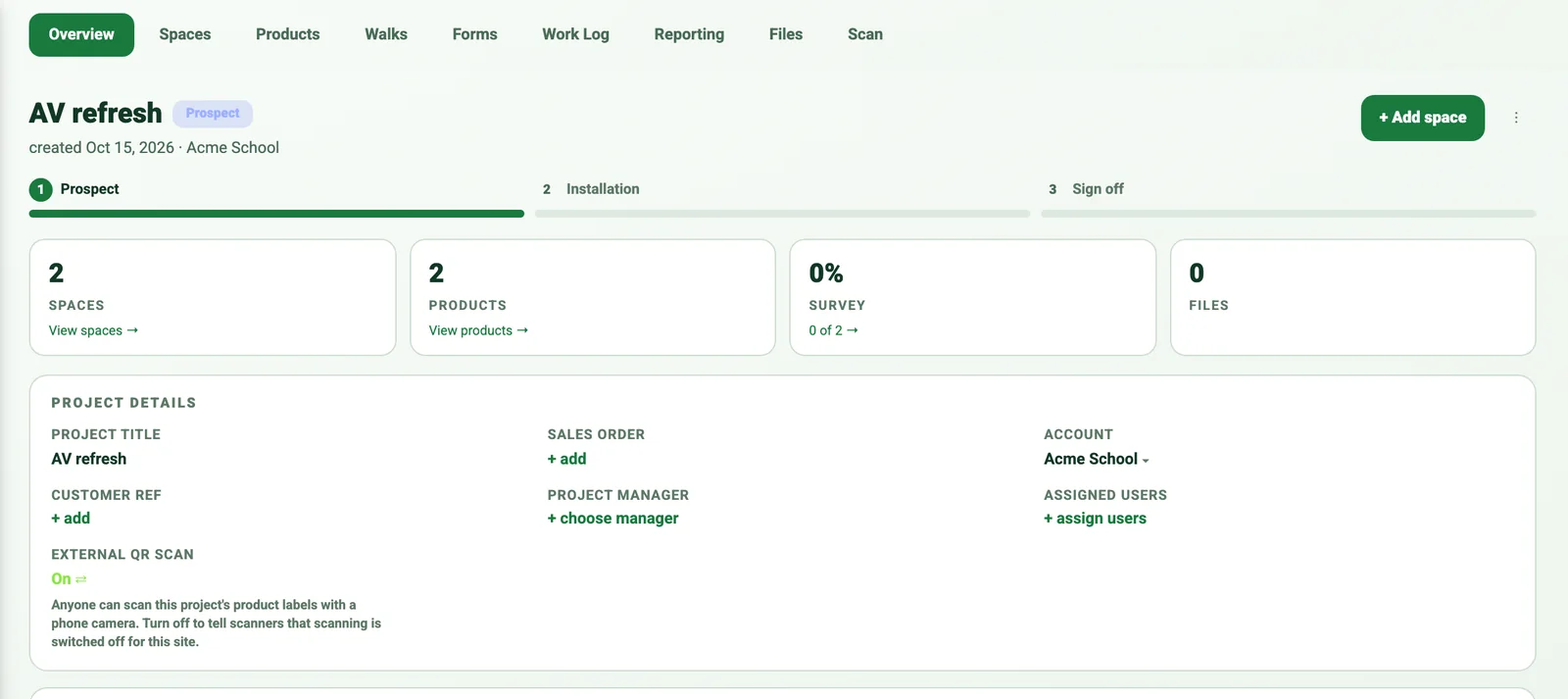
Per project: switch scanning off on the Overview, set each action on or off, pick the fault form and add up to six forms on the Scan tab. Anyone who scans can fill those forms in, so keep sensitive questions off them.
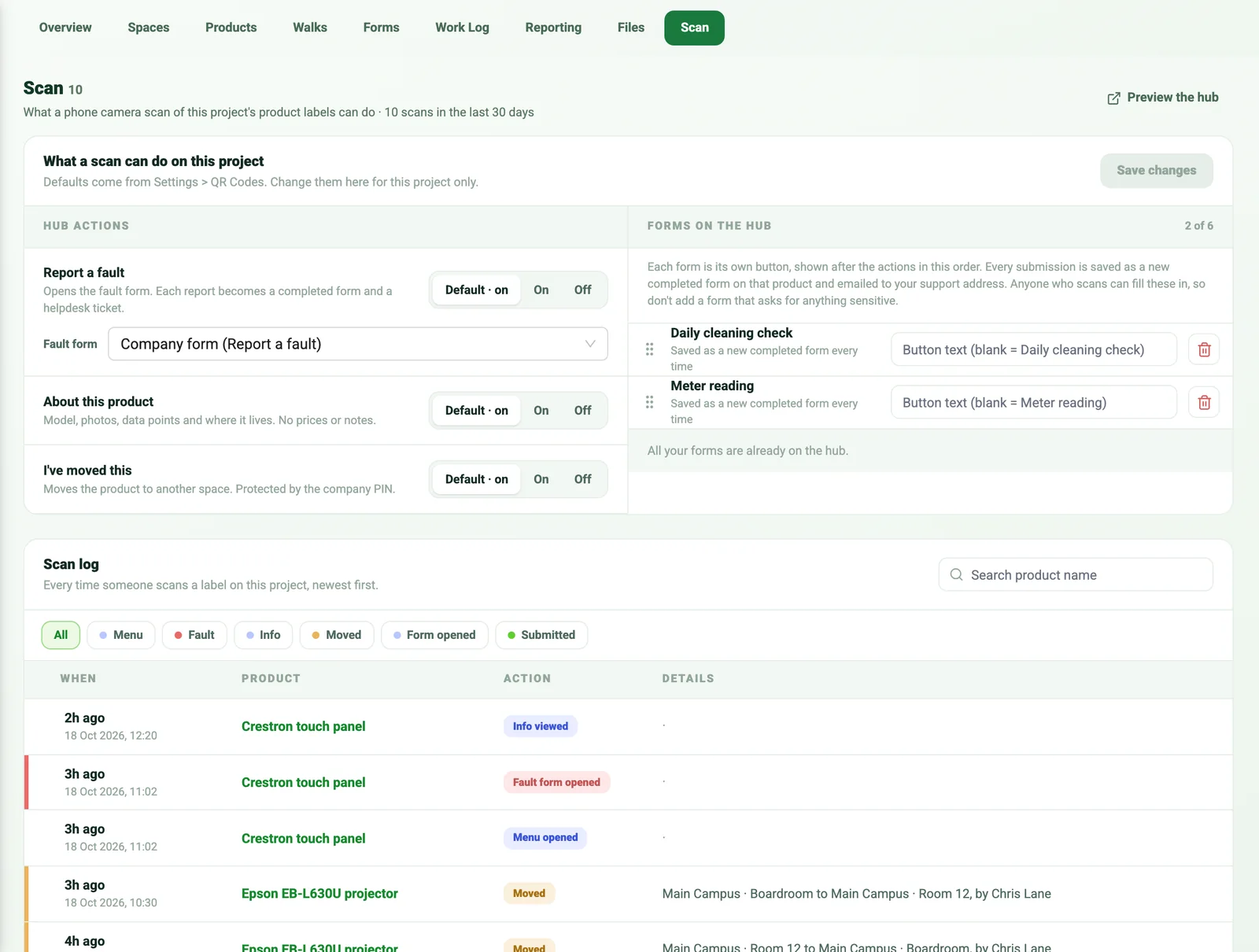
Every setting is explained in the help article What happens when someone scans a product label.
Tick products on the project's Products tab and print their QR labels as a PDF or on a Zebra printer. On site, choose a room in the app and scan the labels: each product is booked into that space. Scanning a label later opens the product record, and scanning the vendor label after it reads MAC, IP and serial numbers into the product. Anyone else who scans the label with a phone camera can report a fault, see the product or, with your PIN, move it, and each project can change those actions, add its own forms and keep a scan log.
Last updated 18 October 2026.
What went where
On a busy install the schedule says one thing and the rooms say another. A QR label on every product, scanned into the room it lands in, means the project's product list matches what is actually on the wall.
Capability 01
One label per product with your logo, the product name, order references, site and space. Ten PDF sizes from 64 × 34 mm to 100 × 150 mm, or 75 × 50 mm on a Zebra printer.
Capability 02
Choose the site and room, then scan label after label. Each one books the product into that space. Duplicates are blocked, the last scan can be undone, and an expected count tells you when you are done.
Capability 03
Scan any label to open that exact product with its model and location, then add data points, photos, notes, a form or its location without searching a list.
Capability 04
After the QR, scan the manufacturer's label: MAC addresses, IP addresses and serial numbers are read into the product's fields, with no typing.
Capability 05
Your customer's staff point a phone camera at the label, with no app or login. They can report a fault (a completed form, a helpdesk ticket and an email to you), see the product's model, photos and data points, or move it to another space with your PIN.
Capability 06
Switch public scanning off for a handed-back site, change the actions or the fault form for one contract, and add up to six forms such as a cleaning check. Each project's Scan tab logs every scan, move and submitted form.
Office and field, connected
Products added to the project carry their order references onto the label. Print them before the install, stick them on as the kit goes in, and scan each room as you finish it. The Products tab then shows every item against its site and space, ready for commissioning, reports and handover.
✓Label logo and size set once, used for every project
✓Rooms scanned in one pass, with an expected count
✓QR and barcode scanning offline in the mobile app
✓Public scan for fault reports, switched per project
A QR label printed for a product in your project. It carries the product's identity, so scanning it with the SiteSurvey app opens that exact product record, with its project, site and space, ready for data, photos and forms.
Open the project's Products tab, tick the products and choose Download QR PDF for a print-ready file with one label per page, or send them straight to an office Zebra label printer. Set your label logo and size once under Settings, QR code.
The QR code, your logo or company name, the product name, sales order, purchase order and customer references, and the site and space the product belongs to, so the label is readable by people as well as phones.
Ten sizes for the PDF, from 64 × 34 mm up to 100 × 150 mm. Labels sent to a Zebra printer print at 75 × 50 mm.
Choose the site and room in the app's scanner, then scan the labels one after another. Each scan books that product into the room. Duplicates are blocked, the last scan can be undone, and you can set how many you expect so you know when the room is complete.
Yes. After scanning a product's QR, scan the manufacturer's label and SiteSurvey reads MAC addresses, IP addresses and serial numbers into the product's fields. See Label Capture for the detail.
Anyone can scan a label with a phone camera, with no app and no login. They see your logo, the product, its site and space, and the actions you have switched on: Report a fault (a completed form, a helpdesk ticket and an email to you), About this product (name, model, photos and data points, never prices, order numbers or notes) and I've moved this, which needs your company PIN. Labels already printed pick up changes with no reprint.
Yes. A switch on the project's Overview turns public scanning off for that site, and scanners are told it is switched off. The project's Scan tab overrides each action, sets its own fault form and adds up to six of your forms as extra buttons, such as a cleaning check or meter reading. Each submission is saved as a completed form on the product and emailed to your support address.
Yes. Each project's Scan tab has a scan log of every scan on its labels, newest first, filtered by action and searchable by product, with moves, who sent each form and a link to open the completed form.
Yes. Scan the example label at the top of this page with your phone camera, or open it on a computer. It is a live demo, so the answers you send are not kept.
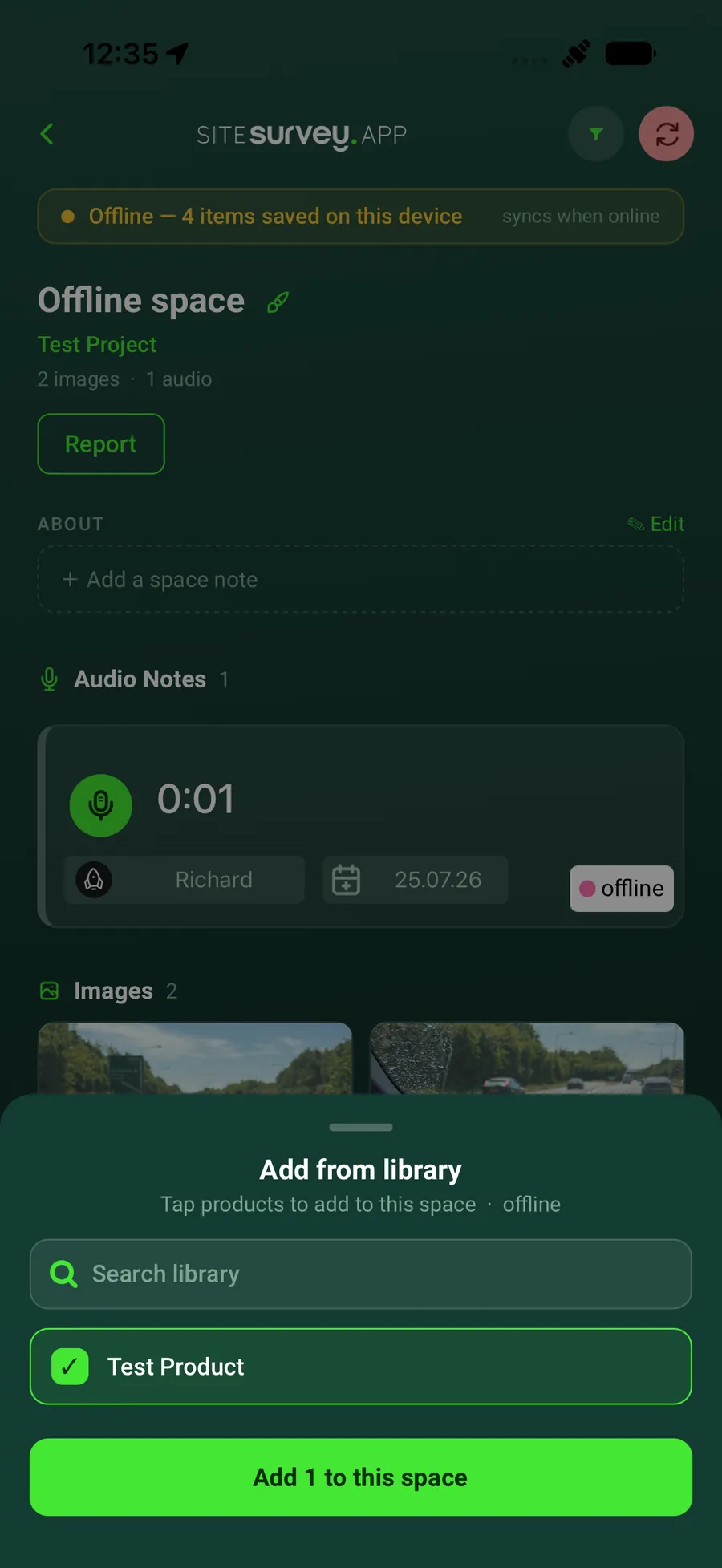
Yes. QR and barcode scanning work in the mobile app without signal, and what you scan syncs to the project when you are back in coverage.
AV, IT, electrical and fit-out installers, commissioning engineers and facilities teams who need to know which product went in which room, and to find its record again in seconds.
See it on your next site